Firewall Settings to Block Hackers: A Comprehensive Guide
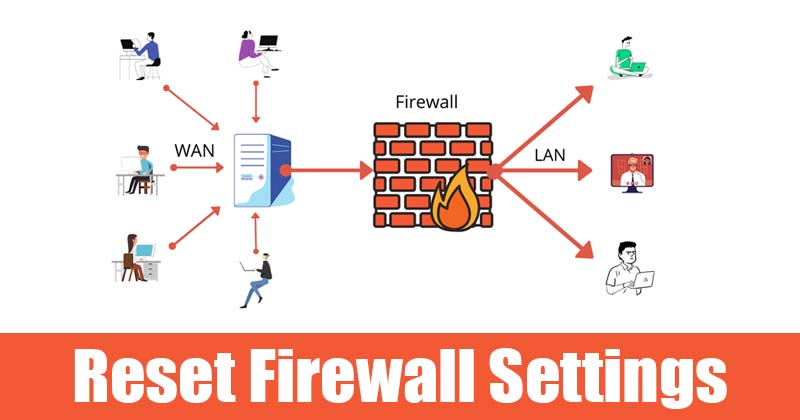
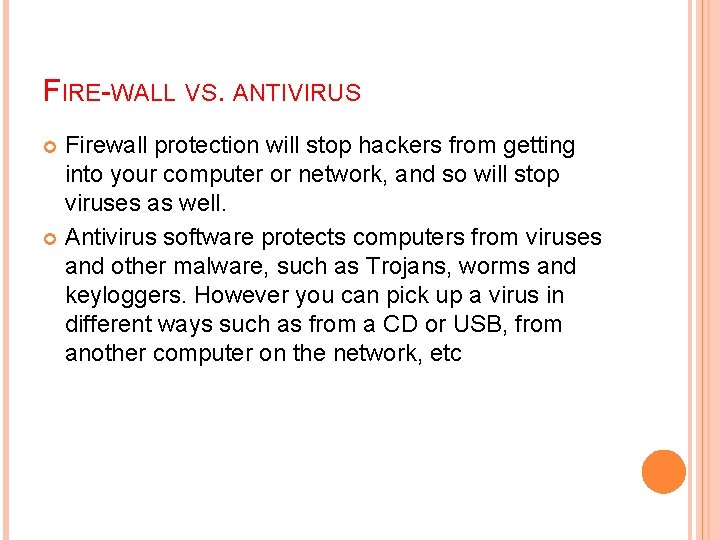
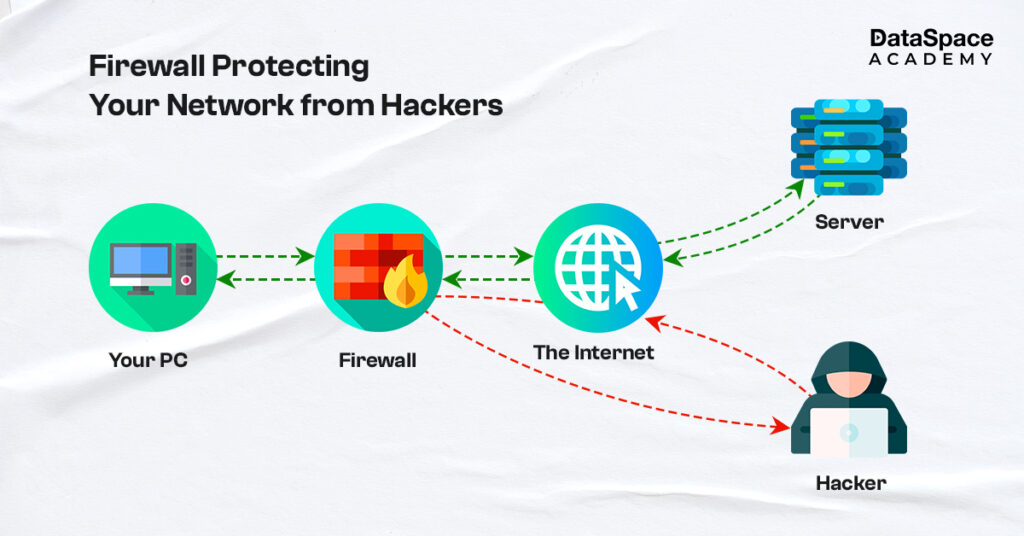
A firewall is a network security system that monitors and controls incoming and outgoing traffic based on predetermined security rules, preventing hackers from accessing your devices and data. In this article, we will explore the importance of firewall settings to block hackers and provide practical tips on how to configure them effectively.
Understanding the Importance of Firewall Settings
A firewall is the first line of defense against cyber threats, and its effectiveness depends on how well it is configured. Misconfigured firewalls can create security loopholes that hackers are quick to exploit. Therefore, it is essential to understand the firewall settings and configure them to suit your needs.
Gathering Information About Potential Threats
Before configuring your firewall, it is crucial to gather information about potential threats and the types of traffic you want to block. This includes understanding the IP addresses, ports, and protocols used by malicious websites, apps, and networks.
Here are some steps to follow:
- Check for suspicious outgoing connections:
- Identify ports and protocols:
- TCP ports 80 and 443 (http and https)
- UDP port 53 (DNS)
- Block IP addresses:
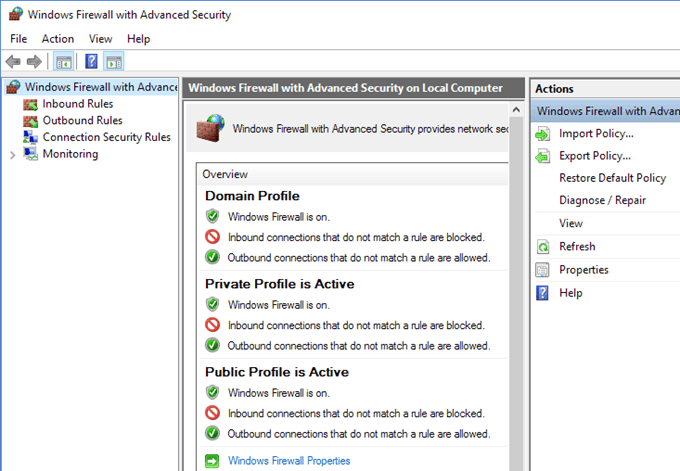
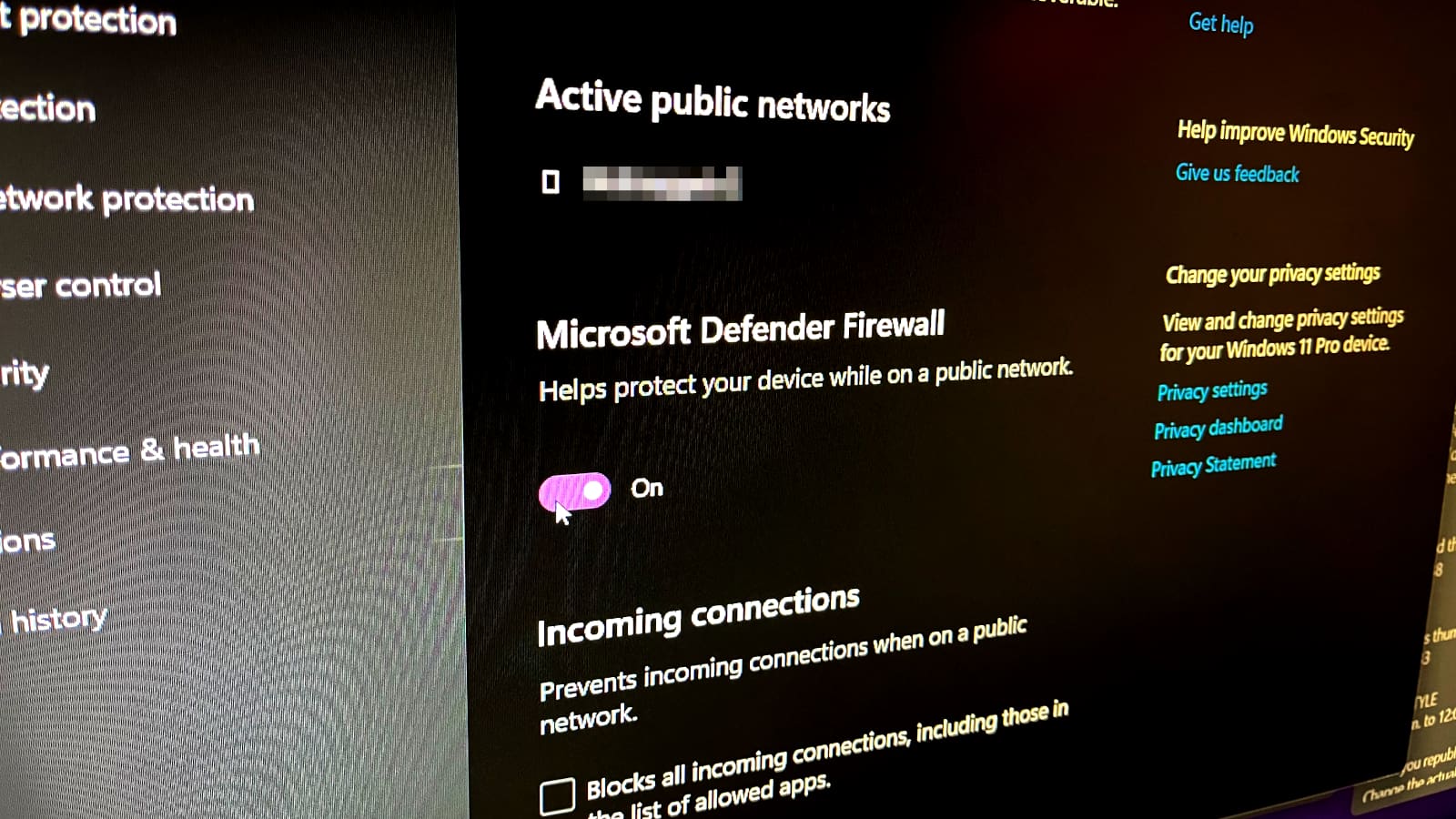
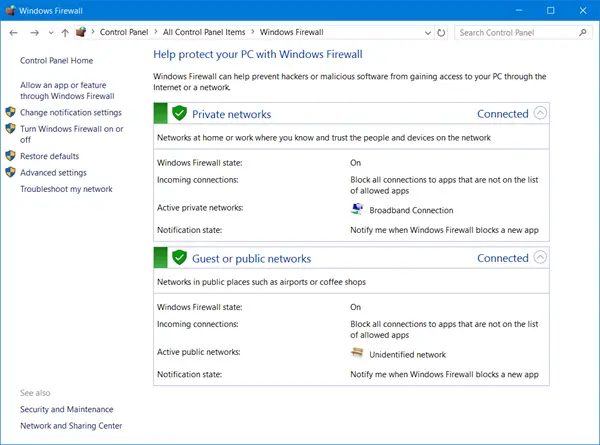
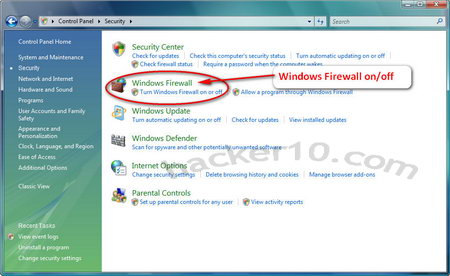
Use the Windows Defender Firewall in Windows 10 or Windows 11 to check for suspicious outgoing connections. This will help you identify potential malware or ransomware activity.
Understand which ports and protocols are commonly used by malicious websites and networks. Common ports include
Block IP addresses known to be associated with malicious activity. You can use tools like ipdeny.org or threatcrowd.org to find IP addresses associated with malware.
Configuring Firewall Settings
Once you have gathered the necessary information, it is time to configure your firewall settings. Here are the steps to follow:
- Enable the firewall:
- Create rules:
- Set up network zones:
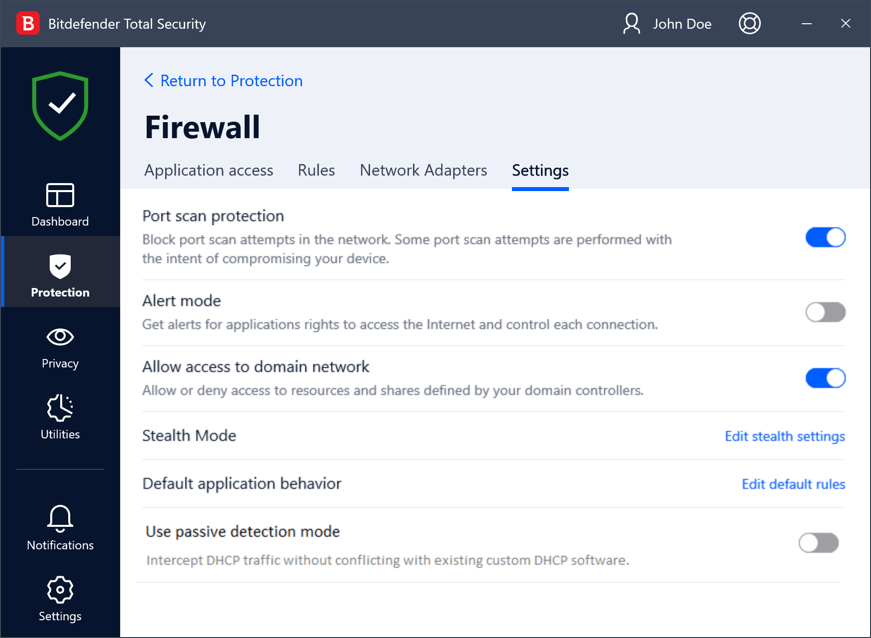
- Use built-in firewall features:
Enable the firewall on your router and all devices connected to it. This will help block unwanted incoming and outgoing traffic.
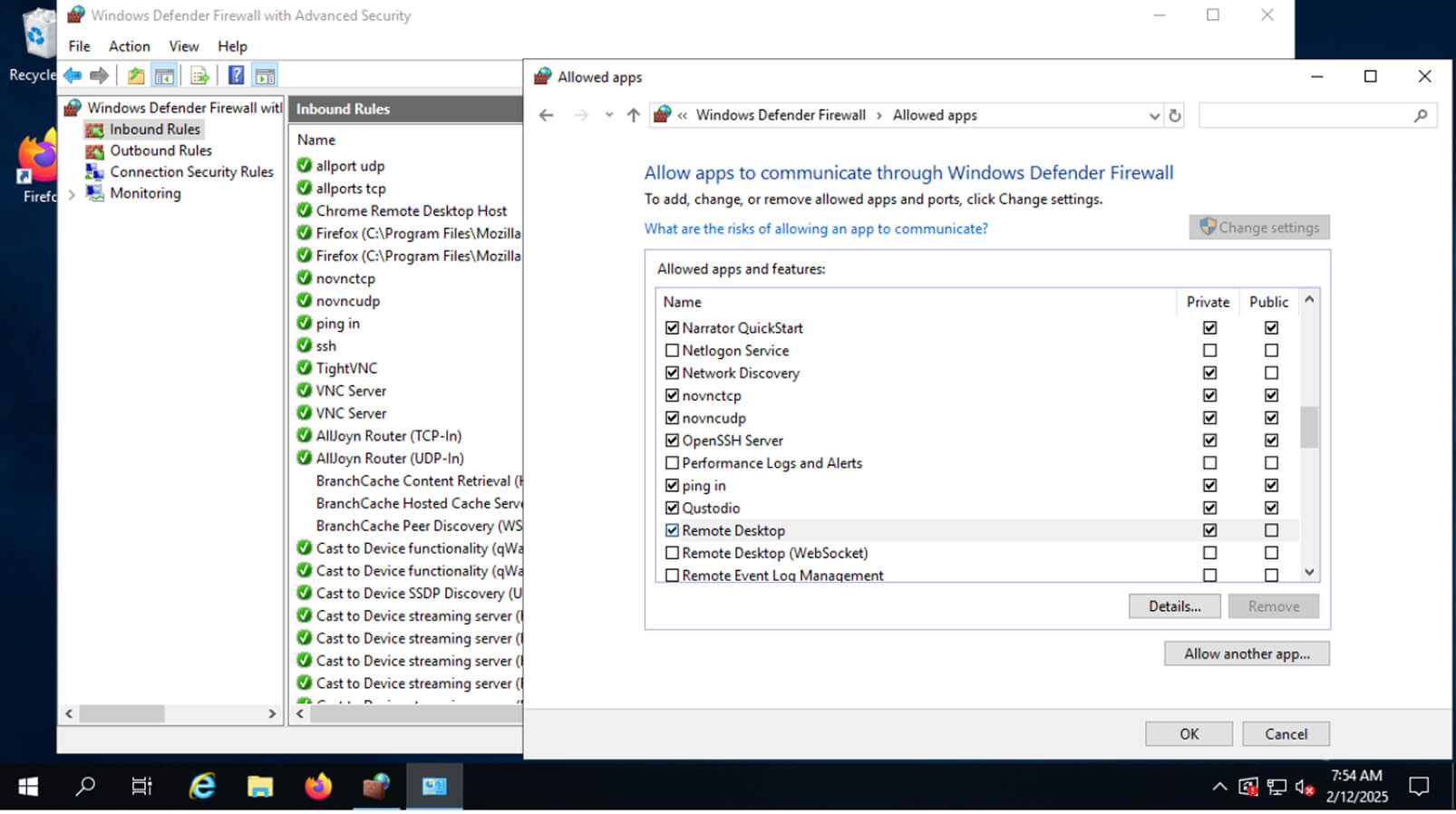
Configure rules to block specific IP addresses, ports, and protocols. You can use the Allow an app through Windows Firewall feature in Windows 10 or Windows 11 to block specific apps.
Set up network zones to categorize devices and services based on their level of trust. This will help determine which traffic to allow or block.
Take advantage of built-in firewall features like intrusion detection and intrusion prevention to block malicious traffic.
Additional Settings to Block Hackers
Here are some additional settings to help block hackers:
- Turn on router's firewall:
- Update your router firmware:
- Use a firewall with logging and alerts:
- Block traffic from unknown regions:
Enable the firewall on your router to block unwanted connections.
Regularly update your router firmware to patch security vulnerabilities.
Use a firewall with logging and alerts to detect potential threats and take action.
Block traffic from regions you don't do business with to prevent malicious activity.
Best Practices for Firewall Configuration
Here are some best practices to follow when configuring your firewall:
- Keep your firewall up to date:
- Monitor your firewall logs:
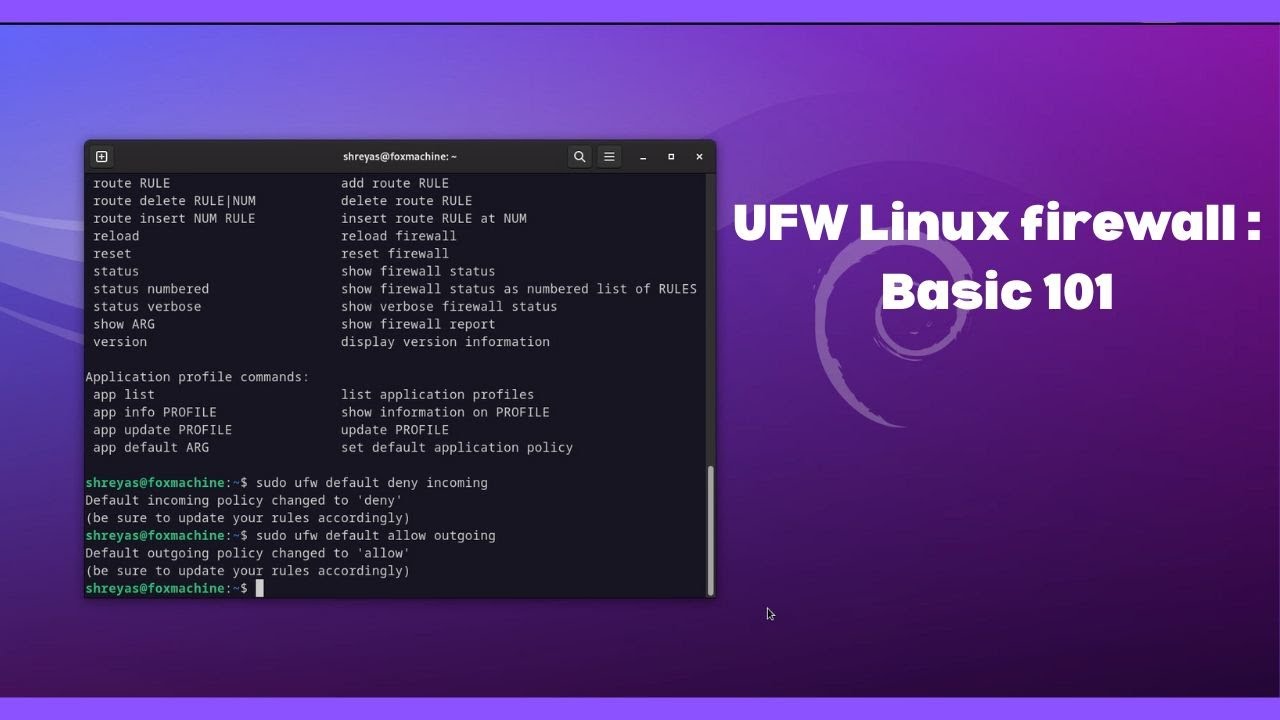
- Block all incoming traffic by default:
- Use a firewall with network address translation (NAT) capabilities:
Regularly update your firewall software to ensure you have the latest security patches.
Regularly monitor your firewall logs to detect potential threats and take action.
Block all incoming traffic by default and only allow specific traffic based on your needs.
Use a firewall with NAT capabilities to hide your internal IP addresses from the internet.
Conclusion
Firewall settings to block hackers are crucial for maintaining network security. By following the steps outlined in this article, you can configure your firewall effectively and protect your devices from potential threats. Remember to stay up to date with the latest security patches and regularly monitor your firewall logs to ensure the integrity of your network.