Discord Server Configuration: A Comprehensive Guide
Discord is a rapidly growing text and voice chat application that has become an essential tool for gamers, study groups, and communities of all kinds. Setting up a Discord server is easy, and with this guide, you'll learn how to create a server that meets your community's unique needs.
Setting Up Your Discord Server
To create a Discord server, you'll need to download the Discord app and follow these steps:
- Download the Discord app and sign up for an account if you haven't already.
- Click on the plus sign (+) in the top-left corner of the Discord home screen to create a new server.
- Choose a server name and region, and select the type of server you want to create (e.g., community, group chat, or event hosting).
- Customize your server's settings, such as the icon, description, and welcome message.
The Importance of Discord Server Configuration
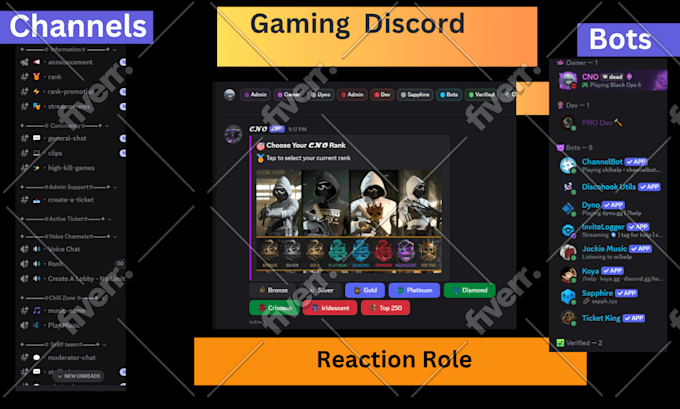
A well-configured Discord server is essential for a smooth and enjoyable user experience. Server configuration involves setting up roles, permissions, channels, and bots that cater to your community's specific needs. A well-configured server ensures that your community can communicate efficiently, access necessary resources, and engages in productive discussions.
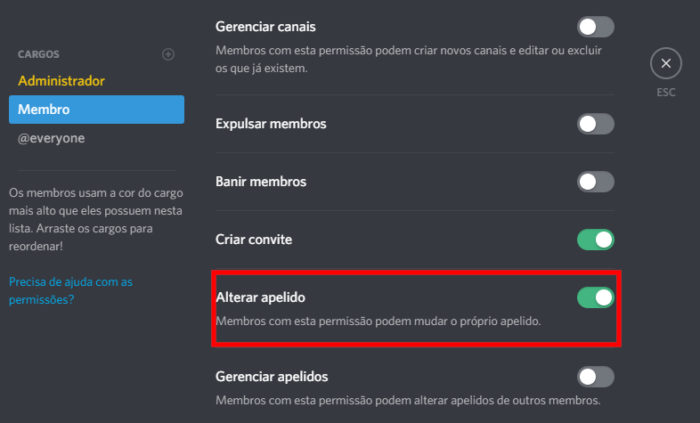
Roles and Permissions
- Go to the "Roles" section in your server settings.
- Click on "Add Role" and assign a specific name, color, and permissions to that role.
- Assign roles to members of your server as necessary to control who can see, talk, or do other actions on the server.
Channels
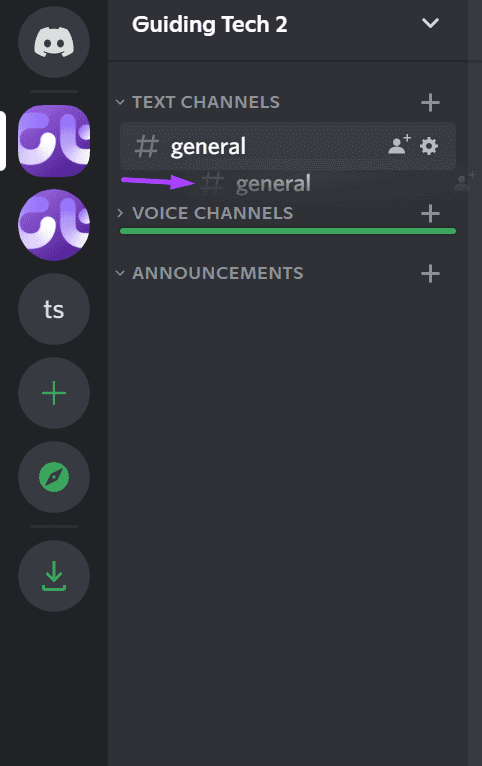
Channels are where your community members will communicate and interact. Here's how to create voice and text channels:
- Click the plus sign (+) in the top-right corner of the Discord home screen to create a new channel.
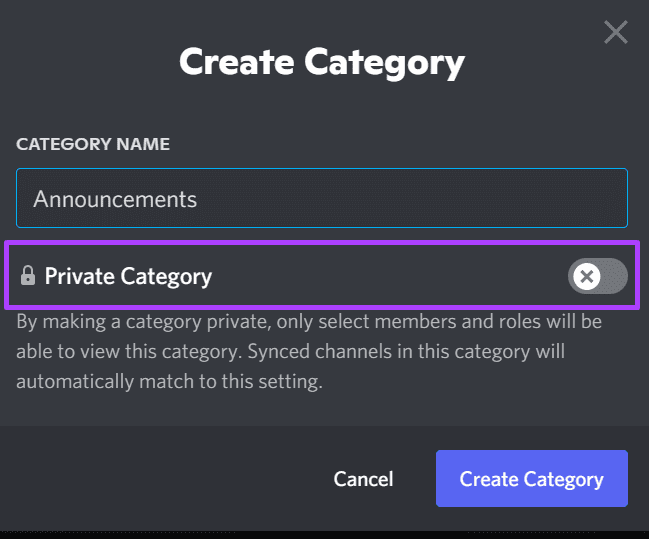
- Choose the type of channel you want to create (e.g., text, voice, or category).
- Customize your channel's settings, such as the name, description, and permission level.
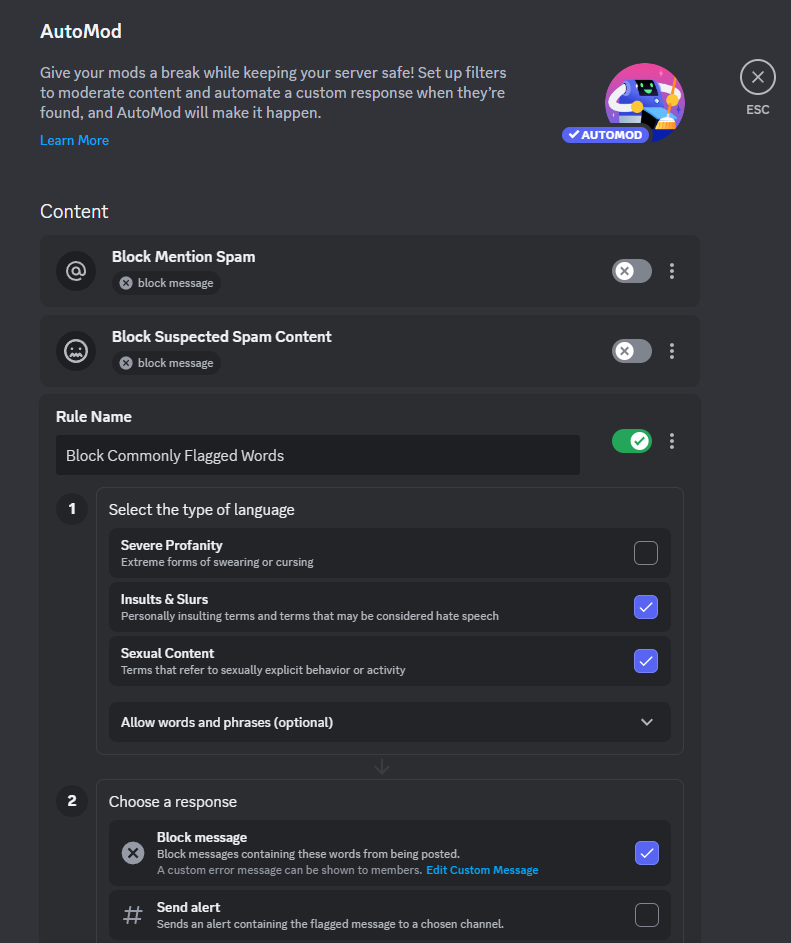
Bots and Moderation
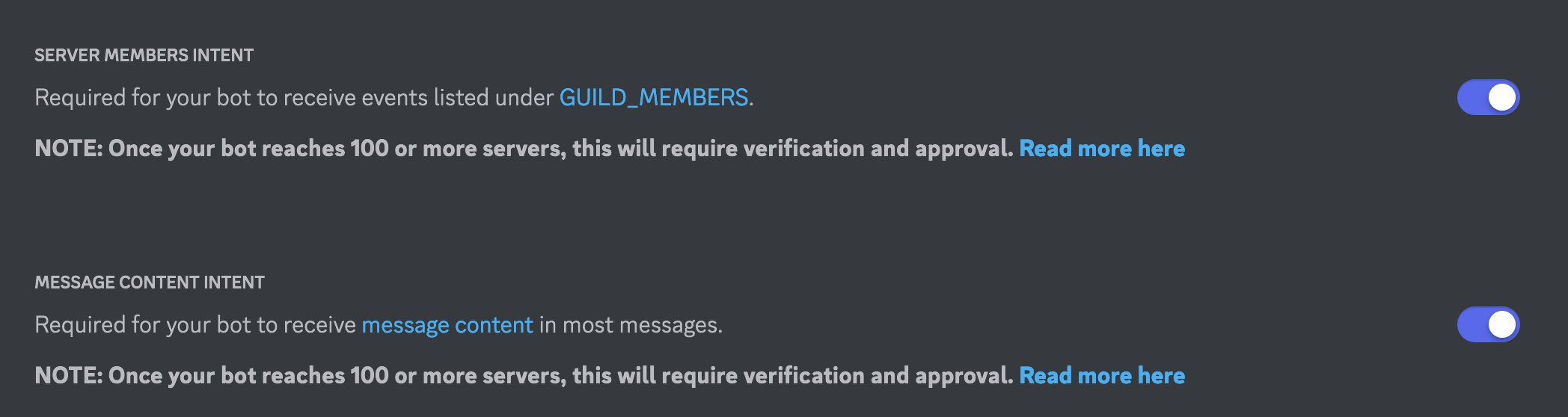
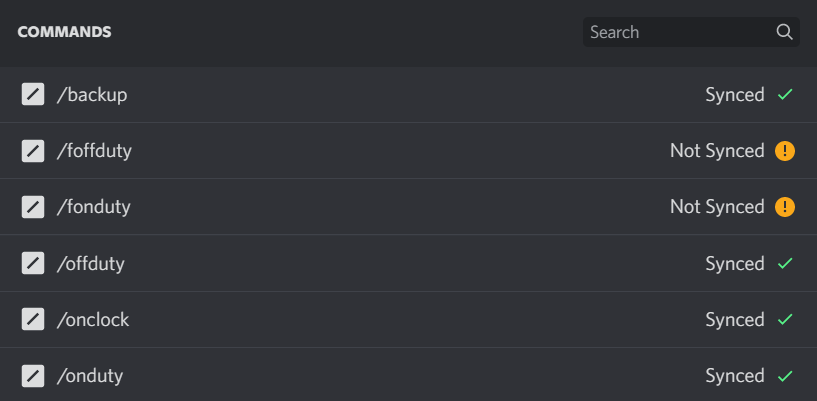
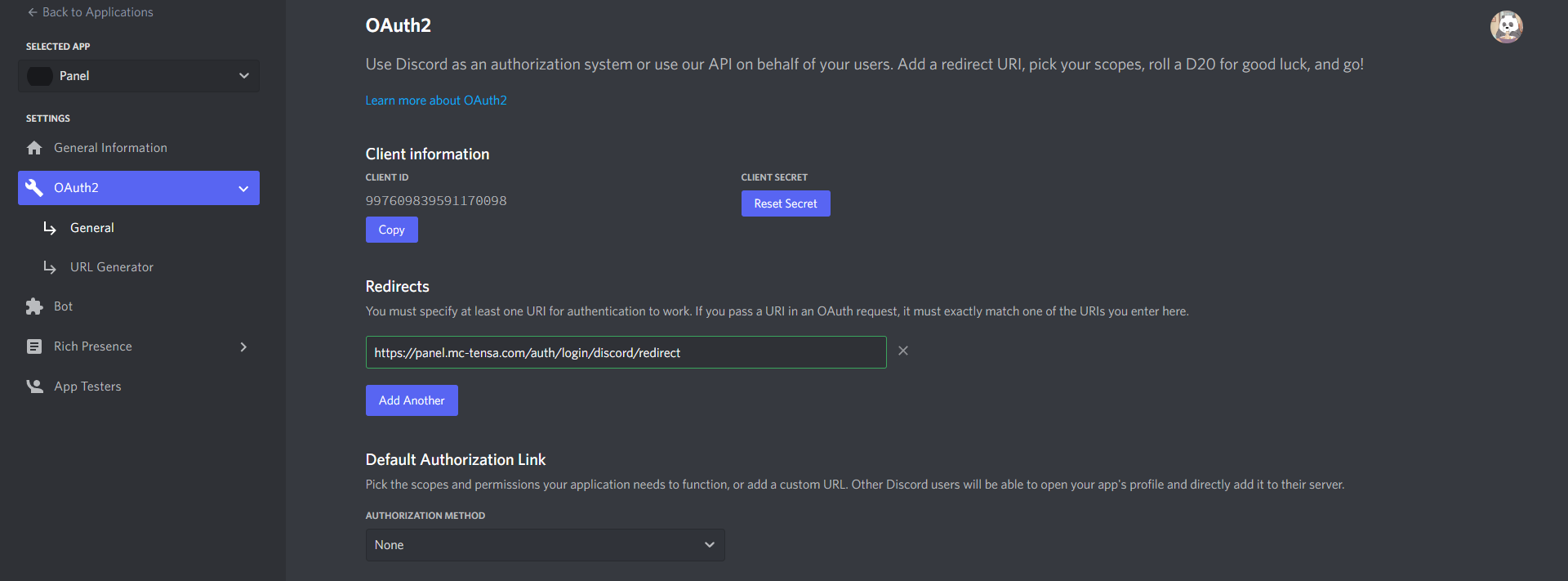
Bots are powerful tools that can help manage your server, provide entertainment, and assist with moderation. Here's how to add a bot to your server:
- Go to the "Bots" section in your server settings.
- Invite a bot to your server by clicking on the "Invite" button.
- Customize your bot's settings and permissions to ensure it functions correctly.
Server Configuration Tips and Tricks
Here are some expert tips to help you configure your Discord server like a pro:
- Use categories to organize your channels and make it easier for users to find what they need.
- Assign permissions to roles to ensure users can access only the resources they need.
- Use bots to automate tasks, provide entertainment, and assist with moderation.
- Customize your server's settings to suit your community's unique needs.
Conclusion
Discord server configuration is an essential skill for any community leader or administrator. By following these steps and tips, you'll be able to create a server that meets the unique needs of your community. Remember to stay organized, assign permissions, and use bots to make your server a smooth and enjoyable place for users to communicate and interact.