Unlock the Potential of Your Mac: Exploring the Mac Keyboard Screenshot Features
As a Mac user, you're likely familiar with the importance of being able to capture and share your screen content quickly and efficiently. The Mac offers a range of screenshot features that can be accessed using keyboard shortcuts, making it easy to take screenshots of your entire screen, a portion of the screen, or a specific window. In this article, we'll delve into the mac keyboard screenshot features and provide you with a comprehensive guide on how to utilize them effectively.
Basic Mac Screenshot Features
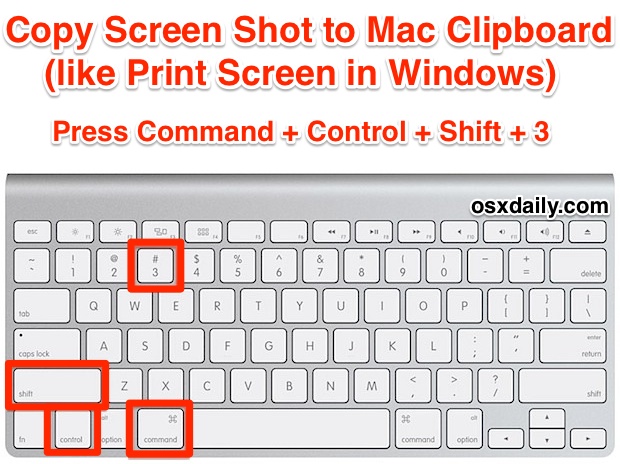
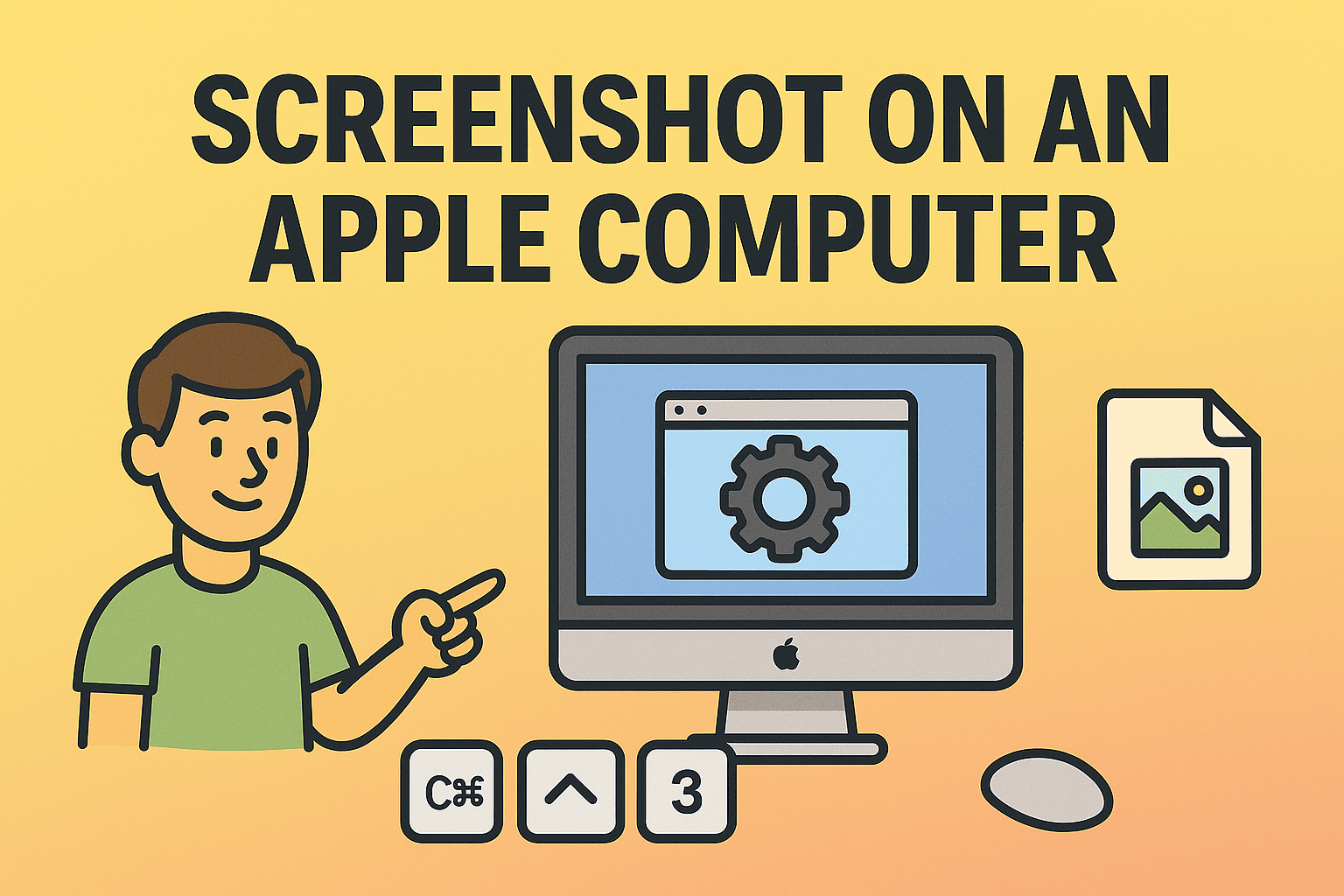
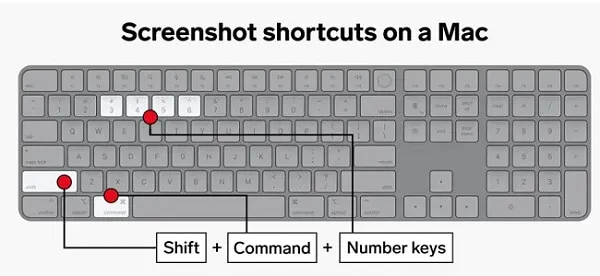
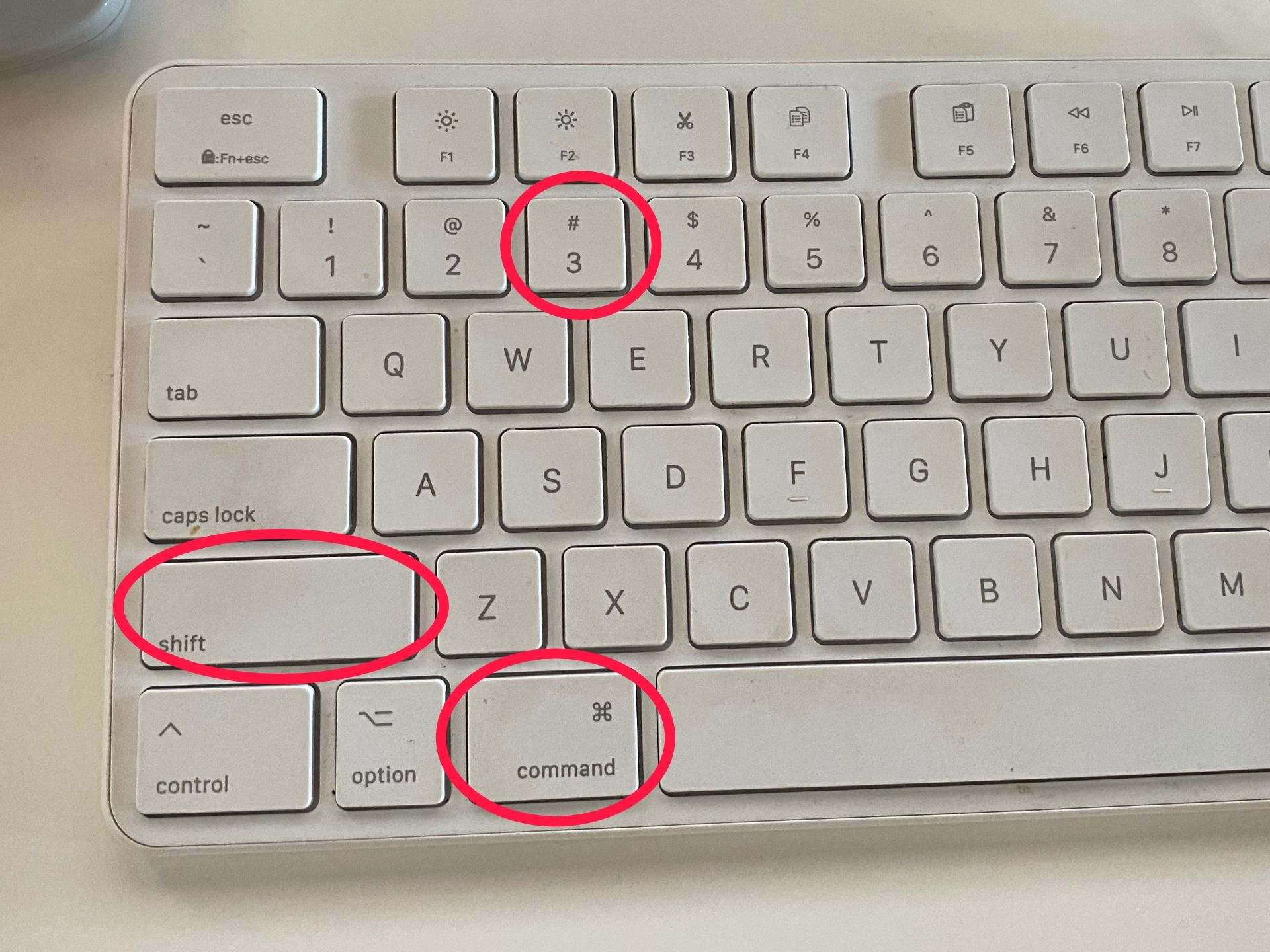
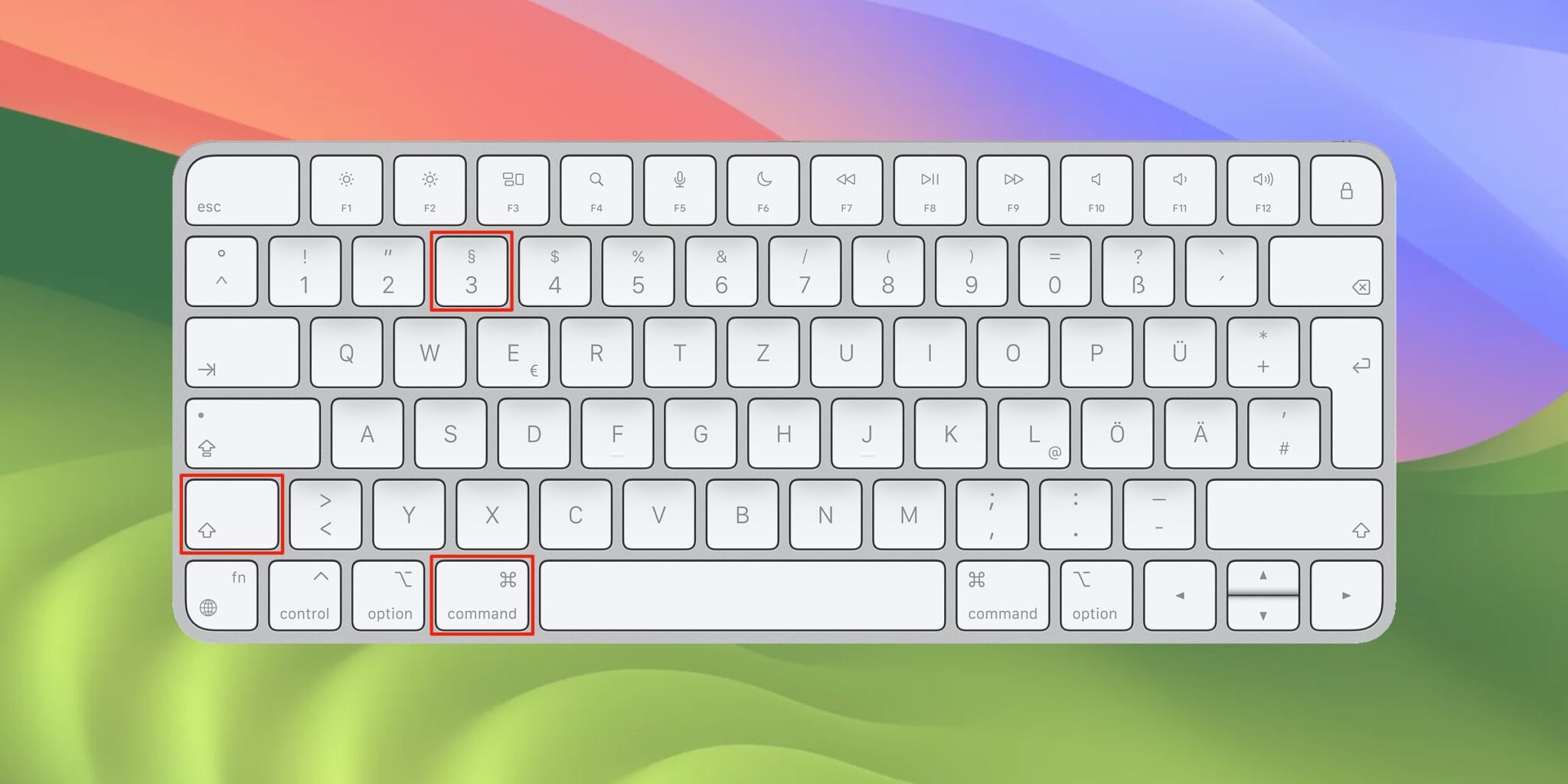
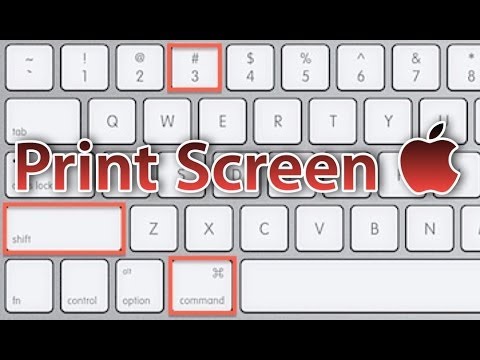
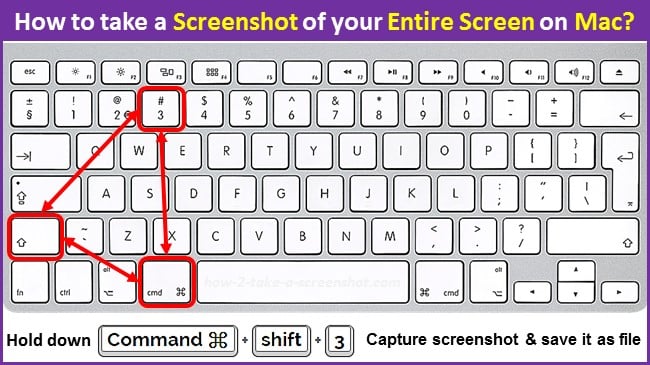
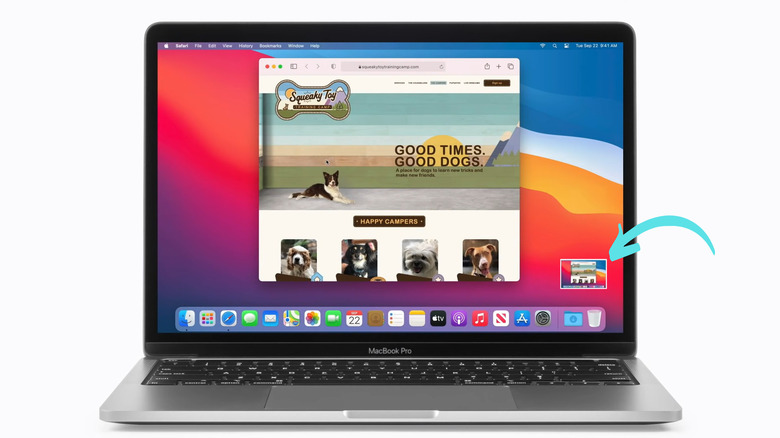
- Capture the entire screen: Pressing the Shift, Command, and 3 keys simultaneously will take a screenshot of your entire screen.
- Capture a portion of the screen: You can capture a selected area of the screen by pressing Shift, Command, and 4 keys. You can then drag the crosshair pointer to select the area you want to capture.
- Capture a window or menu: To capture a specific window or menu, press Command, Shift, and 4, then press the Spacebar. You'll see a small camera icon, which you can then use to select the window or menu you want to capture.
Advanced Mac Screenshot Features
The Mac also offers advanced screenshot features that can be accessed using the Preview app and keyboard shortcuts. Here are some of the features you can take advantage of:
- Markup feature: The built-in markup feature in the Preview app allows you to annotate and edit your screenshots with ease.
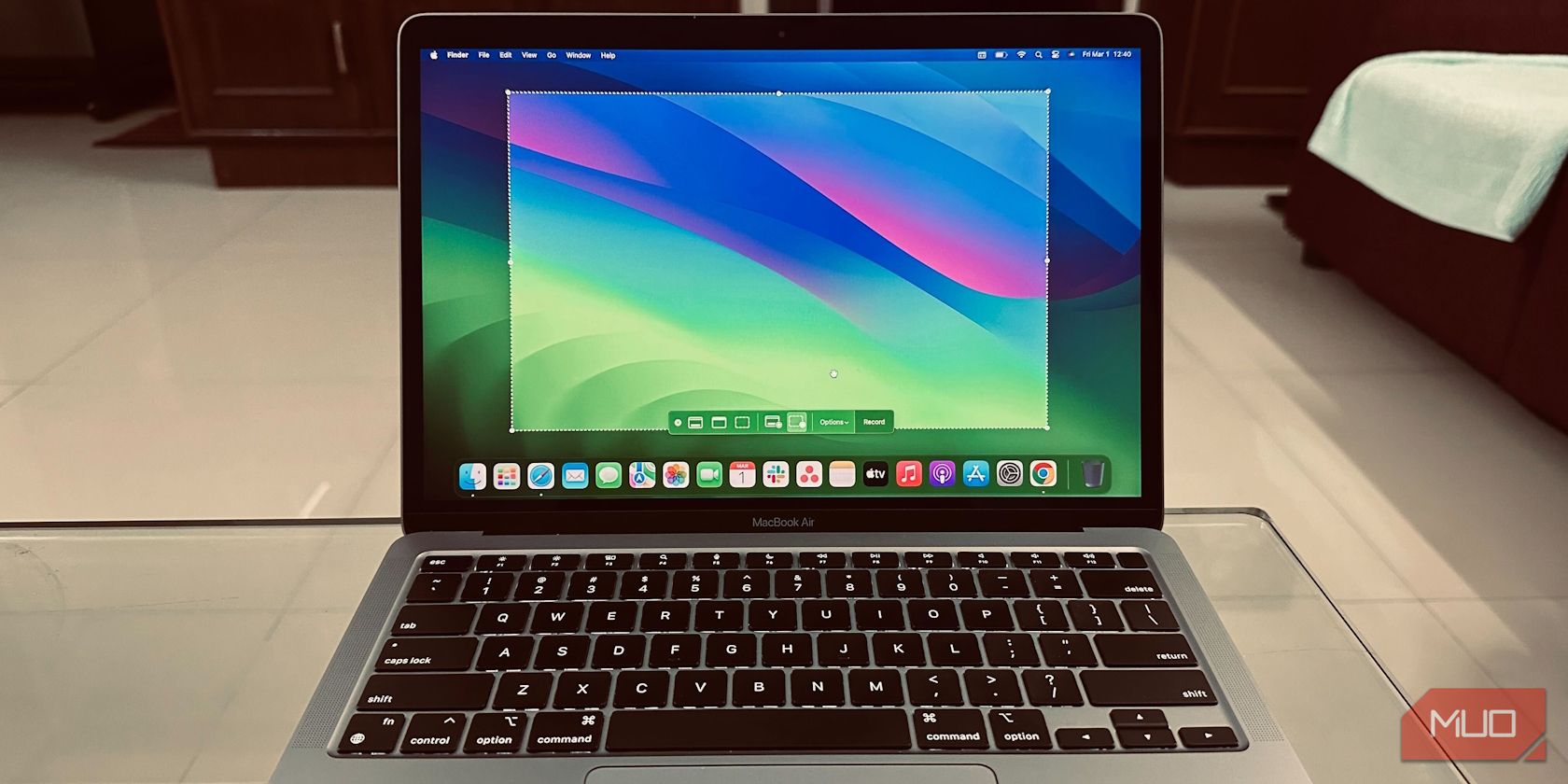
- Screen recording: You can record your screen using the built-in screen recording feature, which can be accessed by selecting the Screenshot menu and clicking "Record Selection" or "Record Entire Screen".
Customizing Mac Screenshot Features

The Mac allows you to customize your screenshot features to suit your needs. You can do this by going to System Preferences > Keyboard > Shortcuts > Screenshots. From here, you can customize the keyboard shortcuts for taking screenshots and creating screen recordings.
Benefits of Using Mac Keyboard Screenshot Features
- Increased productivity: The Mac's screenshot features can save you time and increase your productivity by allowing you to capture and share your screen content quickly and easily.
- Improved communication: Screenshotting your screen can be an effective way to communicate complex ideas and issues with others.
- Enhanced creative workflow: The Mac's screenshot features can be a valuable tool for creatives, allowing them to capture and share their work with ease.
Conclusion
The Mac keyboard screenshot features offer a range of benefits for users, from increased productivity to improved communication and enhanced creative workflow. By understanding how to use these features effectively, you can unlock the full potential of your Mac and take your productivity to the next level.
In this article, we've explored the basic and advanced Mac screenshot features, as well as how to customize them to suit your needs. Whether you're a heavy software developer, a creative professional, or simply a Mac user looking to boost your productivity, these features are sure to serve you well.
/cdn.vox-cdn.com/uploads/chorus_asset/file/19359109/windows_screenshot_4.png "All Methods to Take a Screenshot on a Mac - donemax.com")