Setting up Guest Network: A Comprehensive Guide
Are you looking to provide internet access to visitors while keeping your main network secure? Setting up a guest Wi-Fi network is a great way to achieve this, and it's easier than you think. In this article, we'll show you how to set up a secure guest network in just a few easy steps.
What is a Guest Network?
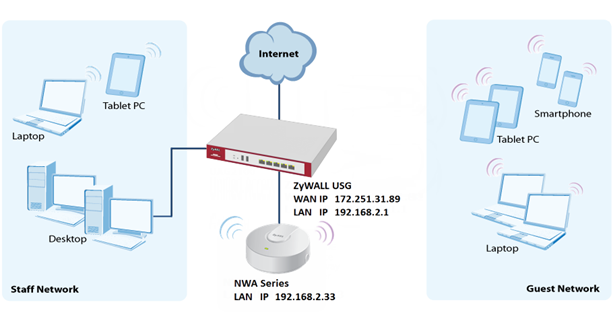
A guest network is a separate Wi-Fi network that allows visitors to access the internet without compromising the security of your main network. This is particularly useful for homeowners, business owners, and anyone who wants to provide internet access to guests without giving them access to their devices or personal data.
Benefits of Setting up a Guest Network
The benefits of setting up a guest network are numerous. For one, it enhances the security of your main network by keeping visitors away from your devices and personal data. It also allows you to provide internet access to guests without compromising the security of your main network. Additionally, setting up a guest network gives you control over the level of access your guests have to the internet.
Best Practices for Setting up a Guest Network
When setting up a guest network, it's essential to follow best practices to ensure the security and management of your network. Here are some best practices to keep in mind:
- Use a separate wireless network for your guests.
- Use a strong password and encryption (WPA2 or WPA3) to secure your guest network.
- Limit guest access to the internet by restricting the types of devices that can connect to the network.
- Monitor guest activity to detect any suspicious activity.
- Use a guest control system to manage guest access and monitor their activity.
How to Set up a Guest Network
Setting up a guest network is a relatively simple process that can be completed in just a few easy steps. Here's a step-by-step guide on how to set up a guest network:
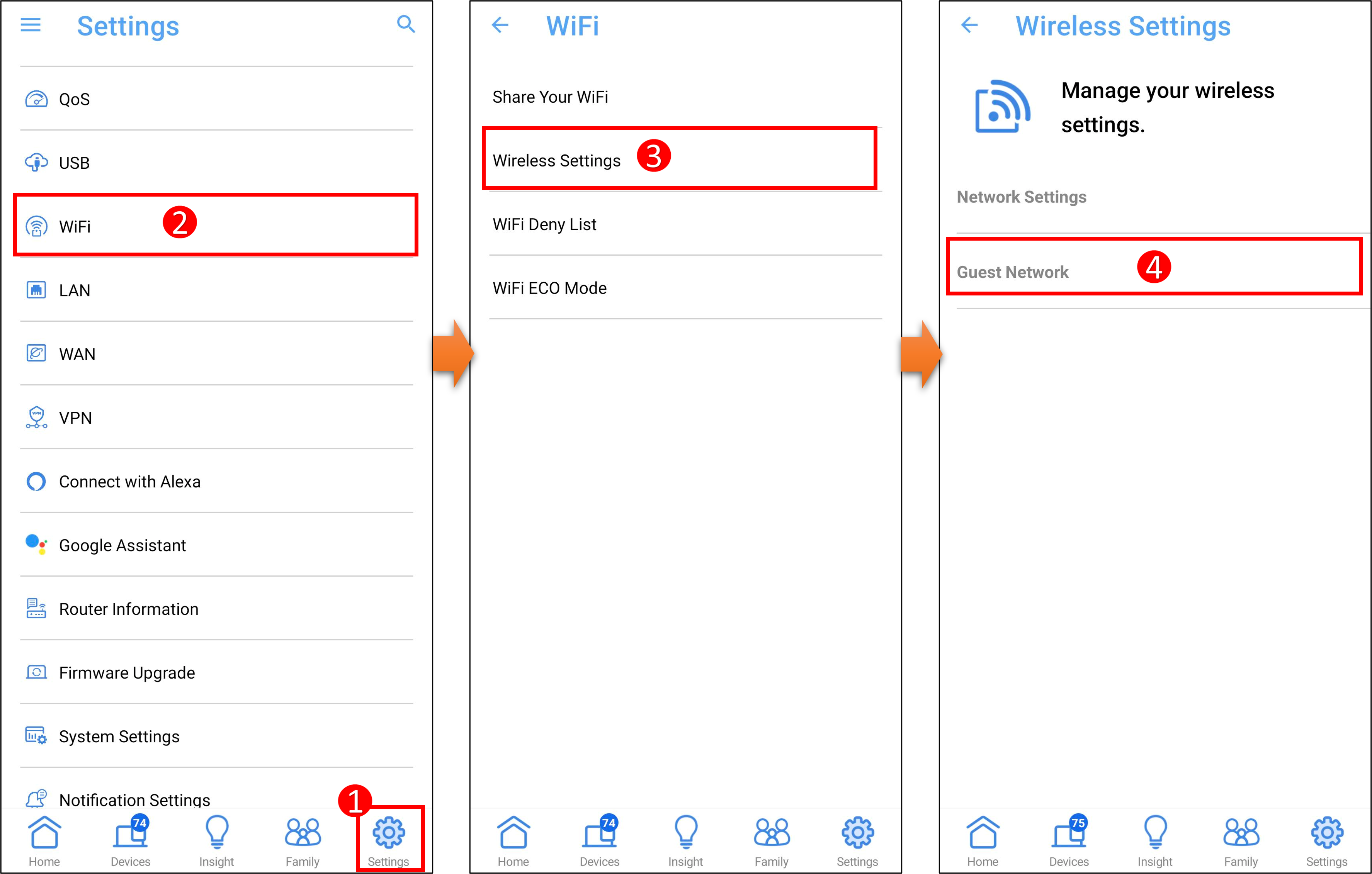
Step 1: Check Your Router's Settings
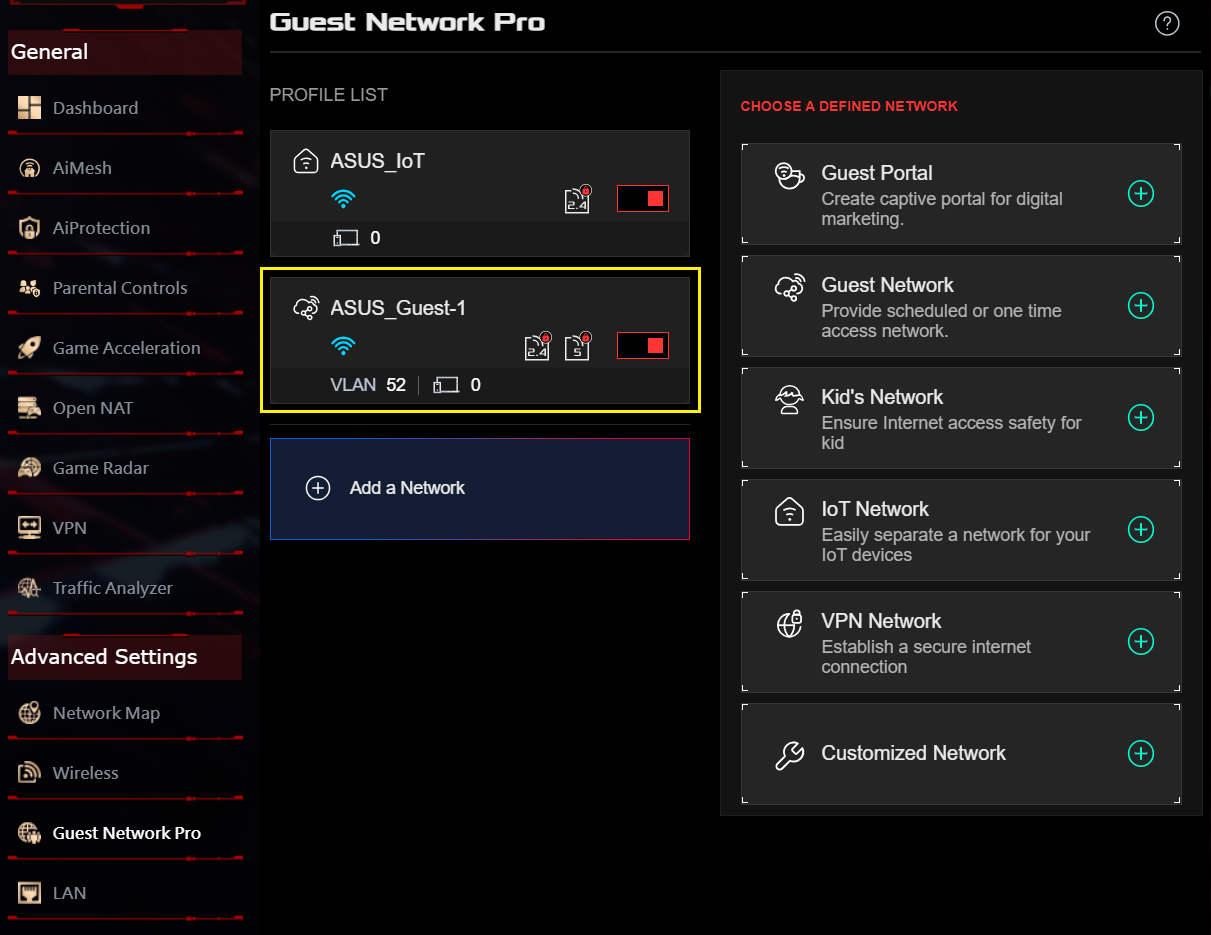
Most newer routers have an option for a guest network in the settings menu. Check your router's documentation or manufacturer's website for instructions on how to access the guest network settings.
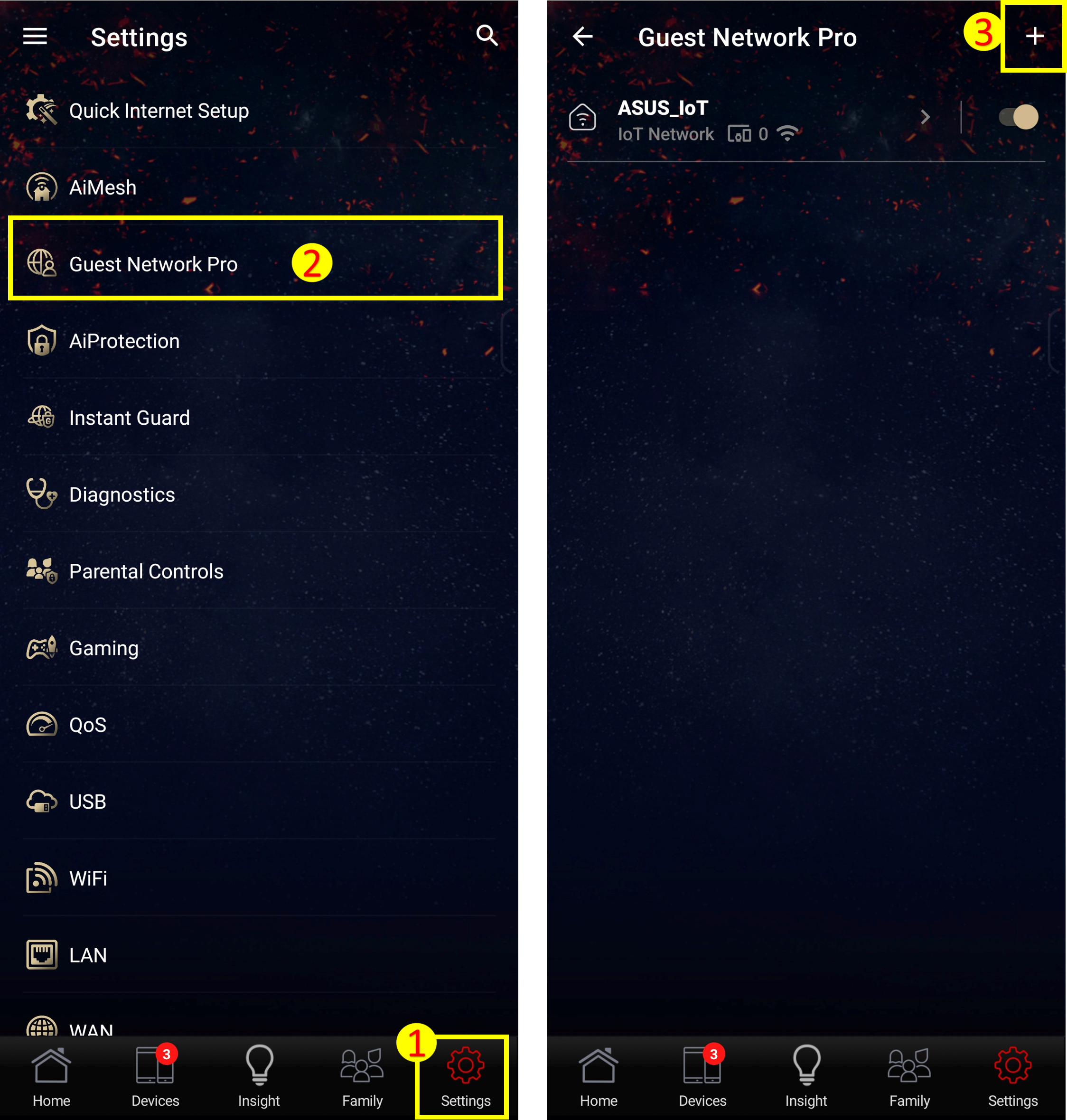
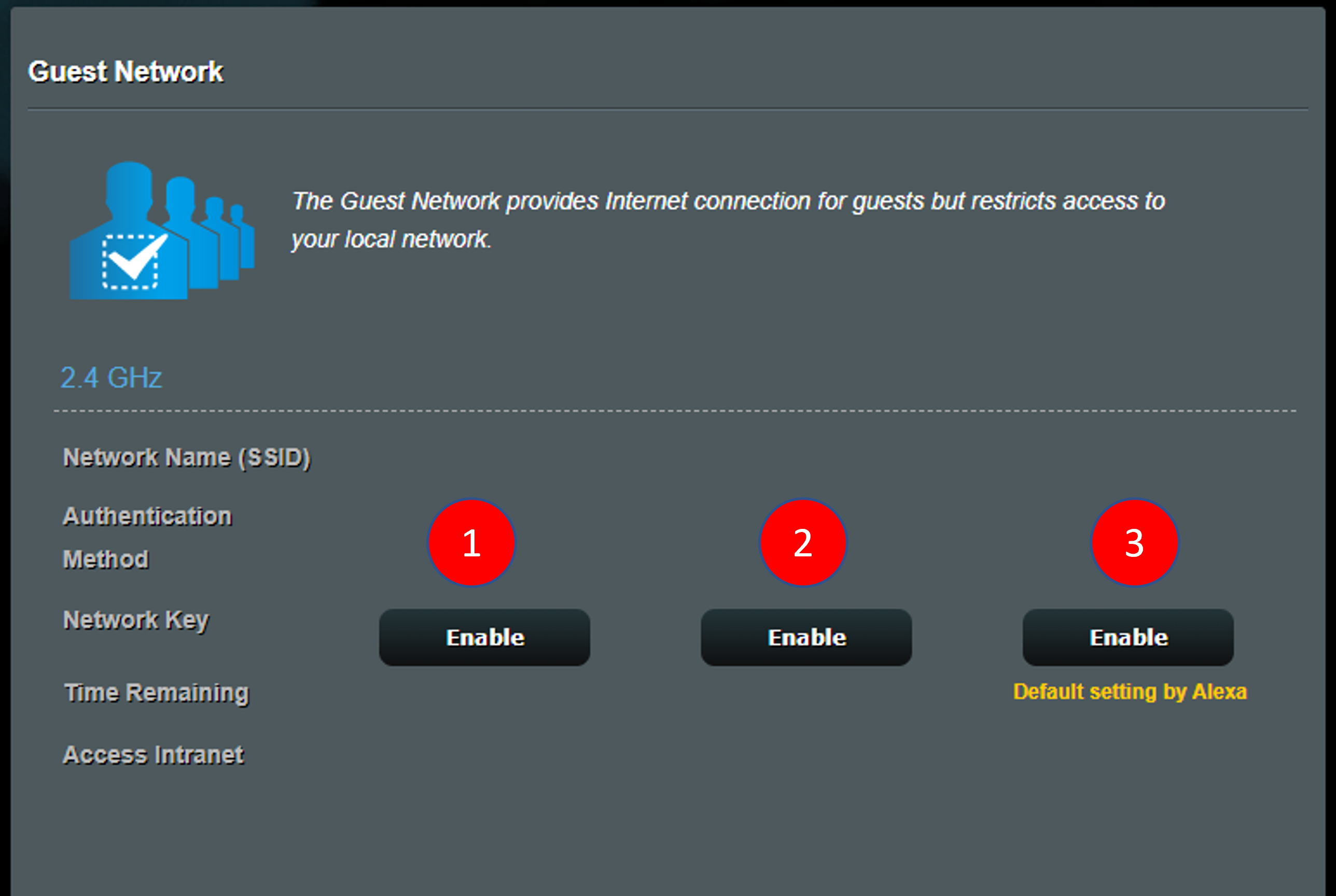
Step 2: Create a Guest Network
Once you've accessed the guest network settings, create a new network by following these steps:
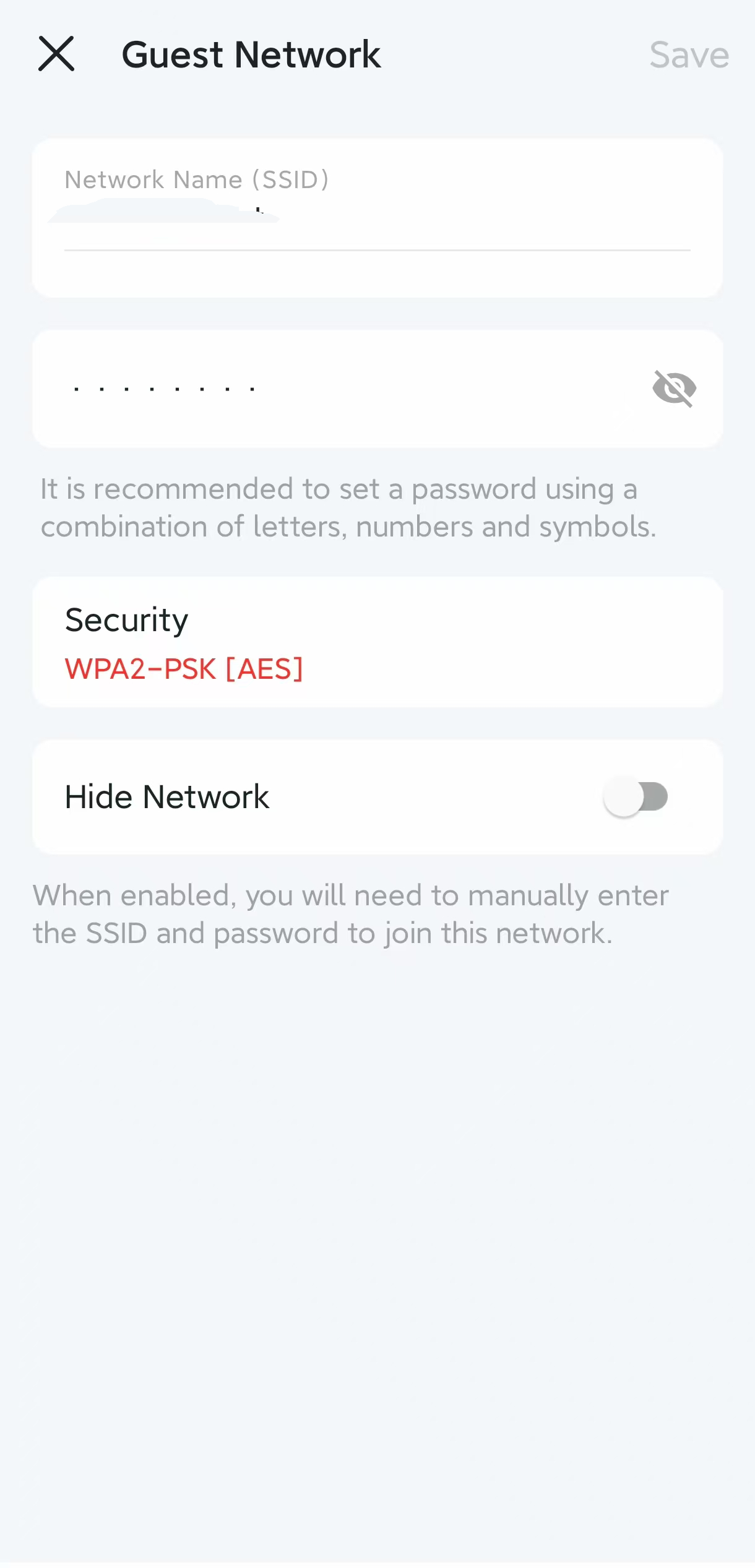
- Choose a name for your guest network (SSID).
- Set the wireless network mode to create a new guest network.
- Specify the channel number or use the default channel.
- Set the wireless network frequency to 2.4 GHz or 5 GHz.
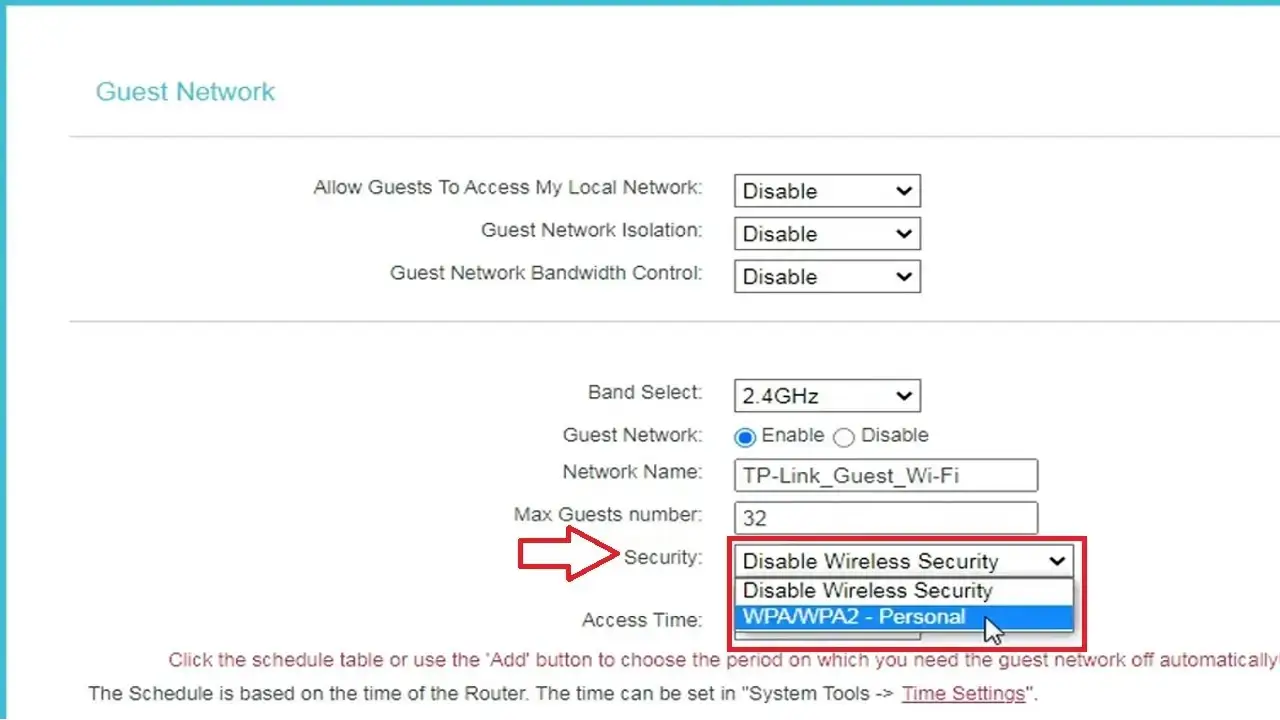
- Choose the encryption type (WPA2 or WPA3).
- Set a strong password for the guest network.
- Save the changes and restart your router.
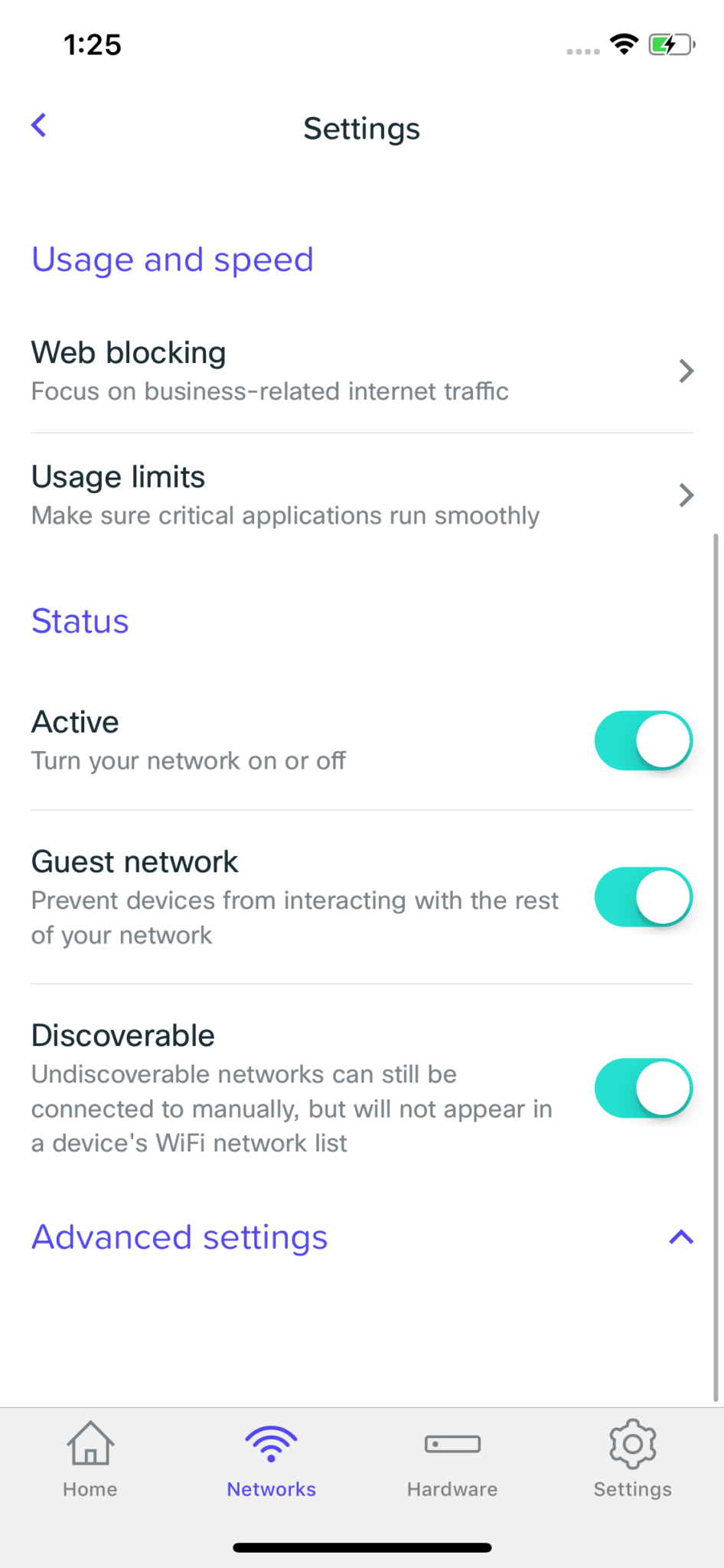
Step 3: Configure Guest Network Settings
After creating a guest network, you can configure additional settings to manage guest access. Here are some settings you can configure:
- Limit guest access to the internet by restricting the types of devices that can connect to the network.
- Monitor guest activity to detect any suspicious activity.
- Use a guest control system to manage guest access and monitor their activity.
- Set a bandwidth limit for guest access.
Conclusion
Setting up a guest network is a simple and effective way to provide internet access to visitors while keeping your main network secure. By following best practices and configuring your guest network settings correctly, you can ensure the security and management of your network. With this comprehensive guide, you'll be able to set up a guest network in no time.
References
CenturyLink. (2025). How to Set Up a Guest Network. Retrieved from https://www.centurylink.com/home/help/internet/set-up-guest-network.html
Norton. (2025). How to Set Up a Secure Guest Network. Retrieved from https://us.norton.com/blog/unclassified/how-to-set-up-secure-guest-network
Marriott Bonvoy. (2025). How do I connect to the Hotel's Wi-Fi? Retrieved from https://www.marriottbonvoy.com/hotels/en_US/guest/