Rebooting and Restarting Router: A Guide to Solving Internet Issues
Are you experiencing slow internet speeds, dropped connections, or device connectivity issues? Having trouble staying online? Rebooting and restarting your router is a simple and effective solution to fix these common problems. In this article, we will explain why rebooting your router is a crucial step in troubleshooting internet issues, provide step-by-step instructions on how to reboot a router, and offer tips for maintaining a stable internet connection.Why Rebooting Your Router is Important
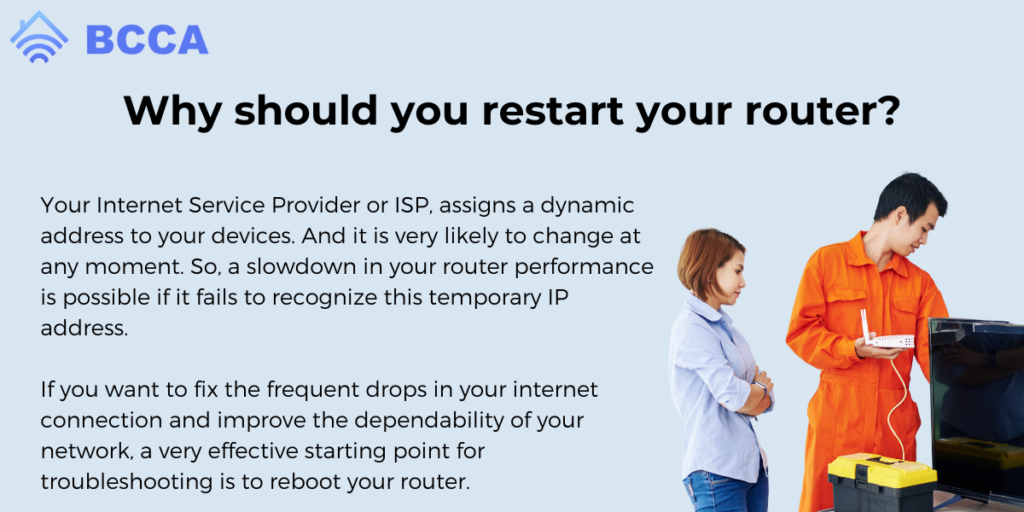
When your router and modem are not functioning properly, it can lead to frustration and lost productivity. Rebooting your router helps to:- Flush out any glitches and refresh the IP address assigned by your provider, which is necessary for internet access
- Clear out temporary issues and dropped connections
- Optimize data throughput and improve overall internet performance
How to Reboot a Router: Step-by-Step Instructions
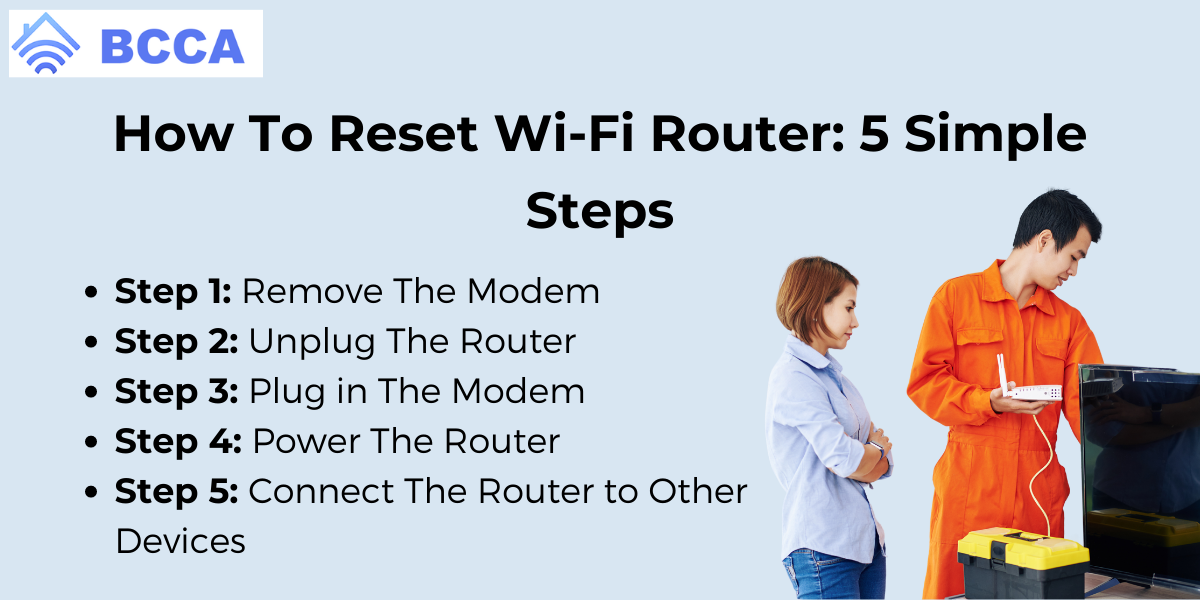
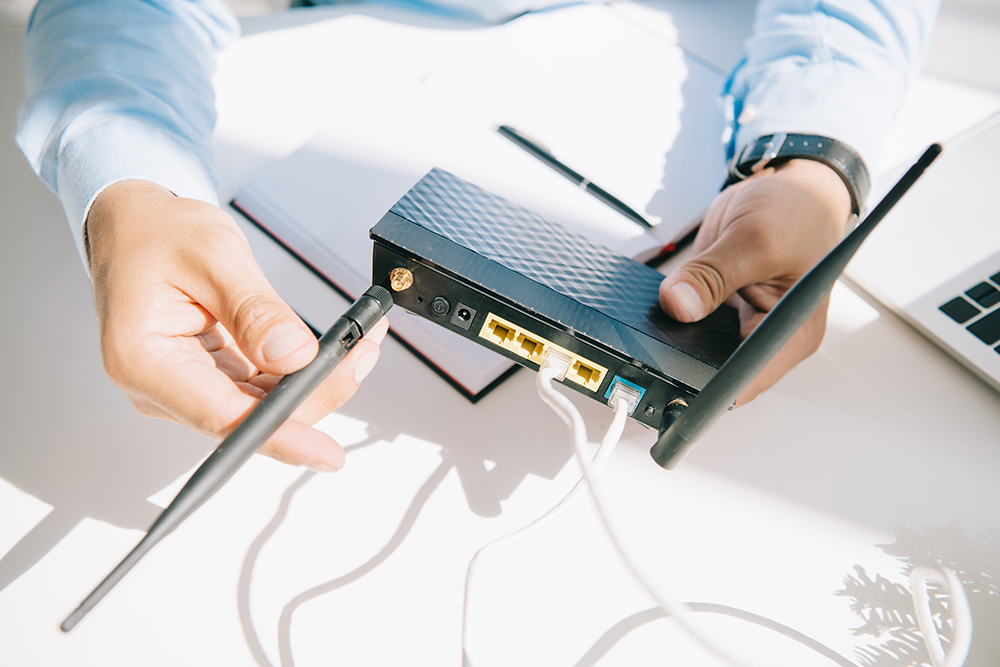
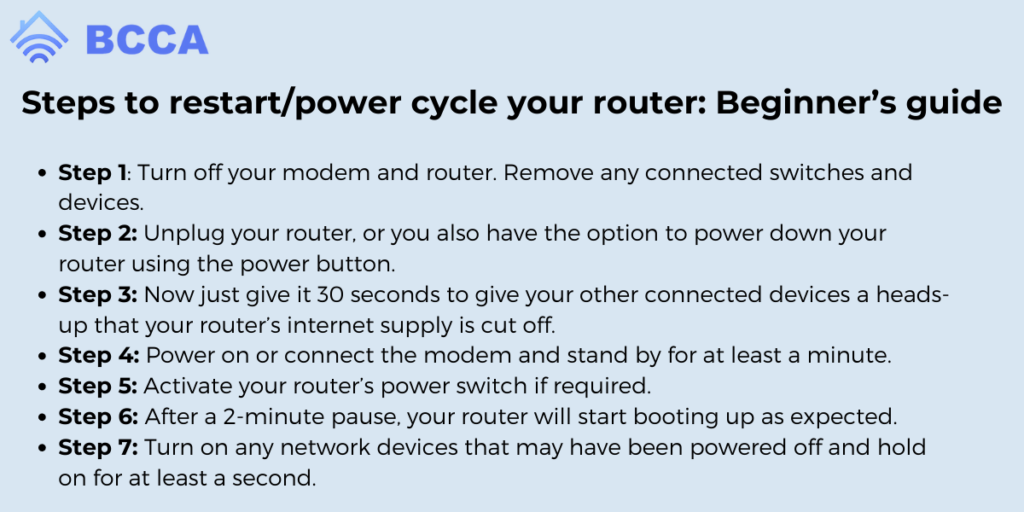
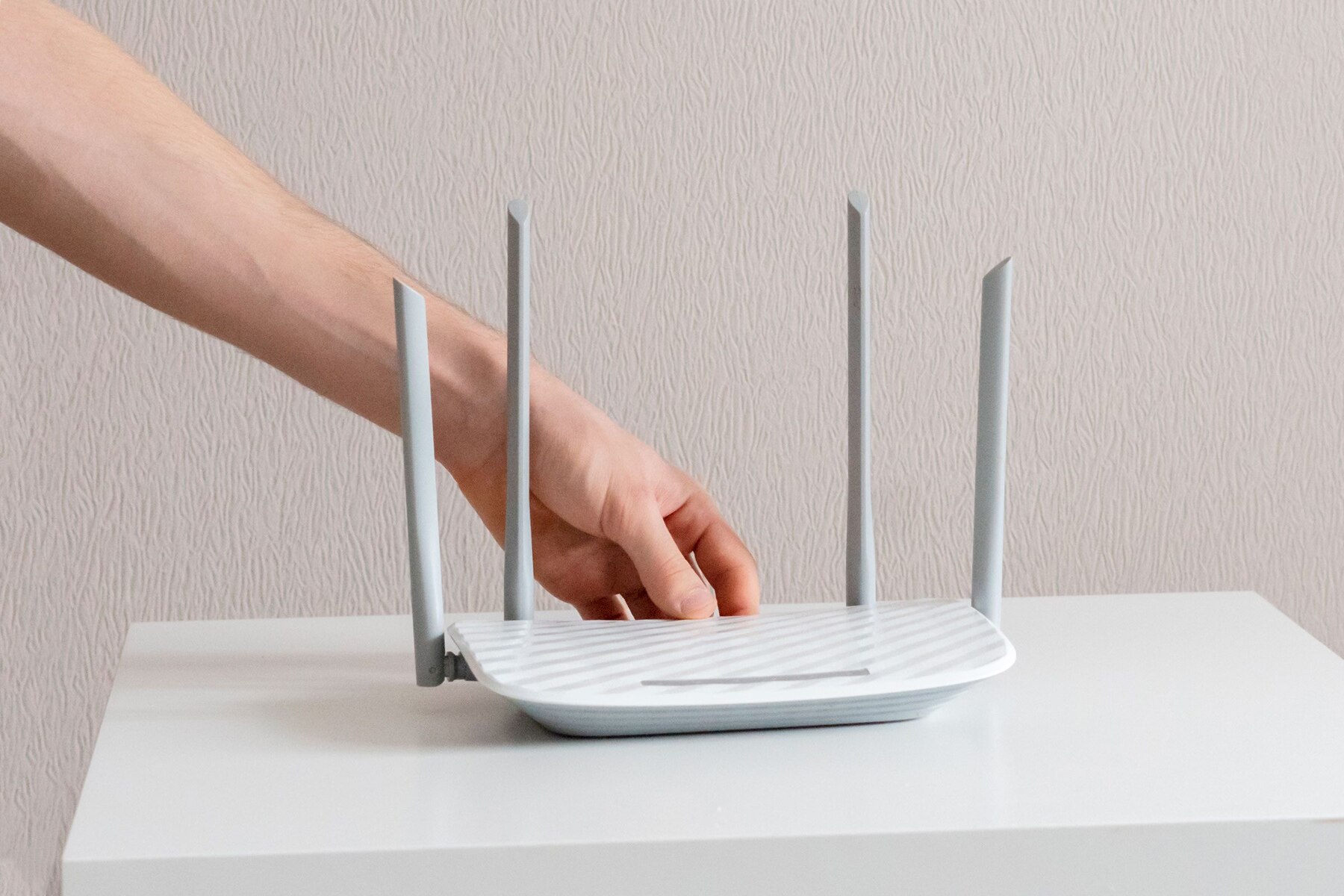
Rebooting your router can be done manually or remotely, depending on the type of router you have and its capabilities. Here's a general guide on how to reboot your router:For manual reboot:
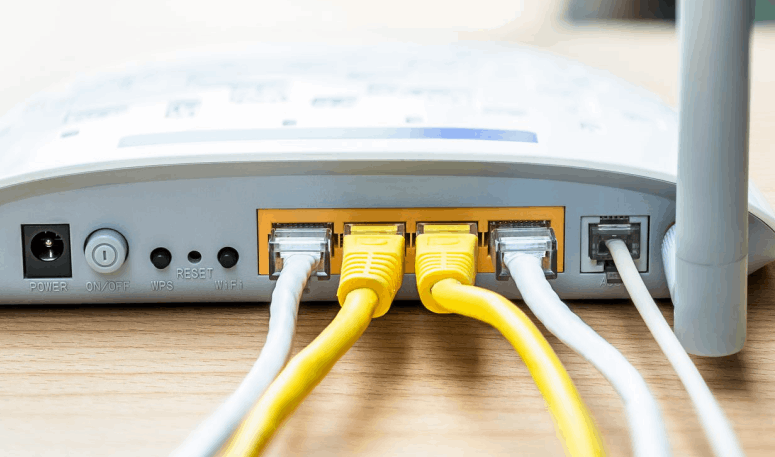
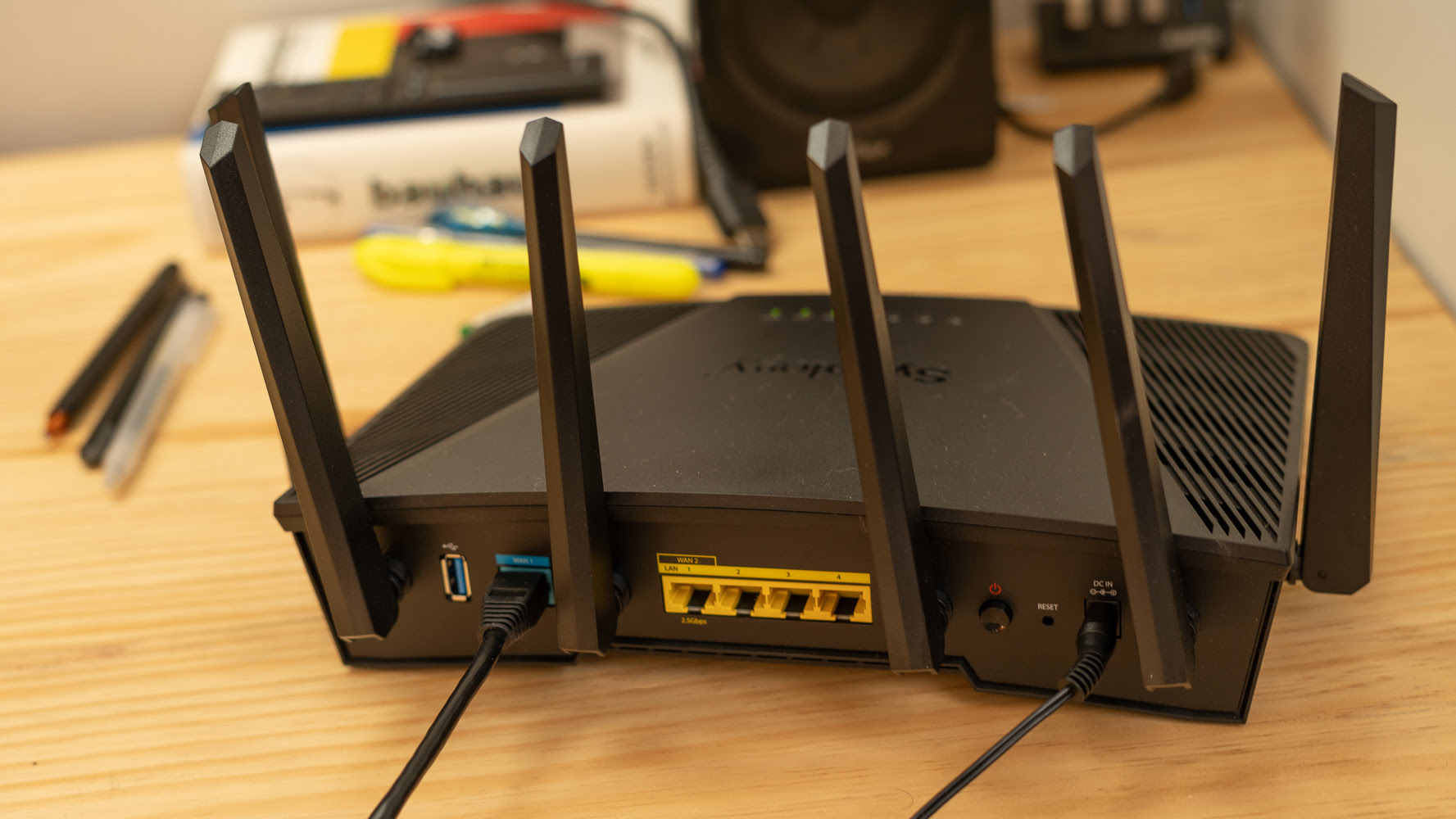
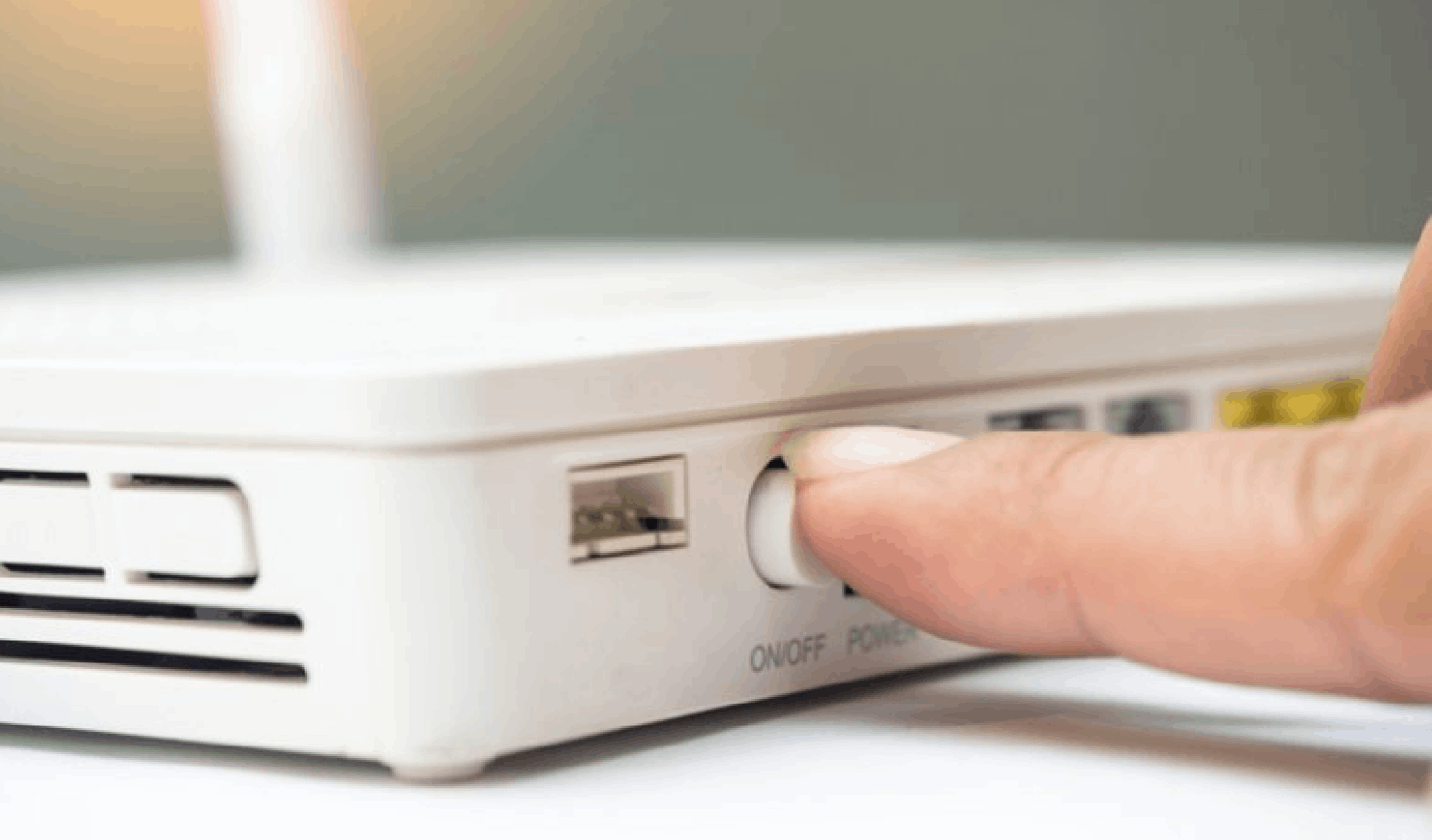
- Locate the power button on your router, usually found on the back or top of the device
- Press and hold the power button until the router completely shuts down
- Wait for 30 seconds to a minute, then press the power button again to turn it back on
For remote reboot:
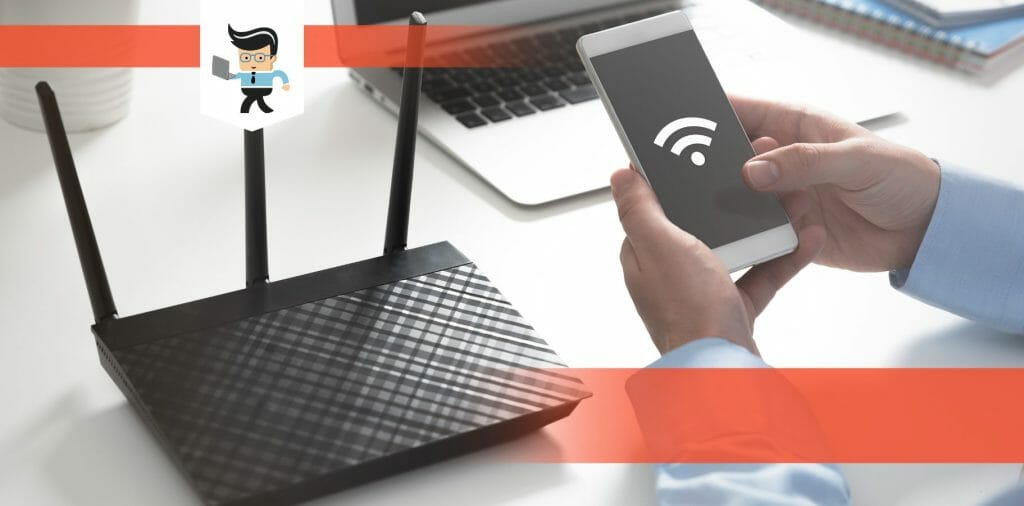
- Use your router's mobile app or web interface to access the settings
- Look for the "Restart" or "Reboot" option and follow the prompts to complete the process
Rebooting vs. Resetting a Router
While rebooting and resetting a router might seem similar, they are not the same thing. Rebooting a router simply turns it off and on again, whereas resetting it completely restores the device to its factory settings, losing all customized settings and configurations. Rebooting your router is usually a more efficient and safer option, as it doesn't require you to lose your customized settings.When to Reboot Your Router
You should reboot your router regularly to:- Fix temporary issues and dropped connections
- Improve internet speeds and performance
- Refresh IP addresses and optimized data throughput
- Slow or dropped internet speeds
- Device connectivity issues
- Problems with DNS or Wi-Fi connectivity
Tools for Remote Rebooting
Some routers come with built-in remote rebooting capabilities, allowing you to reboot your router from anywhere, even when you're not physically present. This is especially useful when you're experiencing issues and can't get to your router. Some popular tools for remote rebooting include:- Remote power switches
- Mobile apps and web interfaces
- Cloud-based services