How to Screenshot on Mac as a GIF: A Comprehensive Guide
Are you looking for a way to capture your Mac's screen as a GIF file? In this article, we'll show you how to do it using various methods, from built-in tools to third-party screen recorders and editors. Along the way, we'll explore different ways to capture screenshots in various file formats, including JPG, GIF, TIFF, HEIC, and PDF.
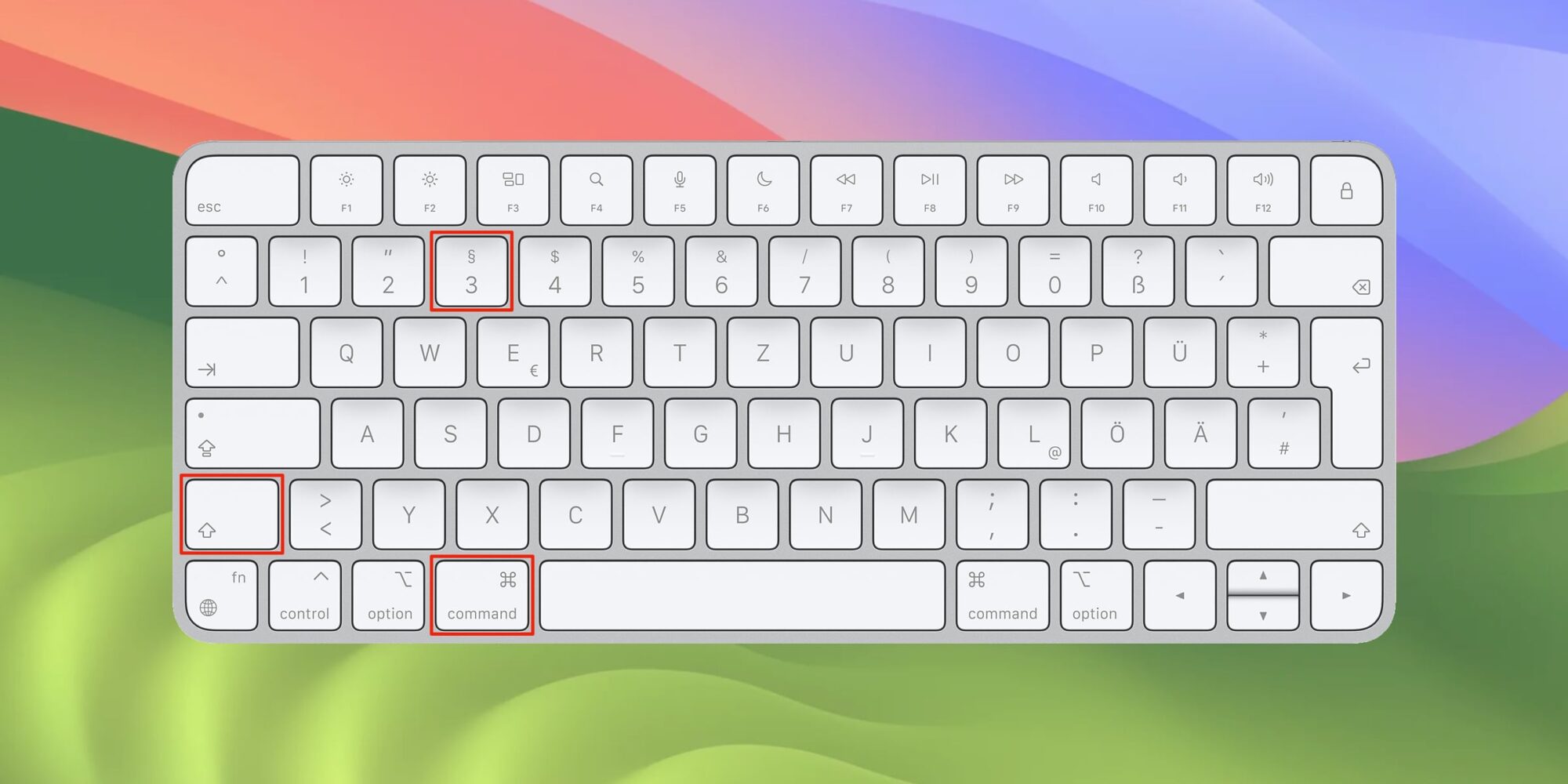
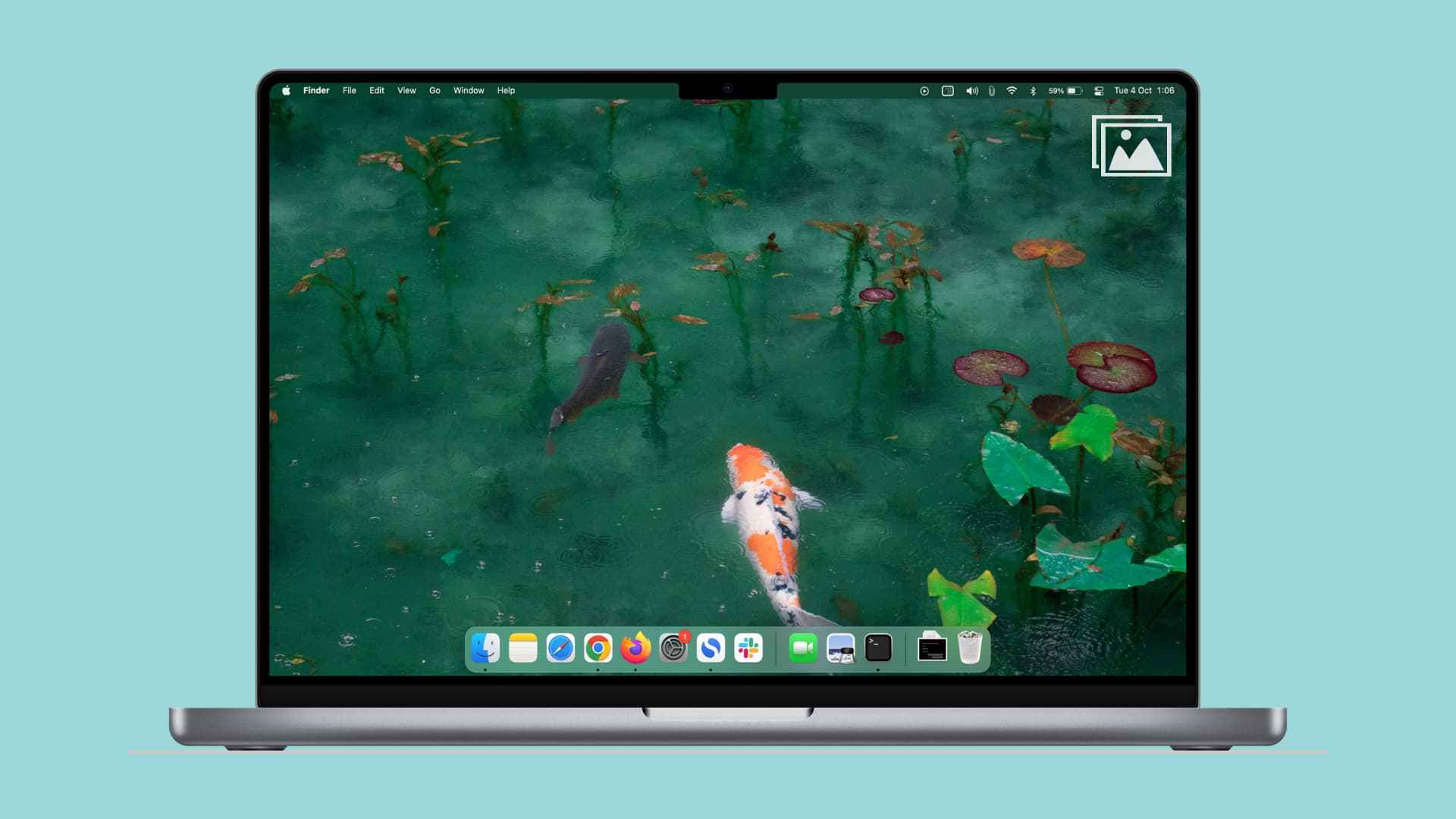
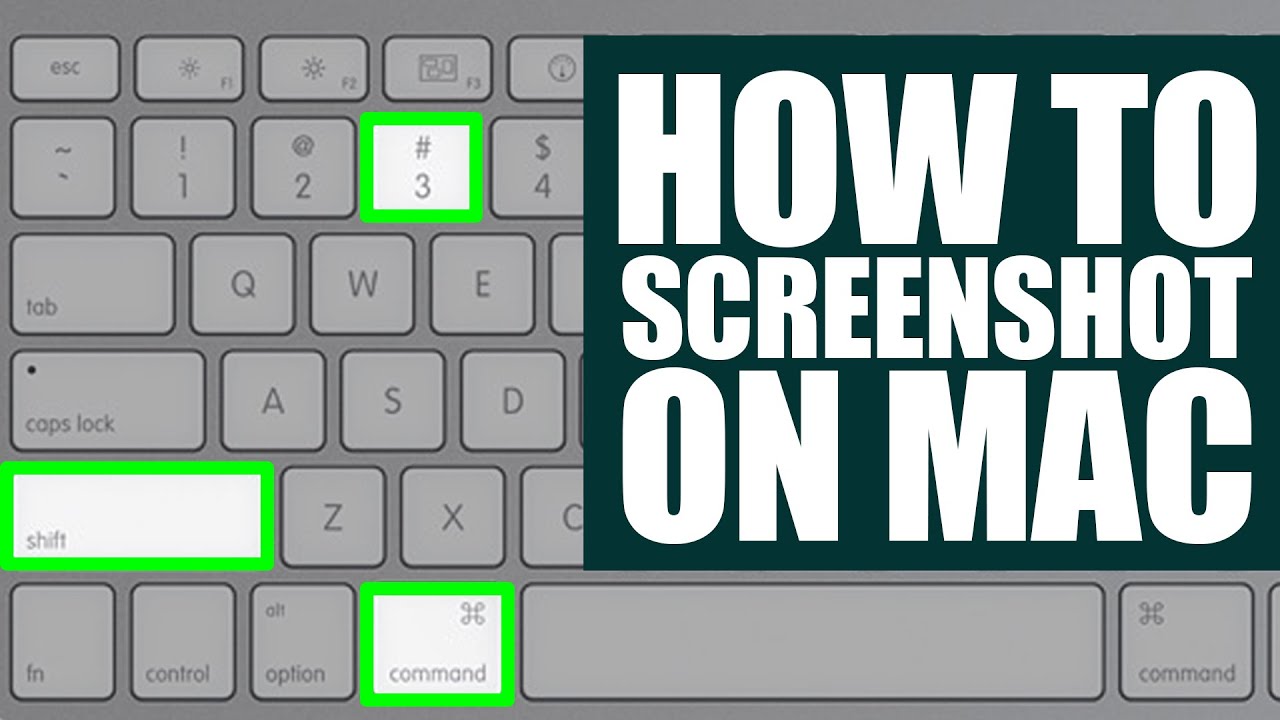
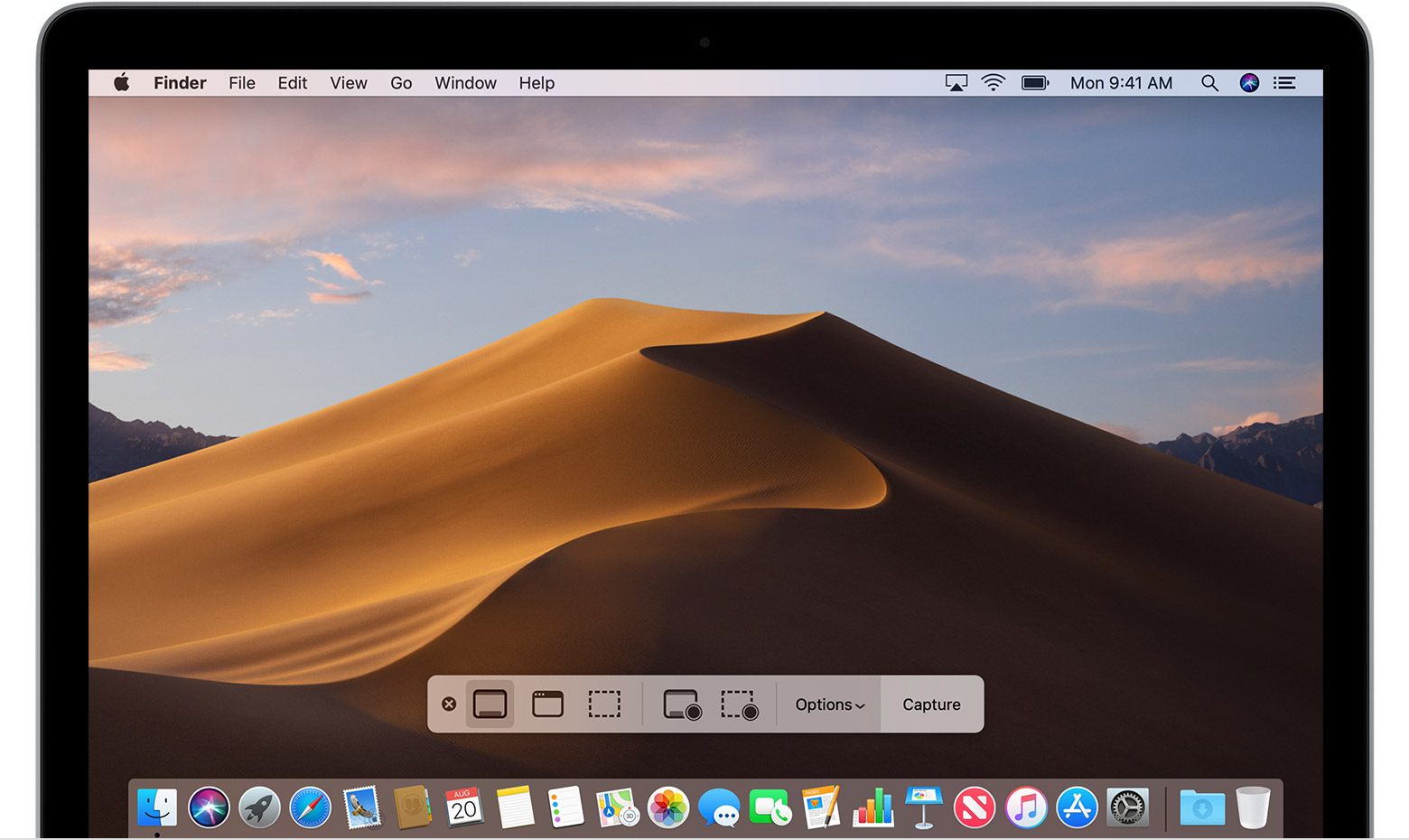
MacOS comes with a built-in screenshot tool, which allows you to capture the entire screen or a specific portion of it. To access this tool, use the following keyboard shortcuts:
- Shift+Command+3: Capture the entire screen
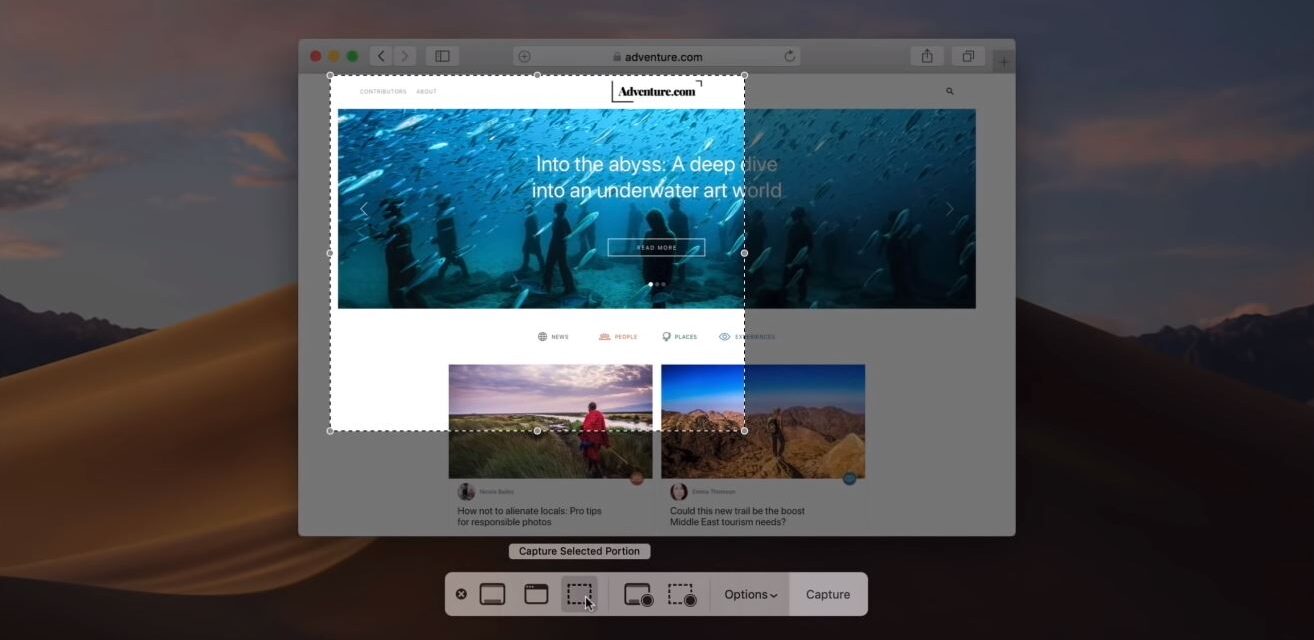
- Shift+Command+4: Capture a selected portion of the screen
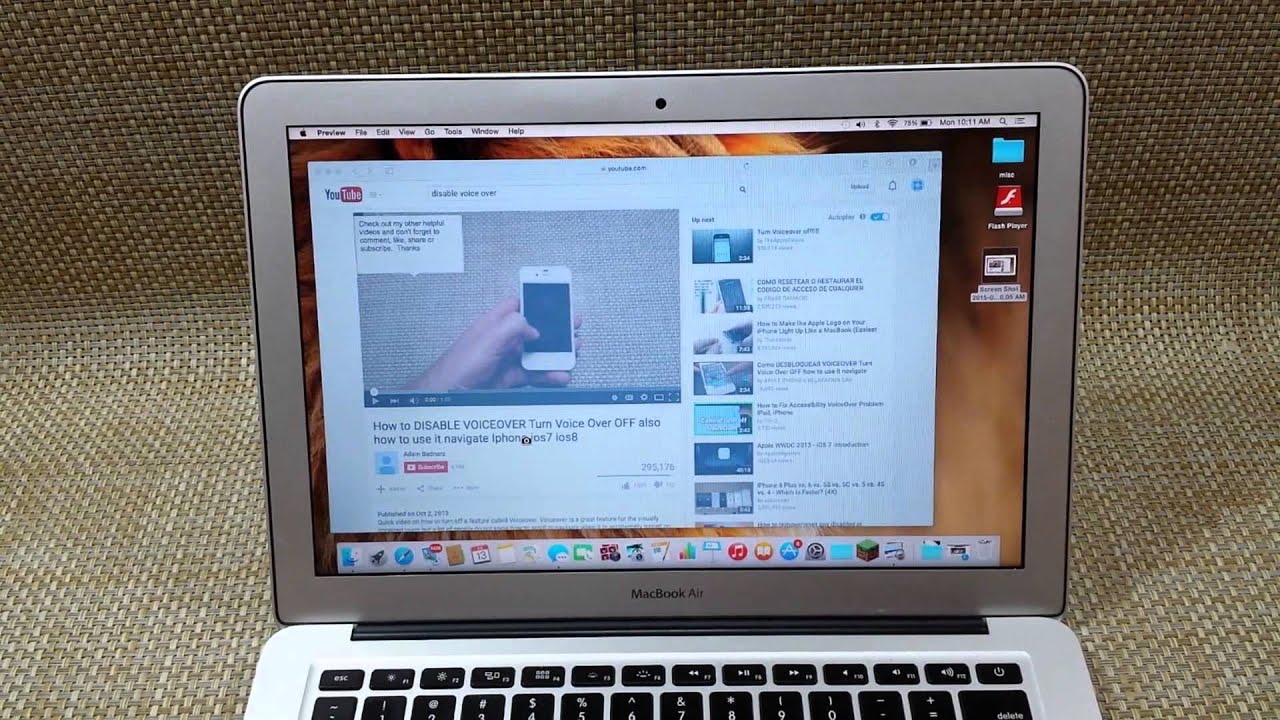
However, these methods save the screenshots as PNG files by default. If you want to change the file format, you can do so using the Preview app. Here's how:
Change Screenshot Format using Preview App
1. Open the Preview app on your Mac
2. Open the screenshot you want to save in a different format
3. Go to "File" > "Export" and select the desired file format (e.g., JPEG, GIF, PDF)
4. Save the file with the selected format
Convert Screen Recording to GIF on Mac
MacOS doesn't have a native way to create animated GIFs. However, you can use a third-party tool like Giphy Capture to achieve this. Here's how:
Using Giphy Capture
1. Download and install Giphy Capture from the official website
2. Launch the app and select the screen recording option
3. Start recording your screen and add animations or effects as needed
4. Stop the recording and save it as a GIF file
Alternative Methods for Screenshot as GIF on Mac
Other than Giphy Capture, there are several other tools that allow you to record and convert screen recordings to GIFs. Some popular alternatives include:
Peek
Peek is a simple screen recorder that allows you to record your screen as a GIF or MP4, capture a screenshot as JPEG, and annotate your recordings with drawing, text, arrows, and highlights.
Free Screen Recorder
Free Screen Recorder is a free screen recorder tool that lets you record, edit, and save screens as GIF, video, or other formats.
Shottr
Shottr is a free macOS screenshot app with scrolling screenshots, OCR, annotation, and measurement instruments.
Gyazo
Gyazo is a screen recording and sharing tool that allows you to capture and share screenshots and videos instantly. It also has a built-in GIF recorder.
Conclusion
As you can see, there are various ways to capture your Mac's screen as a GIF file. Whether you prefer using built-in tools, third-party screen recorders, or editors, you can create professional-looking GIFs to share with others. With these methods, you can add animations, effects, and annotations to your screenshots, making them more engaging and informative.
![Save Mac Screenshots as JPG, GIF, TIFF, HEIC, or PDF [instead of PNG]](https://upload.wikimedia.org/wikipedia/en/f/fa/MacOS_Tahoe_screenshot.png "Save Mac Screenshots as JPG, GIF, TIFF, HEIC, or PDF [instead of PNG]")