Minecraft Server Config File Settings: A Comprehensive Guide
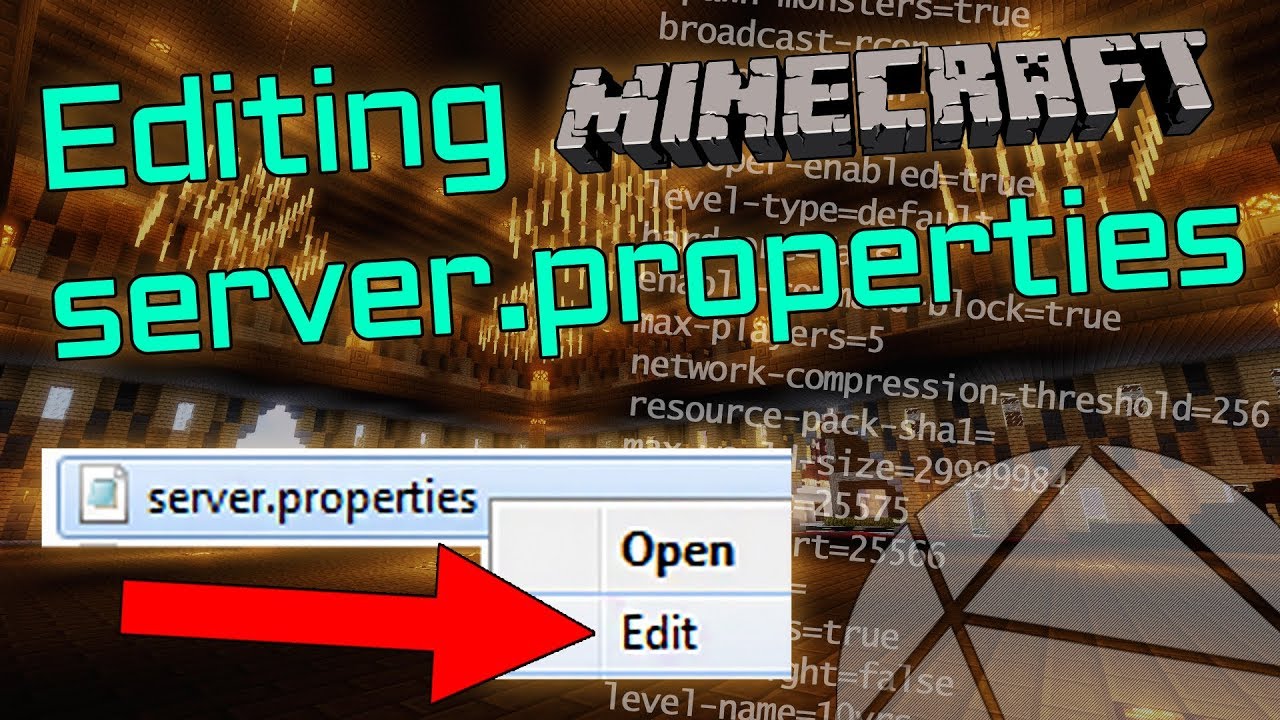
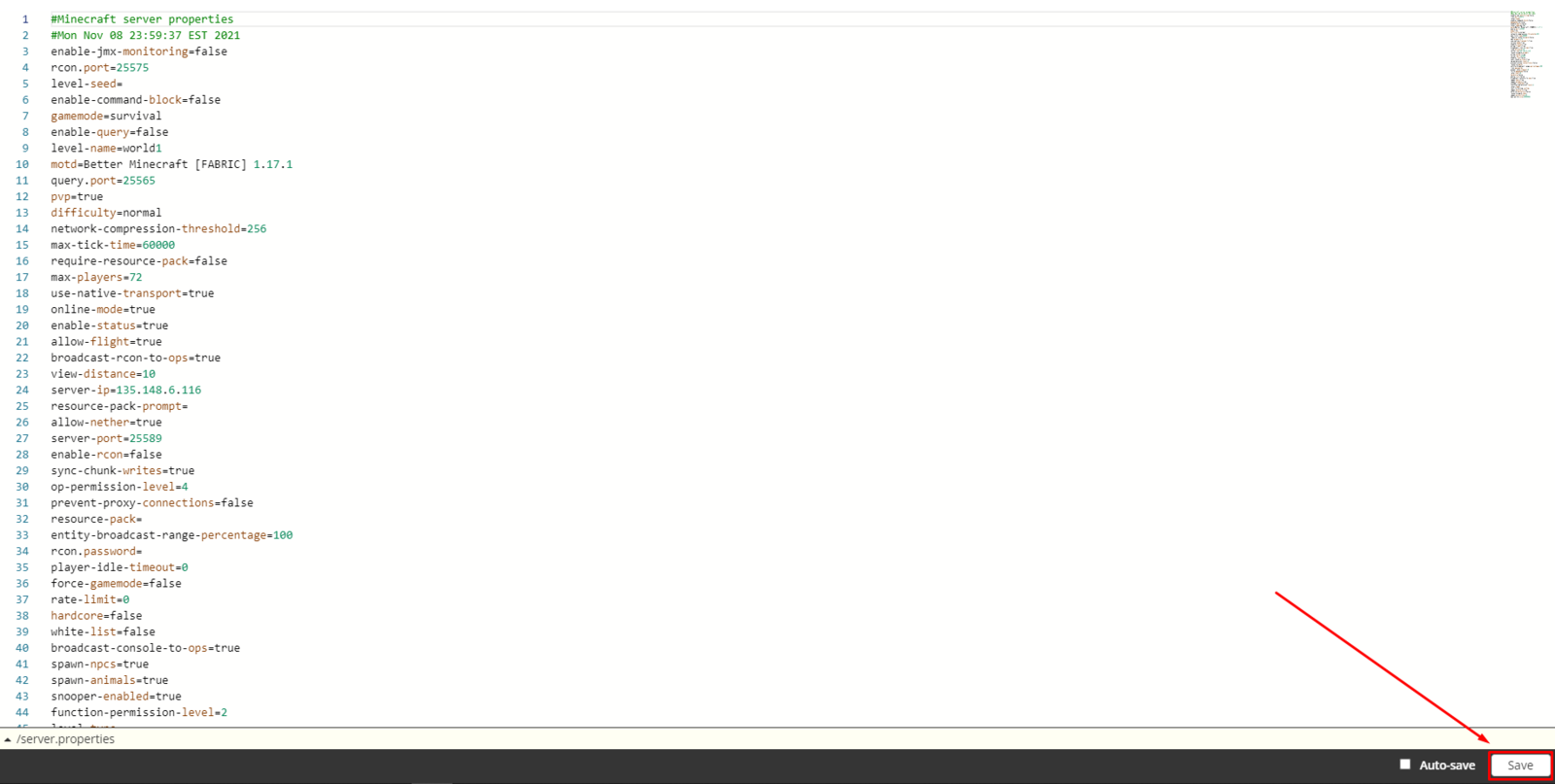
The default server.properties file for Java Edition is the file that stores all the settings for a multiplayer (Minecraft or Minecraft Classic) server. When editing server.properties, it is essential to keep the same structure as the original, although the order of the lines is arbitrary.
Understanding the Server Properties File
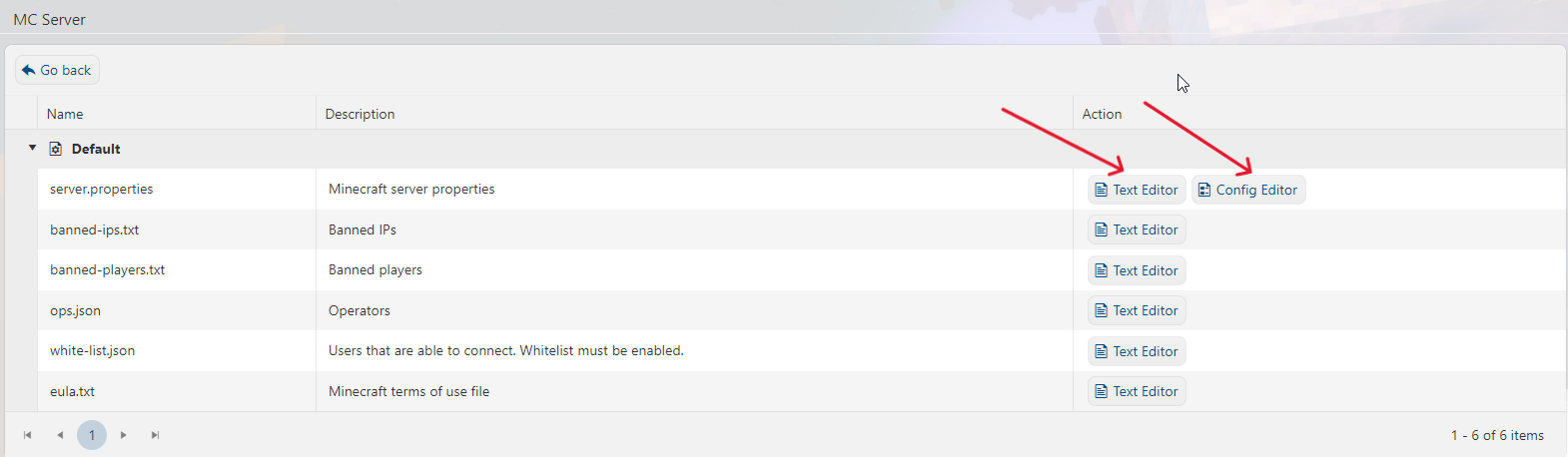
The server.properties file is crucial for managing various settings for your Minecraft server. It contains configuration options related to difficulty, maximum players, and other essential settings. This file can be edited using any text editor, including the default Notepad in Windows.
Important Settings in Server Properties File
- difficulty: This setting determines the difficulty level of the game. There are three options: peace (peaceful), normal, and hard.
- maxplayers: This is the maximum number of players that can join the server at a given time.
- motd: This is the message of the day that appears when players connect to the server.
- max-build-height: This setting controls the maximum height of the game world.
Customizing Server Settings
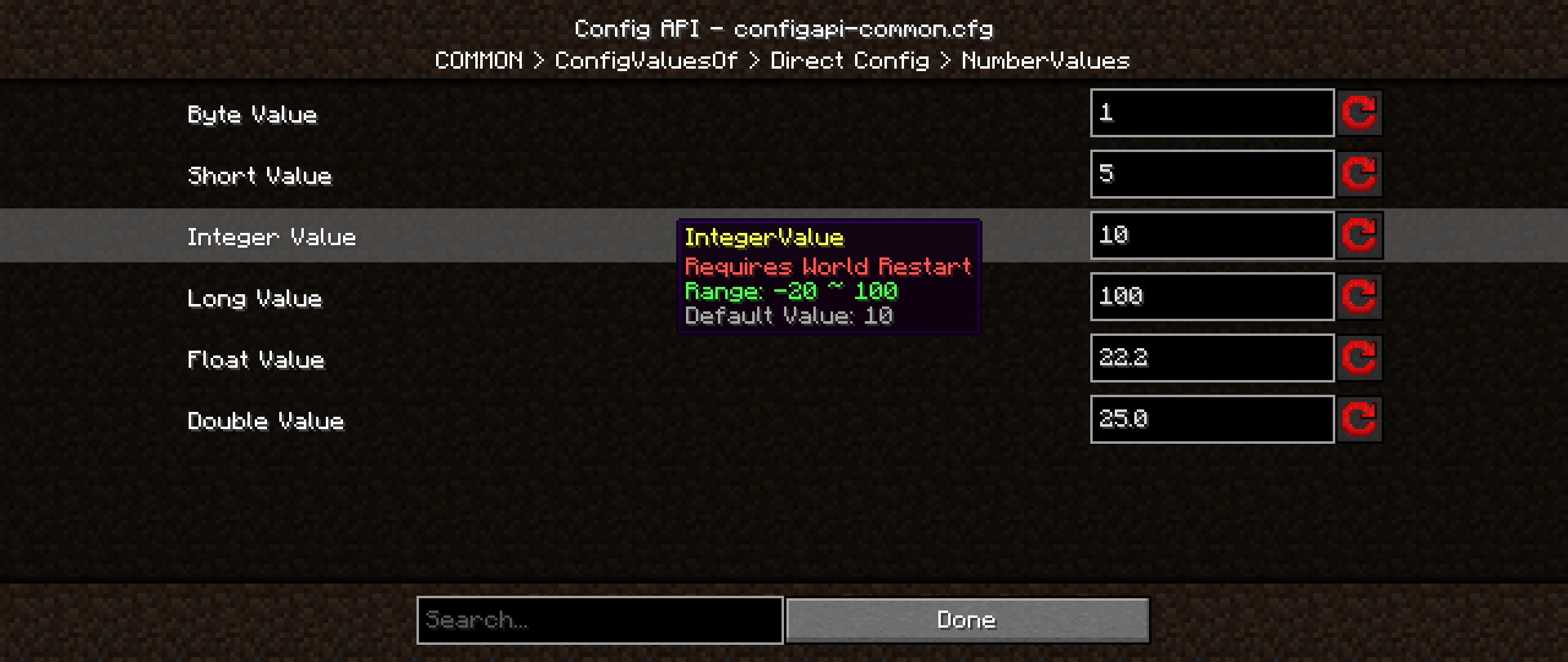
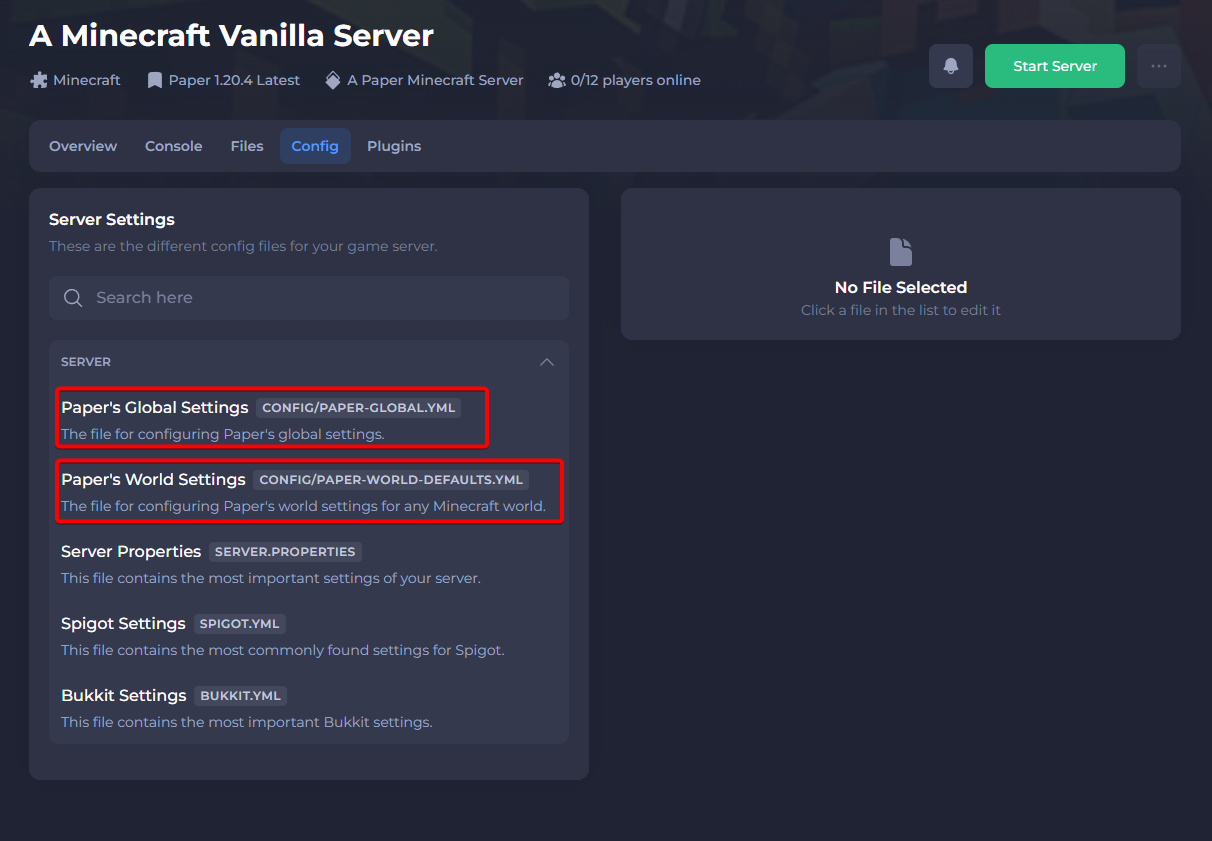
While the default configuration of a new Minecraft server works for most situations, you may want to customize your server by tweaking a few of the configuration options. To do this, you'll need to modify the server.properties file.
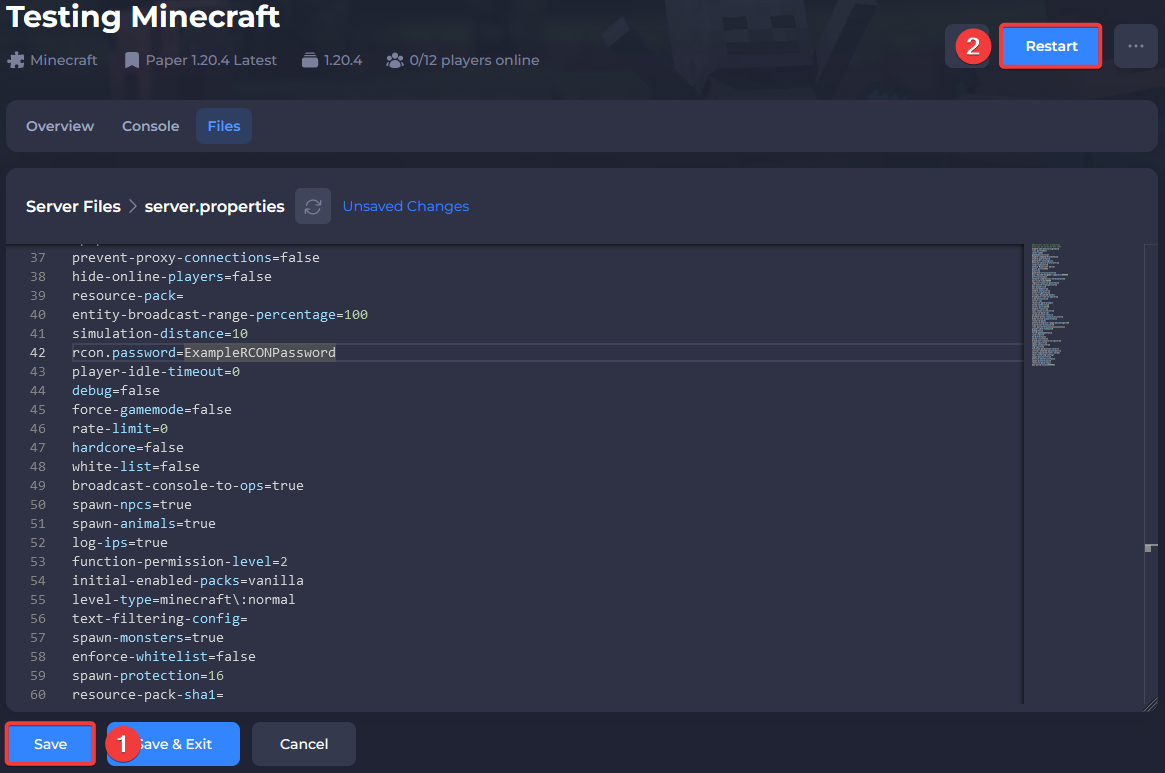
Step-by-Step Guide to Editing Server Properties File
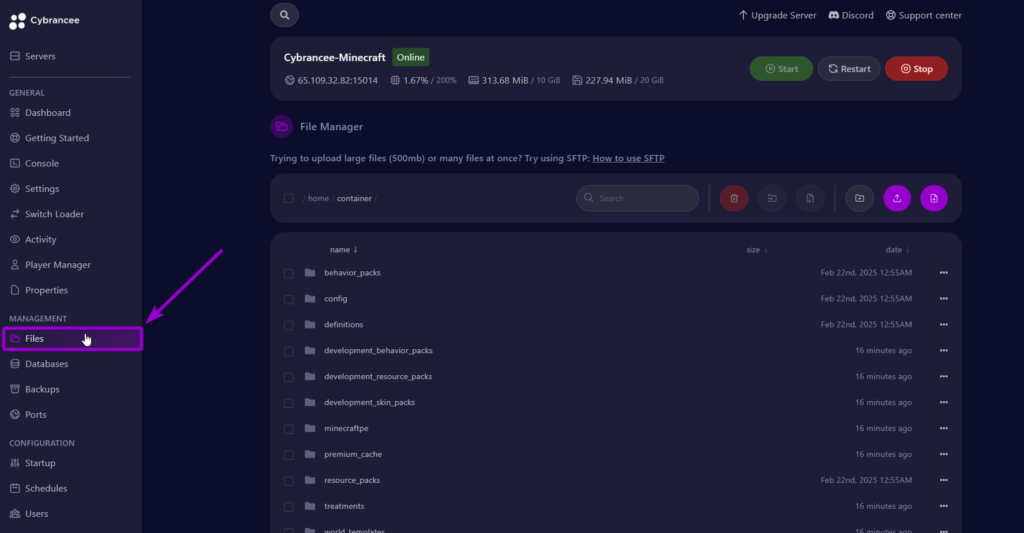
- Locate the
server.propertiesfile in your Minecraft server folder. - Open the file using a text editor, such as Notepad or VSCode.
- Modify the settings according to your preferences.
- Save the changes and upload the updated
server.propertiesfile to your server.
Common Errors and Solutions
There are several common errors you may encounter when modifying server settings, such as:
- ServerConfigCorrupted (a server-side config file is malformed)
- UnsupportedClassVersion (a mod was compiled with a newer version of Java than the one being used)
- UsedByAnotherProcess (a file is locked by another program)
- Version1_21 (warns that Minecraft 1.21 is outdated and causing many issues; suggests switching to 1.21.1)
To resolve these errors, you can try the following:
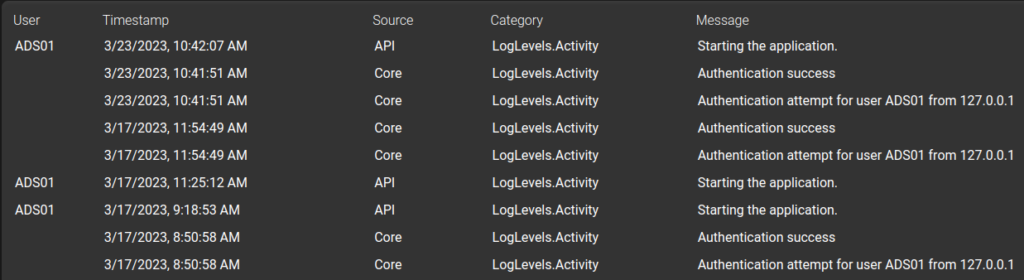
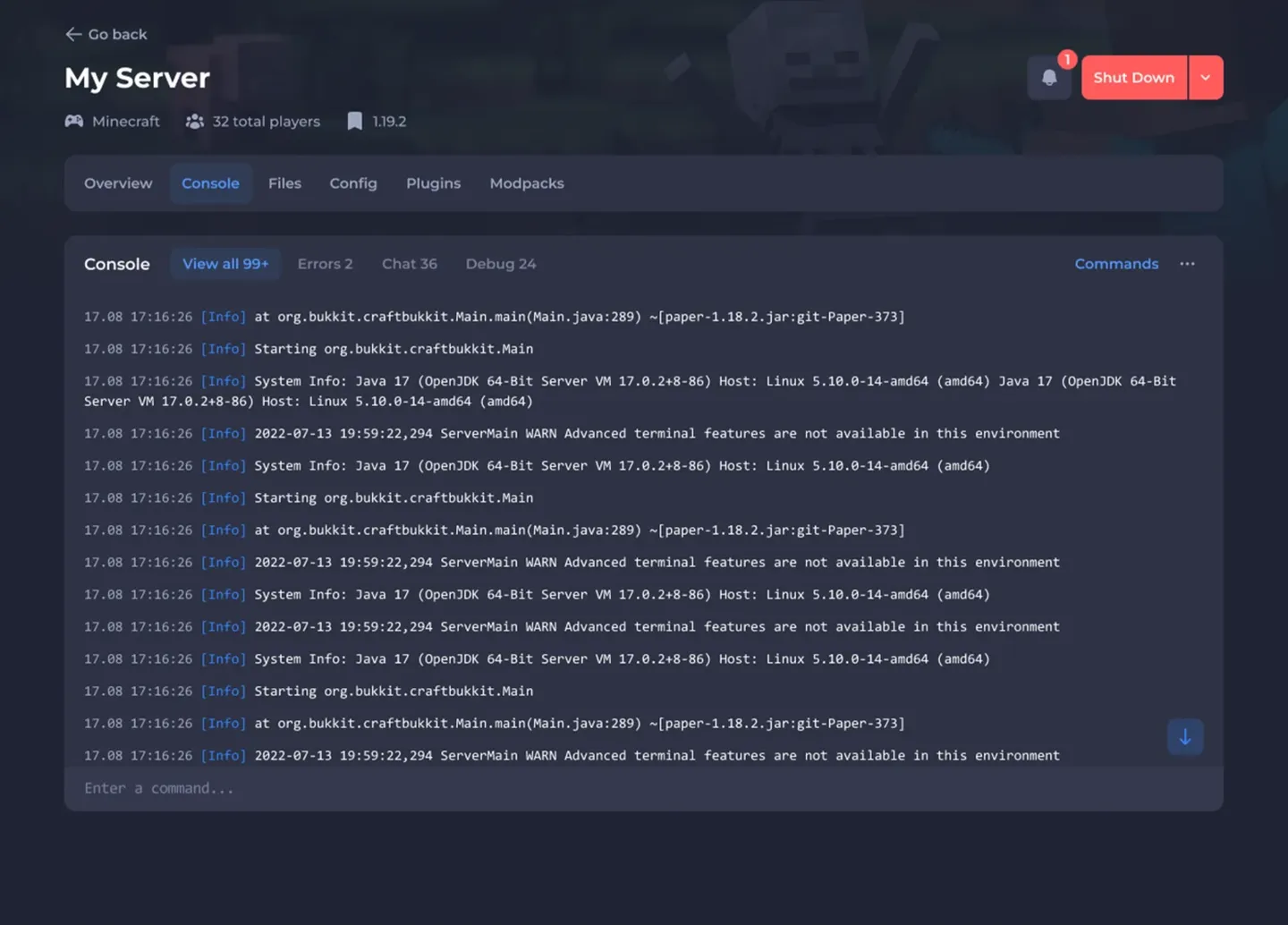
- Check the server logs for more information about the error.
- Restart the server and try again.
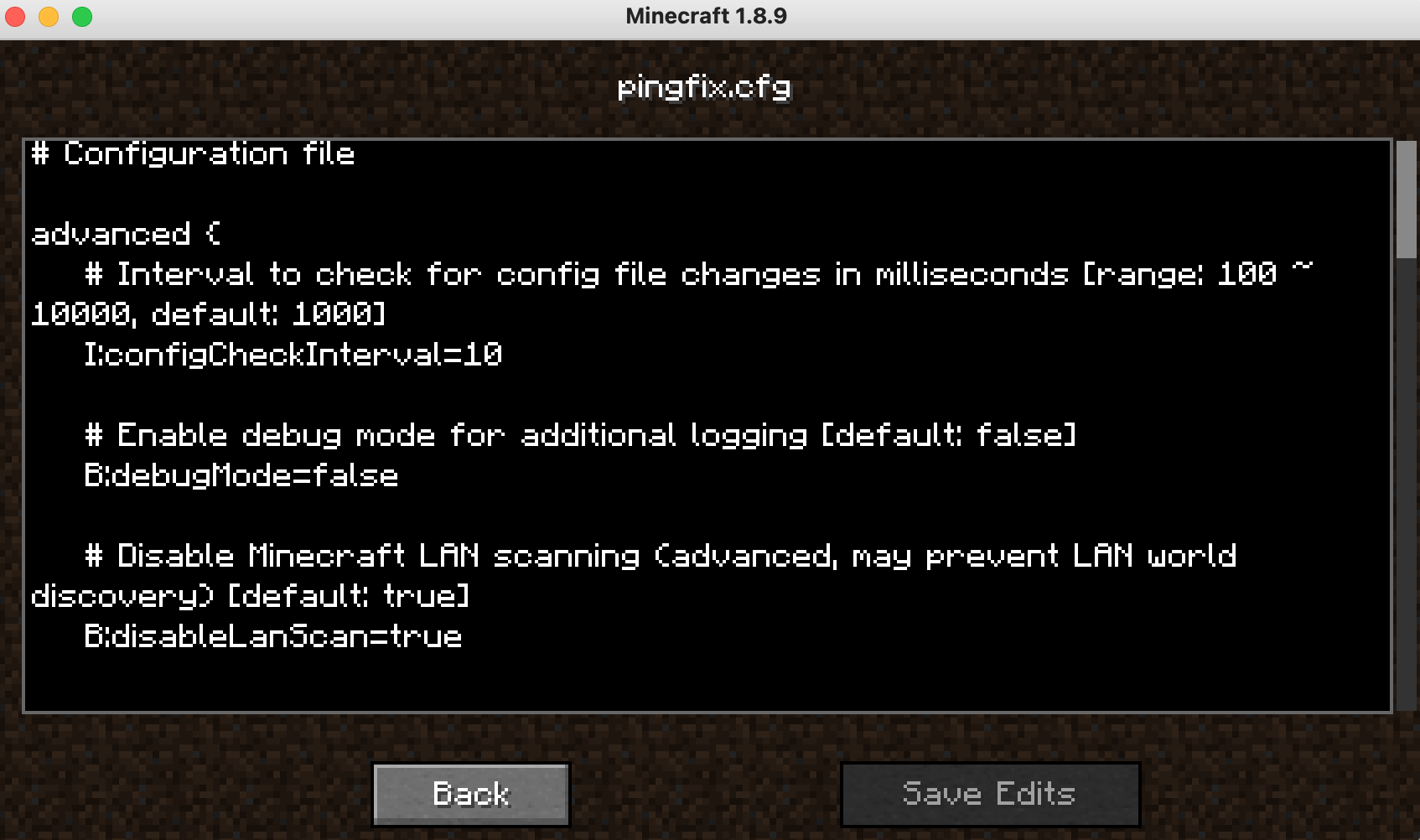
- Check the server's config files for any errors or inconsistencies.
- Update the server software or mods to the latest version.
Best Practices for Server Configuration
Here are some best practices for configuring your Minecraft server:
- Keep backups of your server's config files and data.
- Regularly update your server software and mods.
- Use a consistent naming convention for your server files and folders.
- Test new configurations in a staging environment before applying them to your live server.
Conclusion
Configuring your Minecraft server's settings is crucial for performance, security, and gameplay experience. By understanding the server properties file and following best practices for server configuration, you can create a smooth and enjoyable gaming environment for yourself and your players.