How to Set Up Your New iPhone After Trade-In
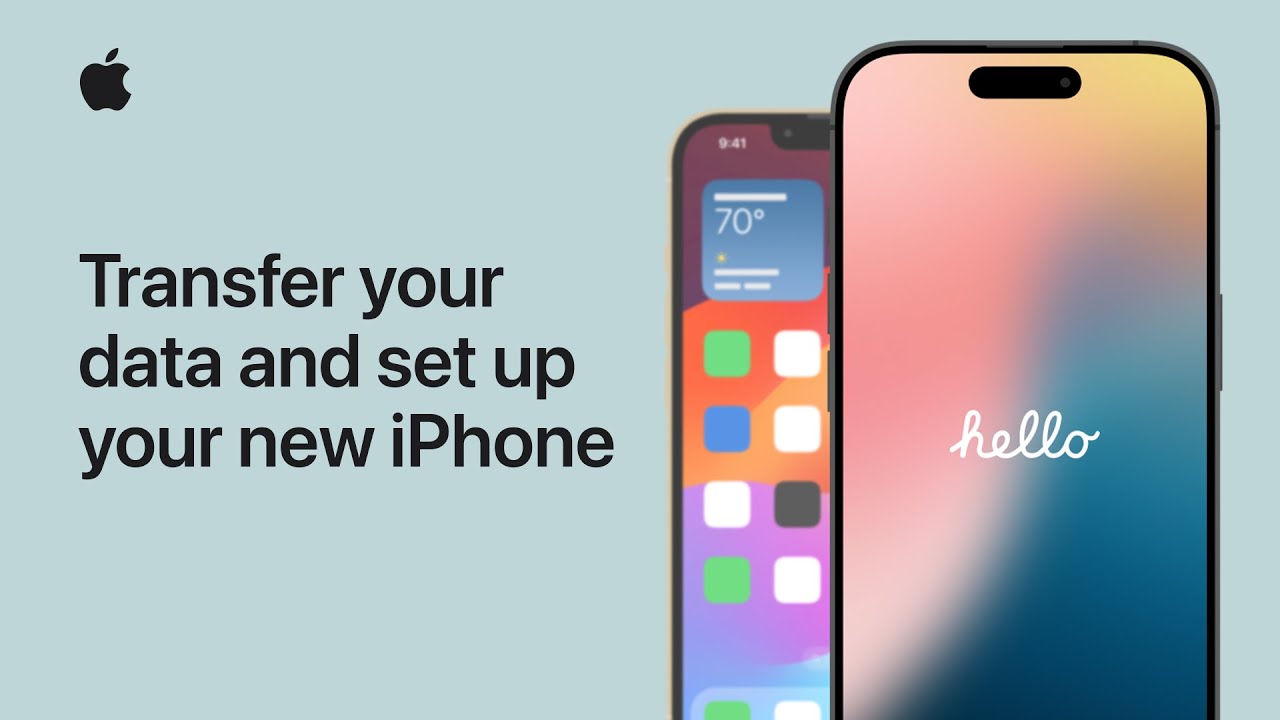
Are you excited to upgrade to a new iPhone but not sure how to set it up after trading in your old device? Look no further! In this comprehensive guide, we'll walk you through the process of setting up your new iPhone, transferring data, and activating Apple services. Follow these simple steps to get your new iPhone up and running in no time.
Step 1: Unboxing and Initial Setup
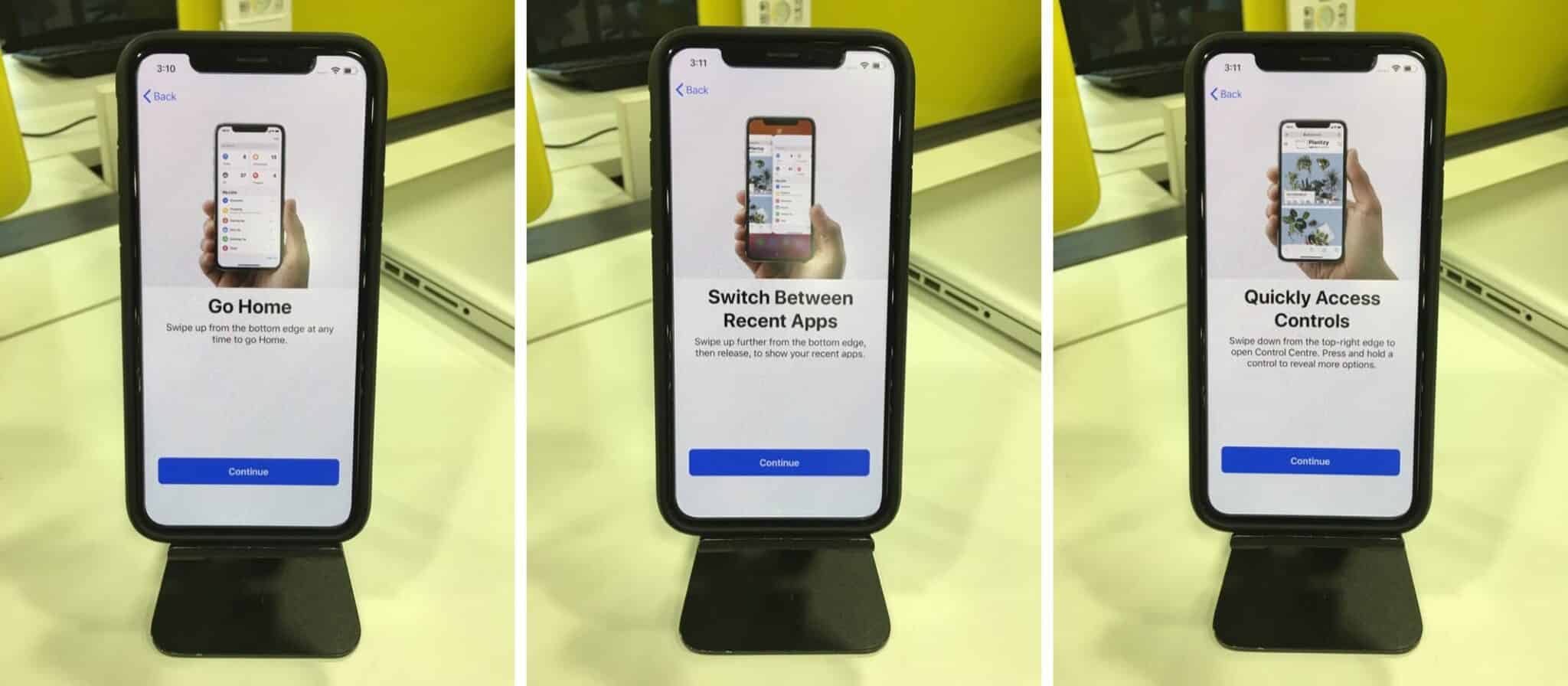
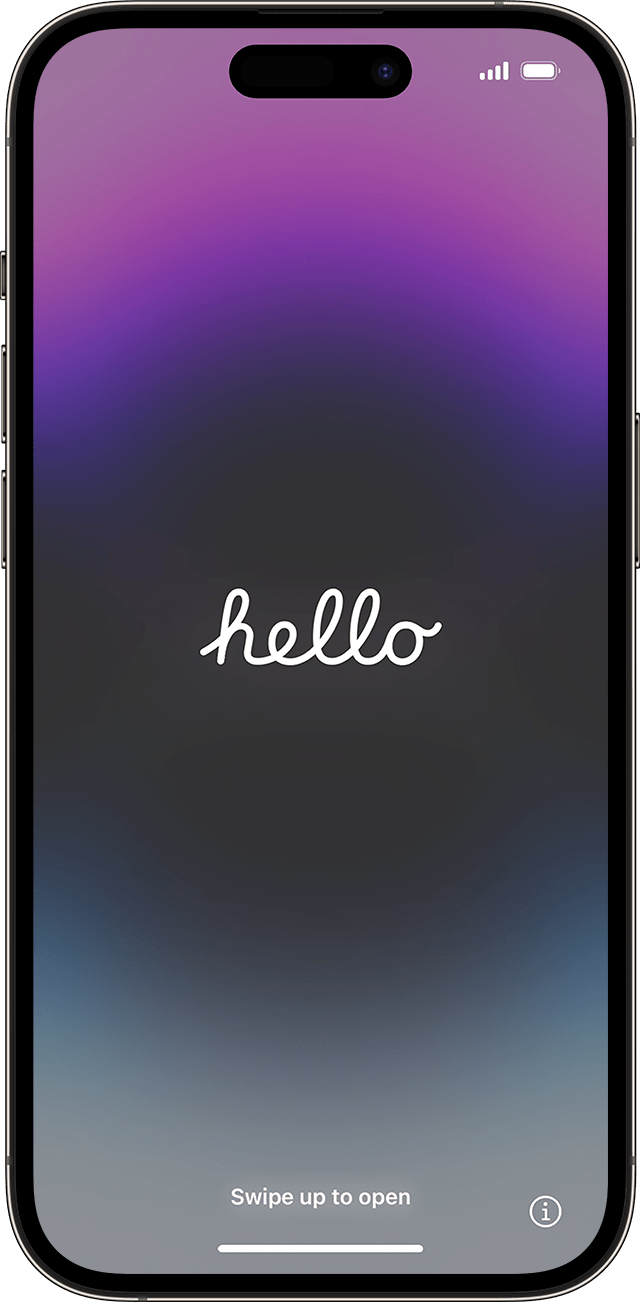
First things first, take your new iPhone out of the box and remove any protective packaging. Place the iPhone on a flat surface and plug it in to charge. Next, turn on your iPhone by pressing and holding the sleep/wake button until the Apple logo appears.
- Follow the on-screen instructions to select your language and country or region.
- Choose your Wi-Fi network or connect to a nearby hotspot.
- Sign in with your Apple ID or create a new one if you don't have an account.
Step 2: Transferring Data
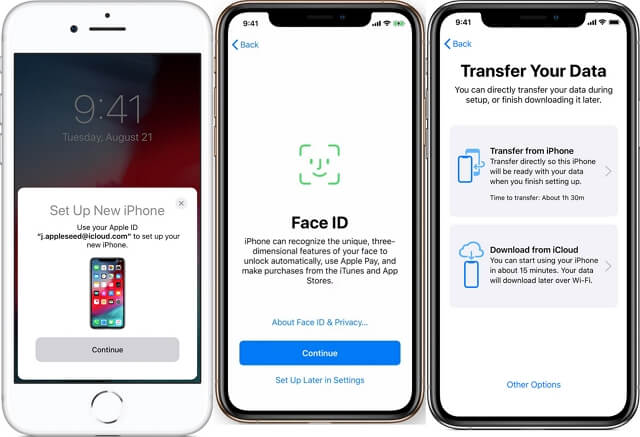
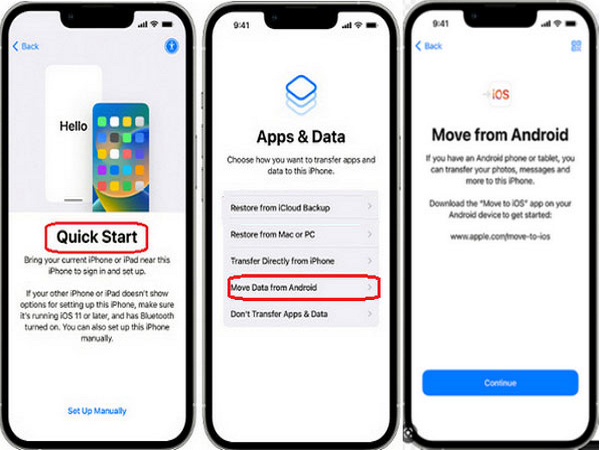
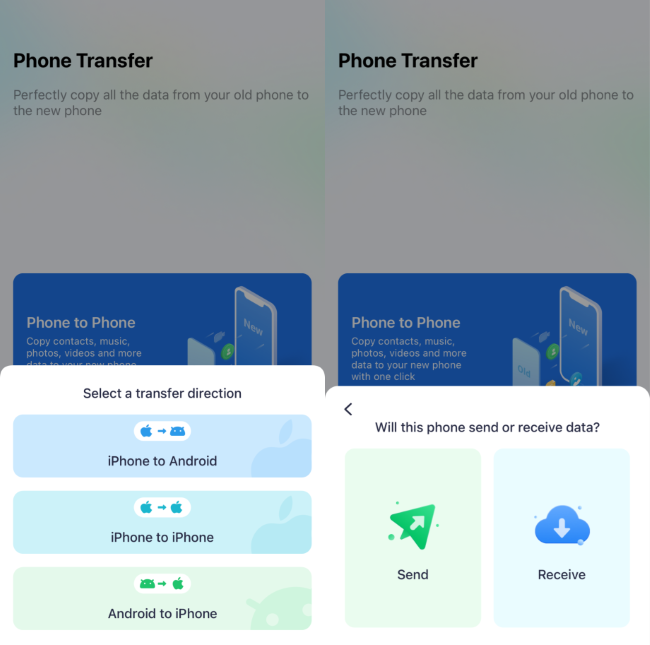
Now that your iPhone is set up, it's time to transfer your data from your old device. You can use one of the following methods:
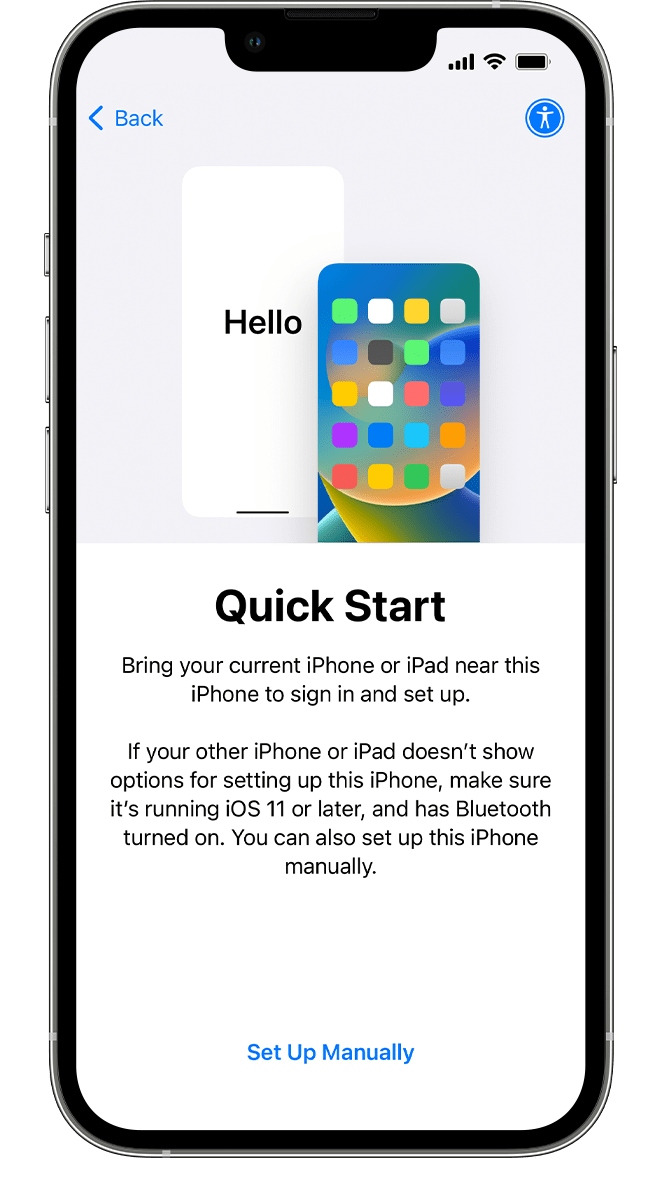
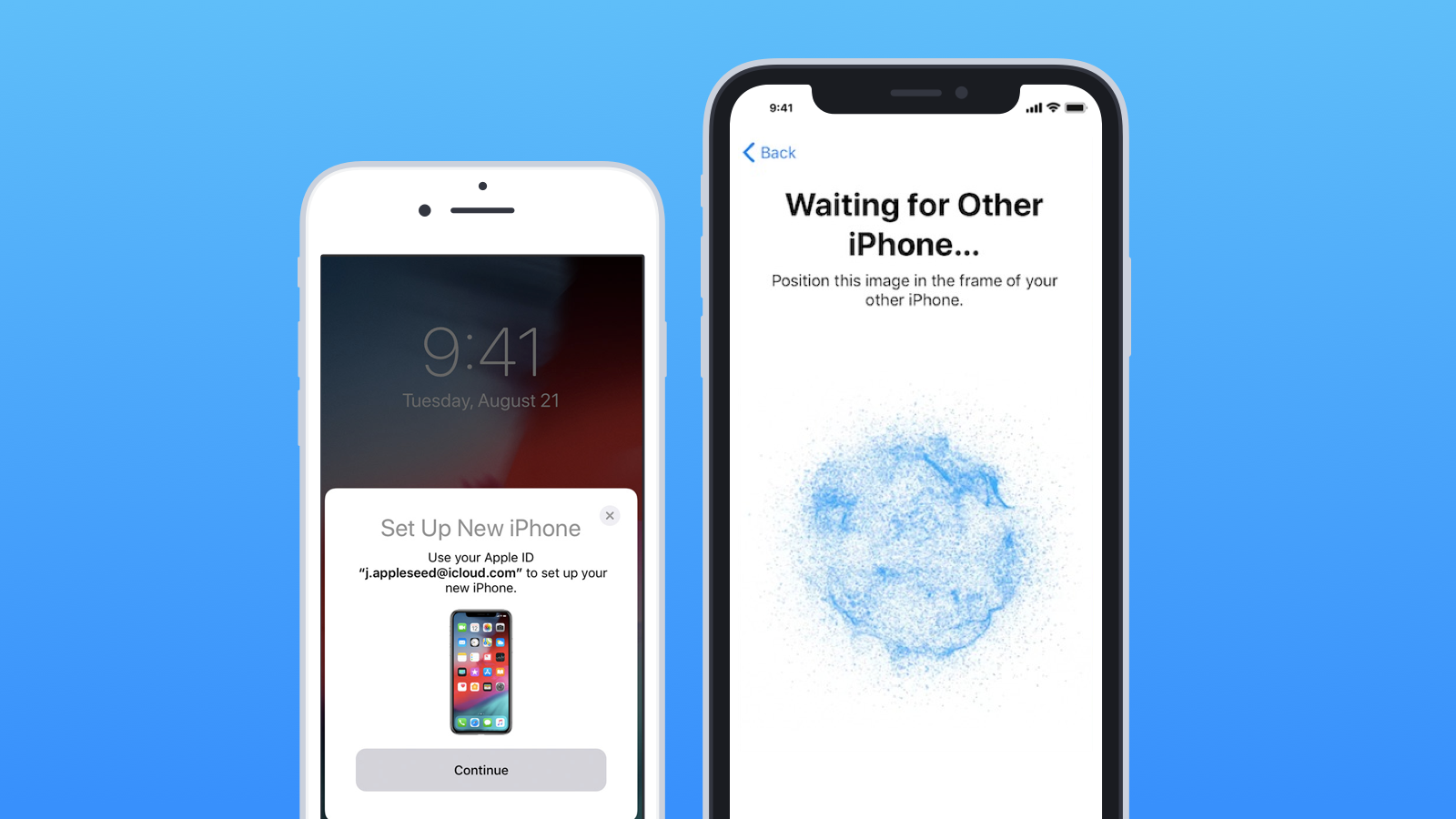
- Quick Start: If you have another iPhone or iPad with iOS 11 or later, you can use Quick Start to automatically transfer your data. Simply hold the old device over the new one and follow the on-screen instructions.
- iCloud: Sign in with your Apple ID and iCloud account to transfer your data, purchased content, and settings from your old device.
- Manual Transfer: Use a cable to transfer your data from your old device to your new one.
Step 3: Activating Apple Services
Now that your data is transferred, it's time to activate your Apple services. Follow these steps:
- Sign in with your Apple ID and password to activate iCloud, Apple Music, and other services.
- Set up Face ID or Touch ID to secure your iPhone.
- Enable Two-Factor Authentication (2FA) to add an extra layer of security.
Step 4: Customizing Your iPhone
Finally, customize your iPhone to your liking. Follow these steps:
- Set up your iPhone for yourself or for a child under 13.
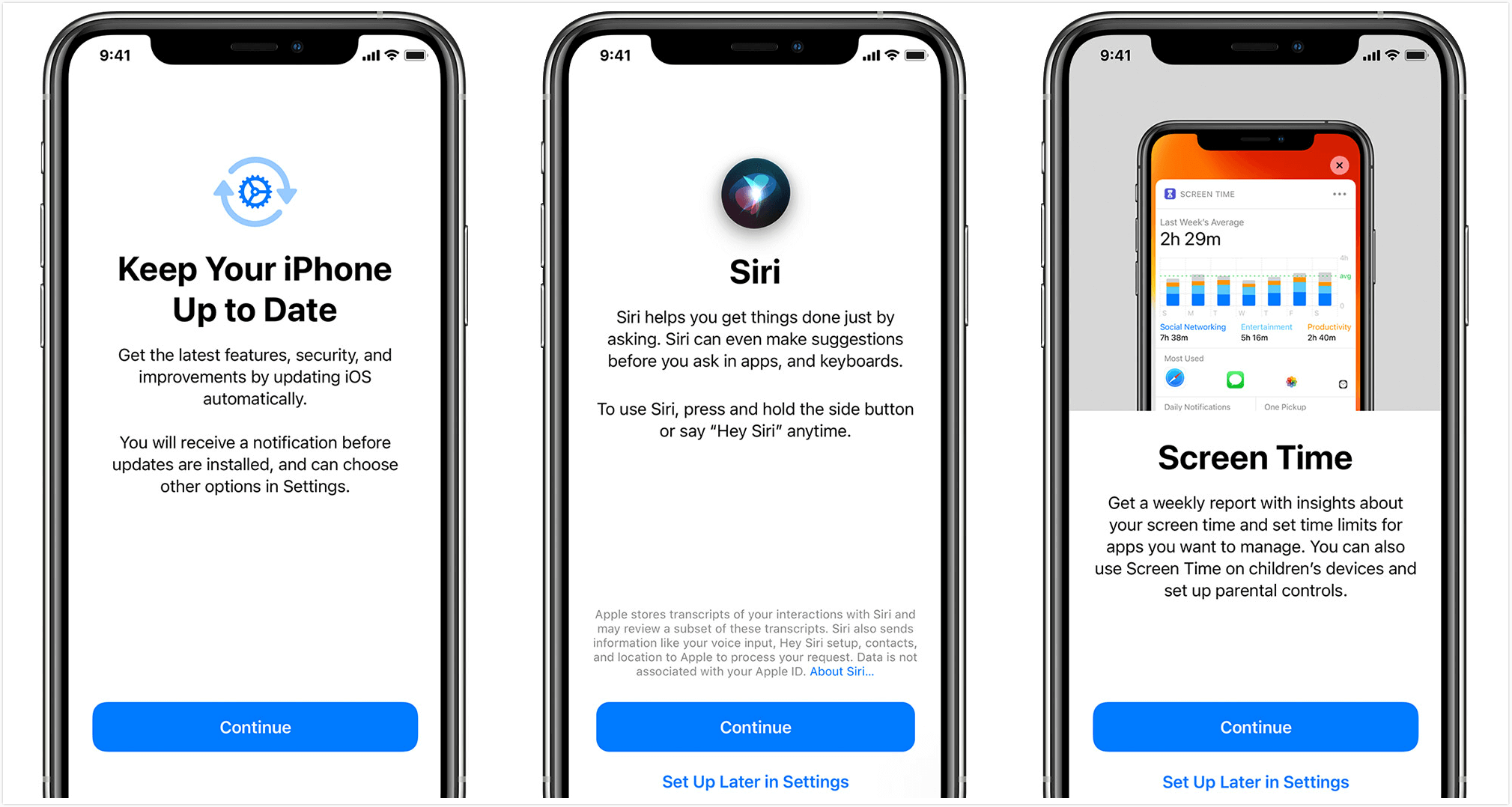
- Choose your iPhone settings, such as notification preferences and sound options.
- Download and install your favorite apps from the App Store.
Conclusion
Setting up your new iPhone after trade-in is a straightforward process. By following these steps, you'll have your new iPhone up and running in no time. Remember to transfer your data, activate Apple services, and customize your iPhone to your liking. If you have any issues or concerns, don't hesitate to reach out to Apple Support for assistance.
Additional Tips and Resources
For more information on how to set up your new iPhone, visit the Apple Support website or check out our other resources:
Happy upgrading!