How to Set Up a New iPhone 14: A Step-by-Step Guide
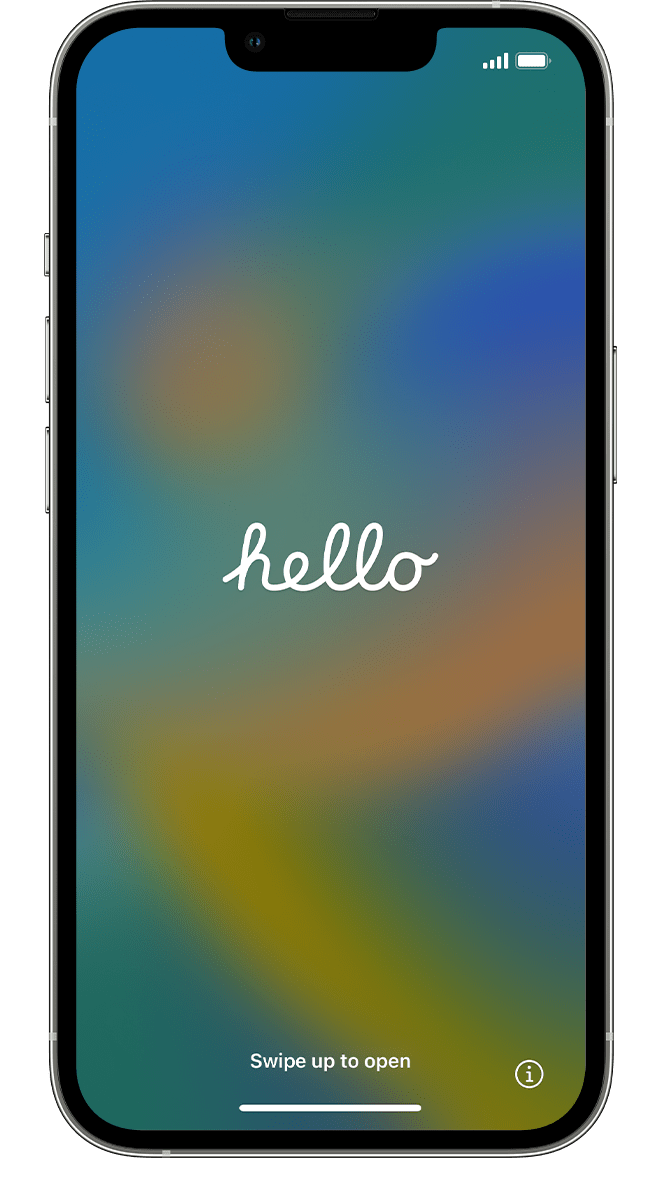
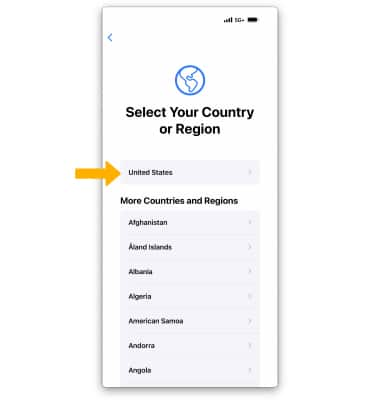
Unboxing a new iPhone 14 can be an exciting experience. However, setting it up for the first time can be a bit overwhelming, especially if you're not familiar with the process. In this article, we'll walk you through the steps to set up your new iPhone 14, so you can start using it in no time.
Prepare Your New iPhone 14
Before you begin the setup process, make sure you have the following:
- A stable Wi-Fi connection
- Your new iPhone 14 device
- Your old iPhone or other device (if you're transferring data)
According to your needs, it's essential to select the right type of setup for your new iPhone 14. We will explain how to set up your new iPhone 14 using two methods: Quick Start and Set Up Manually.
Quick Start Method
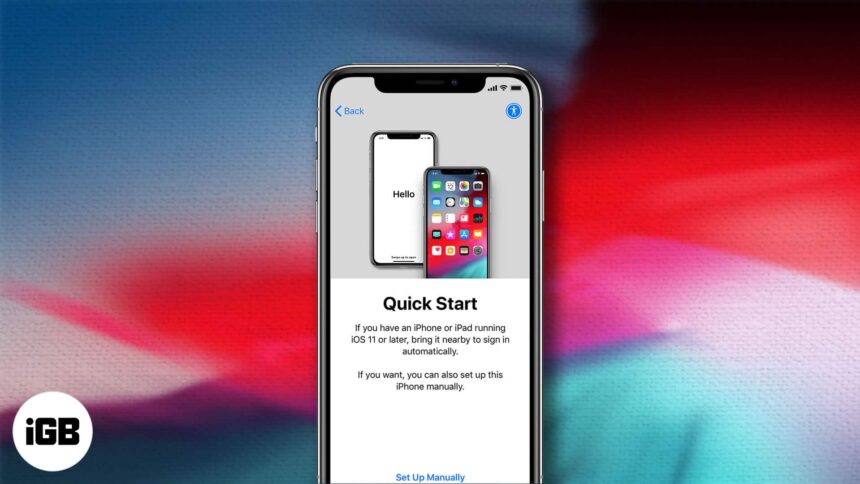
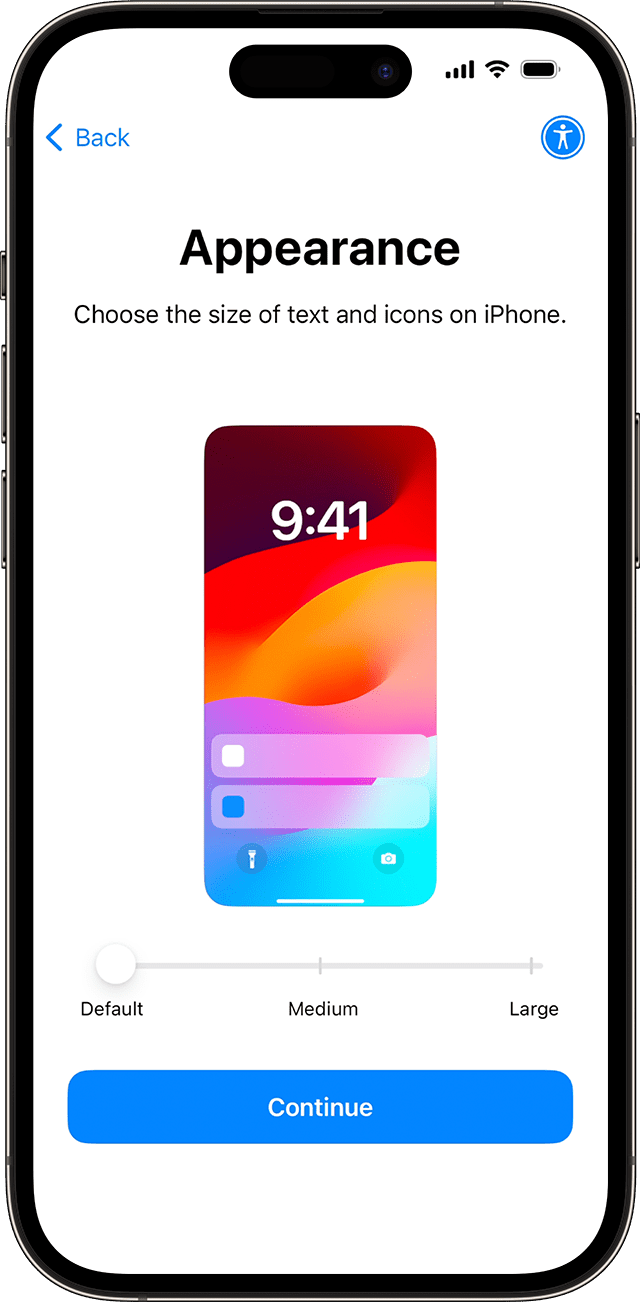
One of the most popular methods to set up your new iPhone 14 is using the Quick Start feature. This feature allows you to transfer data and content from your old device to your new one during the setup process. To use this method:
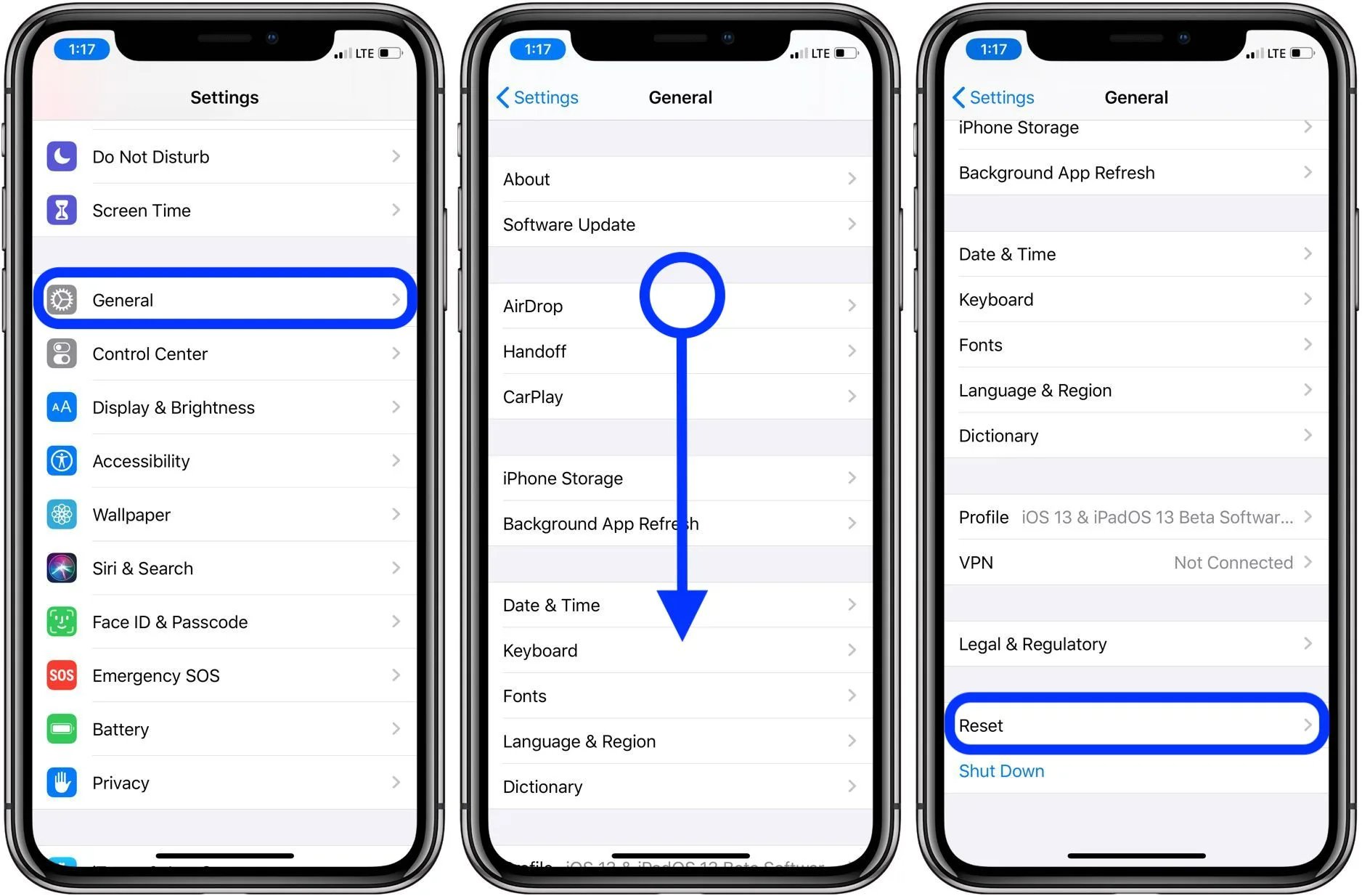
- On your old device, go to Settings > General > Transfer or Reset iPhone > Quick Start
- Hold your new iPhone 14 close to your old device, and the camera of the old phone will detect the new device and prompt you to select a method to set it up
- Choose the "Continue" option and follow the on-screen instructions to complete the setup process
If you prefer a more manual setup, you can select the "Setup Manually" option. This method is ideal if you're using a device other than an iPhone or if you don't want to transfer data from your old device.
Transfering Data: An Alternative Method
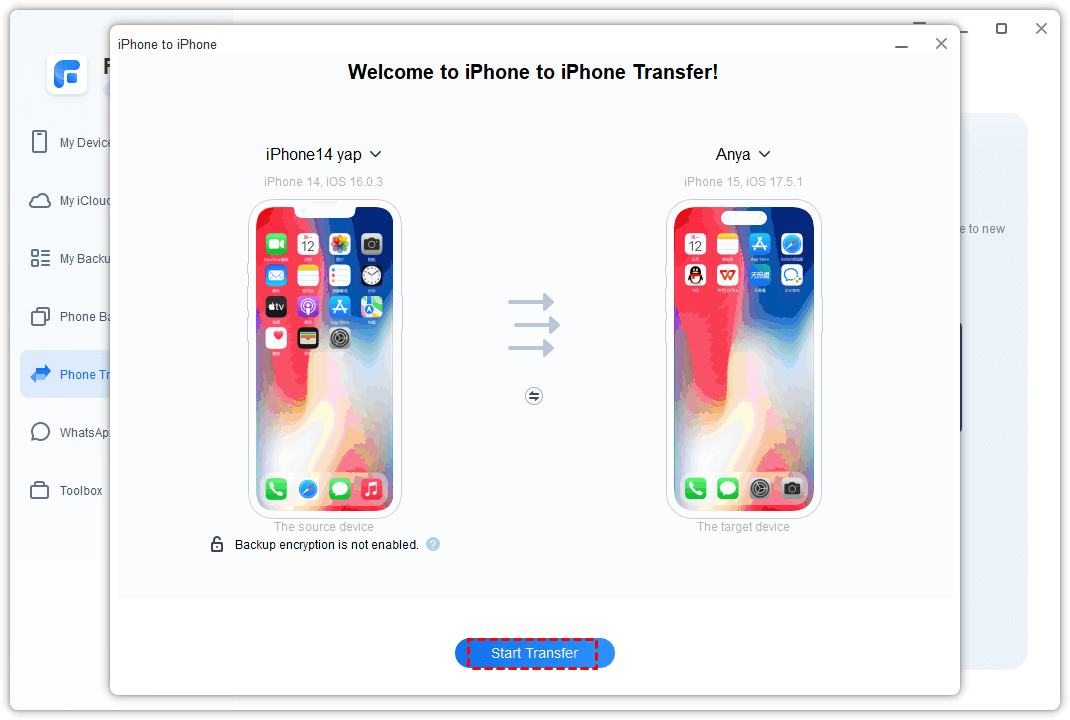
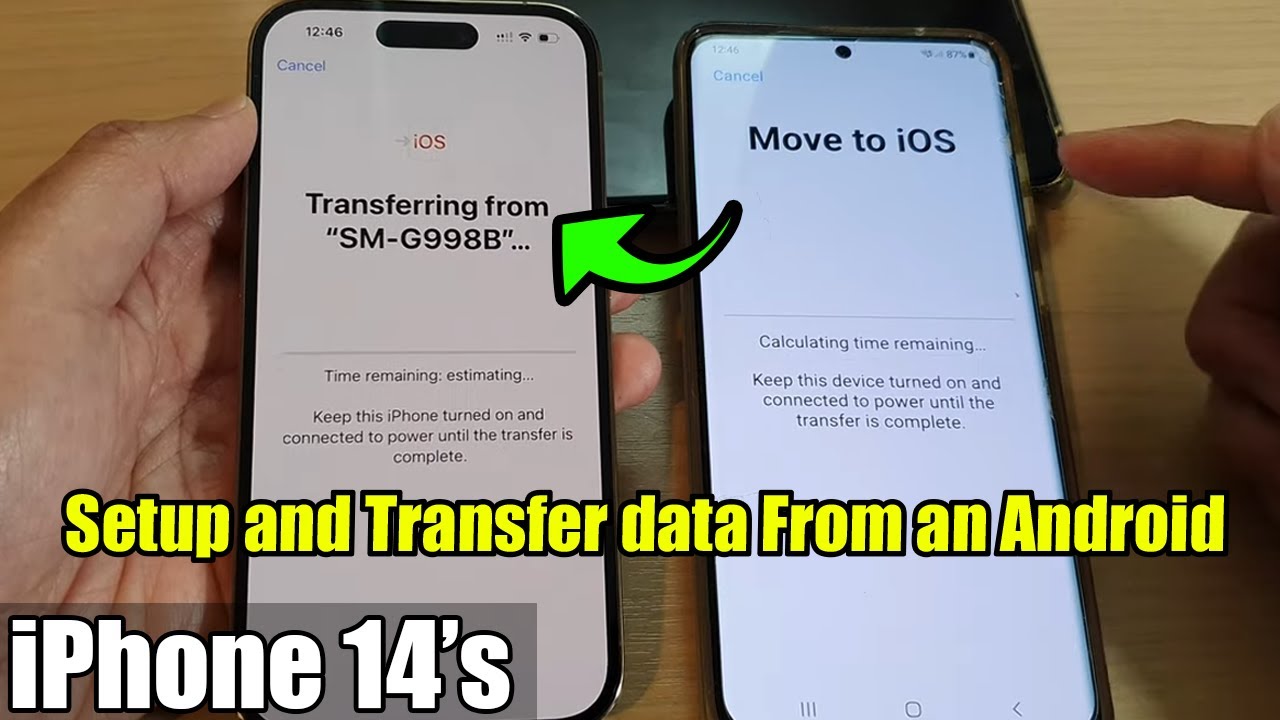
Another way to transfer data from an old iPhone 14 to a new one is by using different methods, such as using iCloud and your previous device, transferring data directly, or restoring from a backup. We will discuss how to transfer data from your old iPhone to your new iPhone using these methods below.
Transfer Using iCloud
Transferring data using iCloud allows you to easily transfer your old data to your new iPhone 14. To do this:
- Go to Settings > [your name] > iCloud on your old device
- Sign in with your iCloud account and enter the verification code sent to your old device
- Tap on the "Back up your data" option, and let it complete the backup process
- On your new iPhone, go to Settings > [your name] > iCloud > Sign in and follow the prompts to restore your old data from the backup
Transfer Using a Computer Backup
Transferring data from an old iPhone to a new one using a computer backup is a time-consuming process, but safe if you're not transferring your data through a different device like an iPad. To do this:
- Connect your old iPhone to your computer using a USB cable and open iTunes (Mac) or Finder (PC)
- backup your old iPhone and select the backup option on your new iPhone
- Disconnect the old iPhone and connect the new one to your computer. Once it appears in the sidebar, select it and click the "Restore from this backup" option
Setup your Voicemail on iPhone
Setting up your voicemail on your new iPhone 14 requires following a few easy steps:
- Go to the phone app on your new iPhone
- Tap on the "Voicemail" option at the bottom of the list of calls
- Tap on the "Setup your voicemail" option and then follow the prompts on your screen
Configure Other Features
Before you start using your new iPhone 14, configure the basic features like your time zone, date, and time settings and Pin or passcode to protect your device. It is a good idea to familiarize yourself with your iPhone's home screen panels. You can swipe left and right to view all of them and assign different apps to each by opening the Settings app > Home screen. Now that you know how to set up your new iPhone 14, continue setting up your other Apple devices to make sure everything runs smoothly.