Setup Windows 11 on a Laptop with a Hard Drive: A Step-by-Step Guide
If you're planning to install Windows 11 on a laptop with a hard drive, you've come to the right place. This article will provide you with a step-by-step guide on how to do so, including preparation, installation, and troubleshooting common problems.
Prerequisites
- Ensure your laptop meets the system requirements for Windows 11.
- Backup important data on the current hard drive.
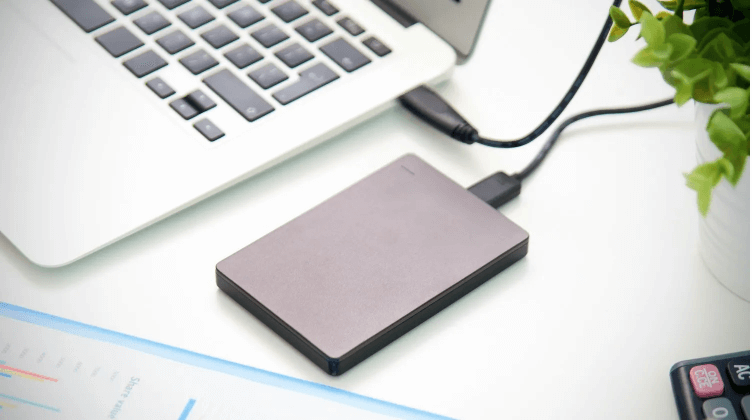
- Prepare a blank USB drive for installation.
Step 1: Prepare a Bootable USB Drive
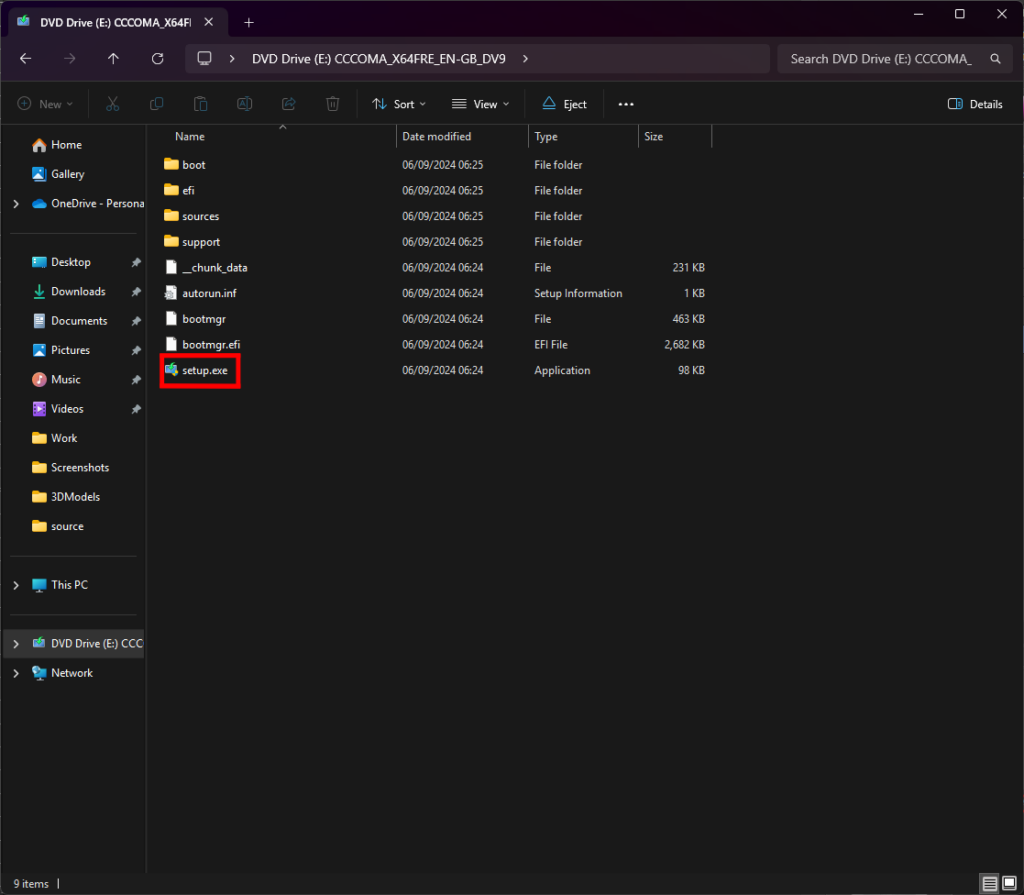
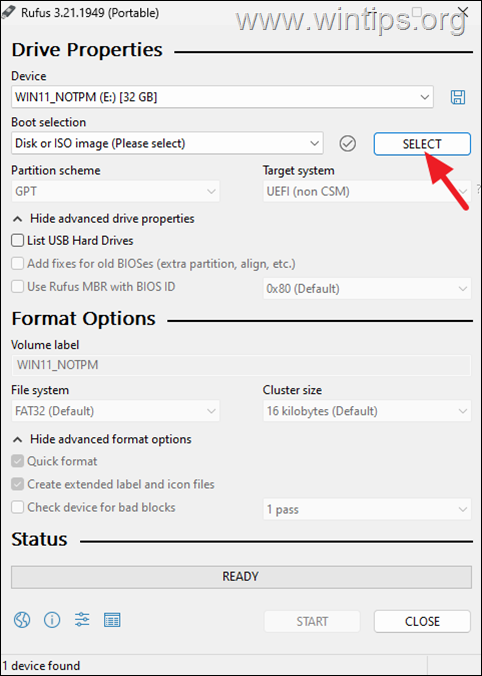
To create a bootable USB drive, you'll need to use software tools like Rufus or the Windows Media Creation Tool. Simply connect a blank USB drive to your computer, run the software, select the Windows 11 ISO file, and follow the prompts to create the bootable drive.
This will allow you to install Windows 11 on a new computer or upgrade an existing system. You can also use a third-party tool like Etcher to create a bootable USB drive.
Step 2: Install Windows 11 on the Laptop
Insert the bootable USB drive into the laptop, and restart the computer. Enter the BIOS settings and configure the boot order to prioritize the USB drive.
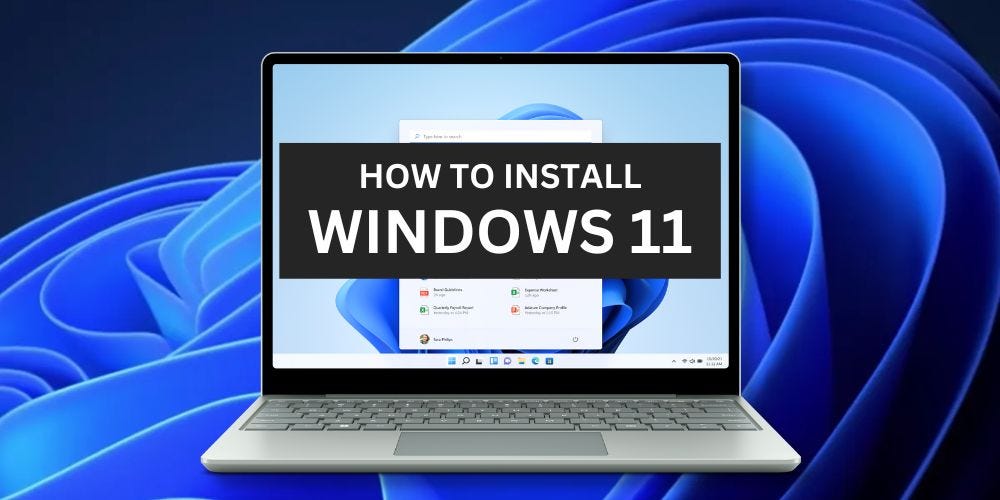
Setup Windows 11 on a Laptop with a Hard Drive Steps:
- Insert the bootable USB drive into the laptop.
- Restart the computer and enter the BIOS settings.
- Configure the boot order to prioritize the USB drive.
- Save the changes and exit the BIOS settings.
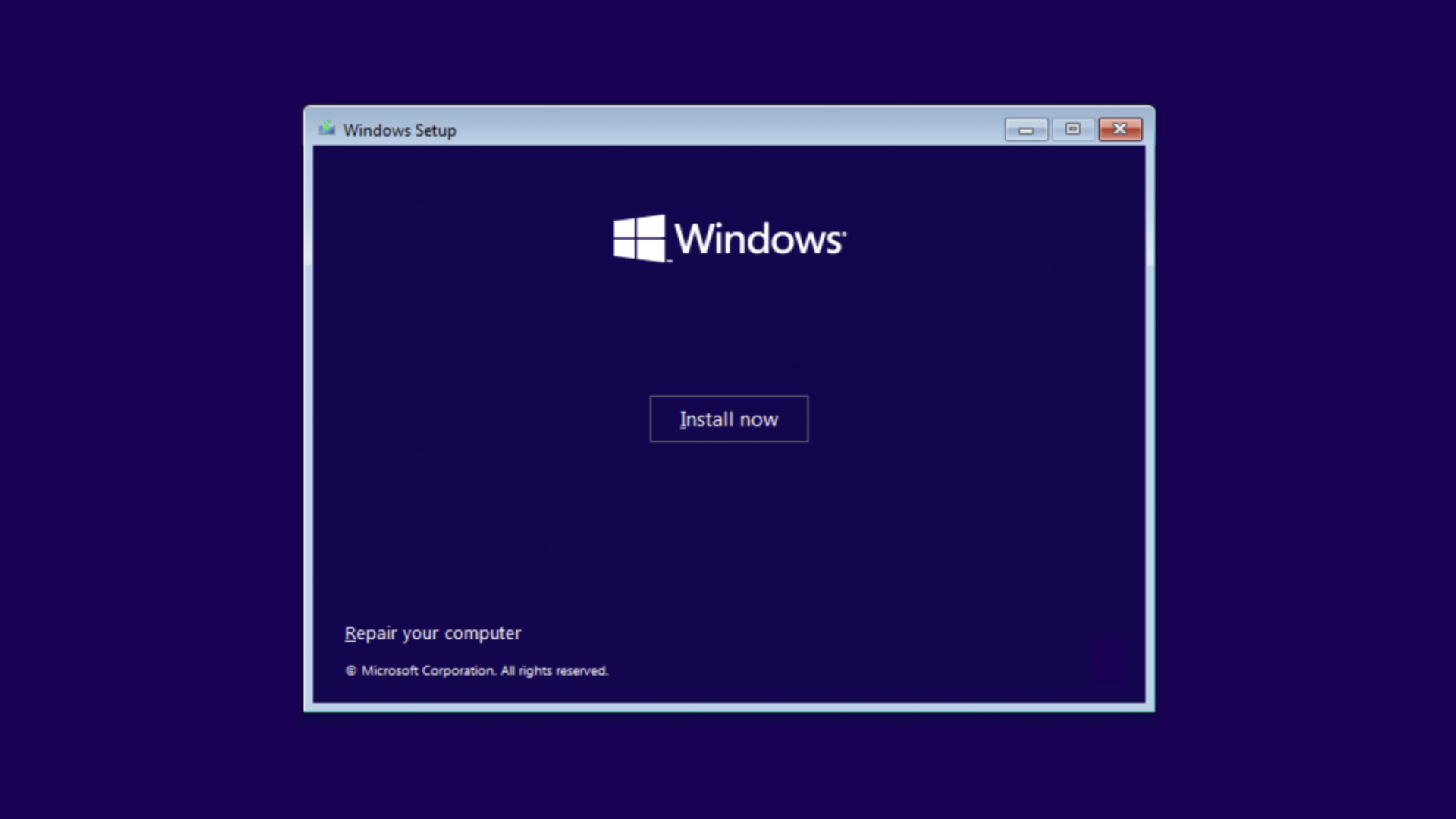
- The laptop will boot from the USB drive and continue with the installation process.
- Follow the on-screen instructions to choose the language, time zone, and other preferences.
- Accept the licensing agreement and privacy policy.
- Choose the installation type (Custom or Upgrade).
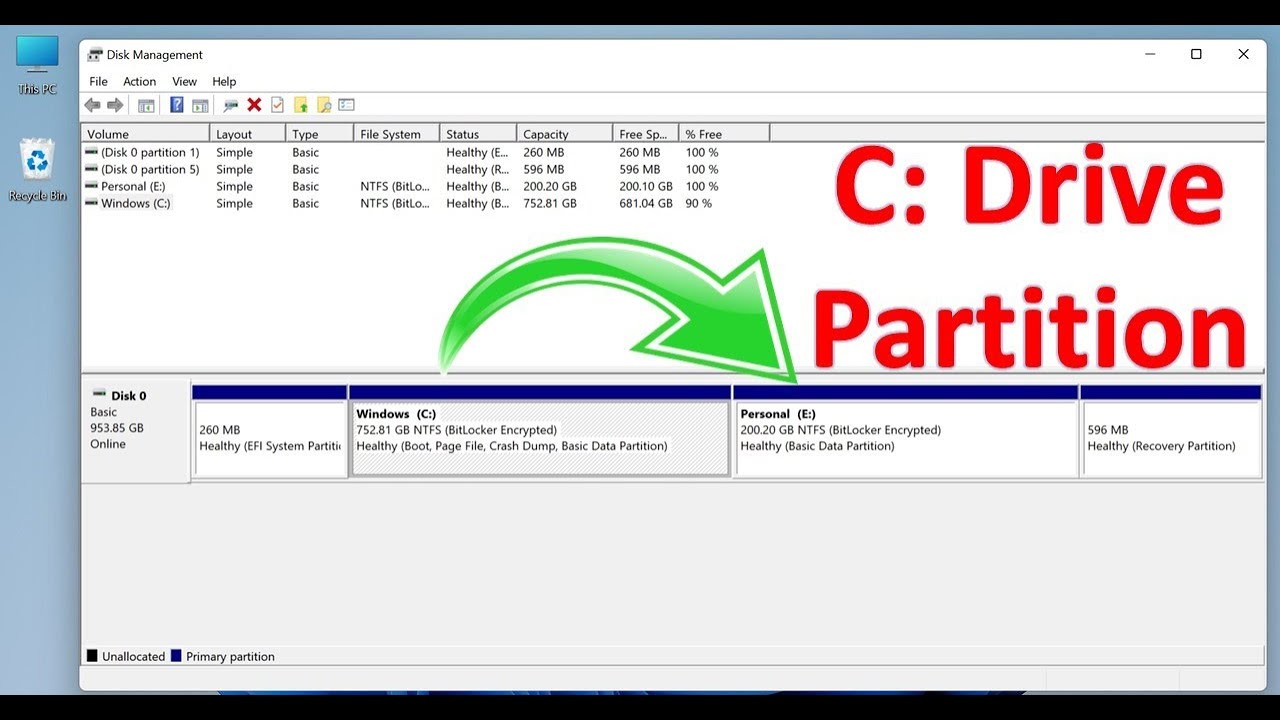
- Partition the hard drive and install Windows 11.
- Wait for the installation to complete.
Step 3: Fix Common Problems
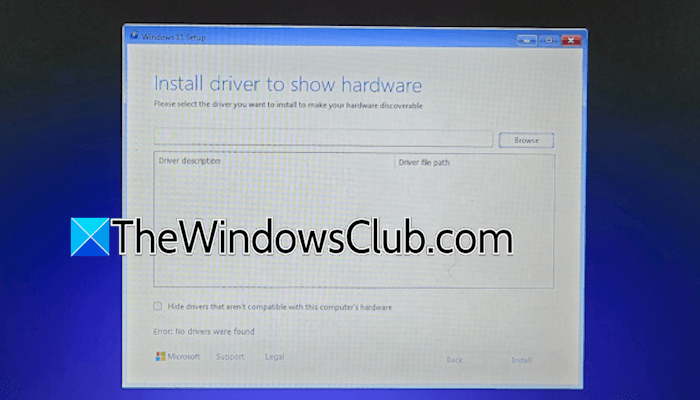
- Missing drivers: You may need to install drivers for the hard drive, network card, or other hardware components.
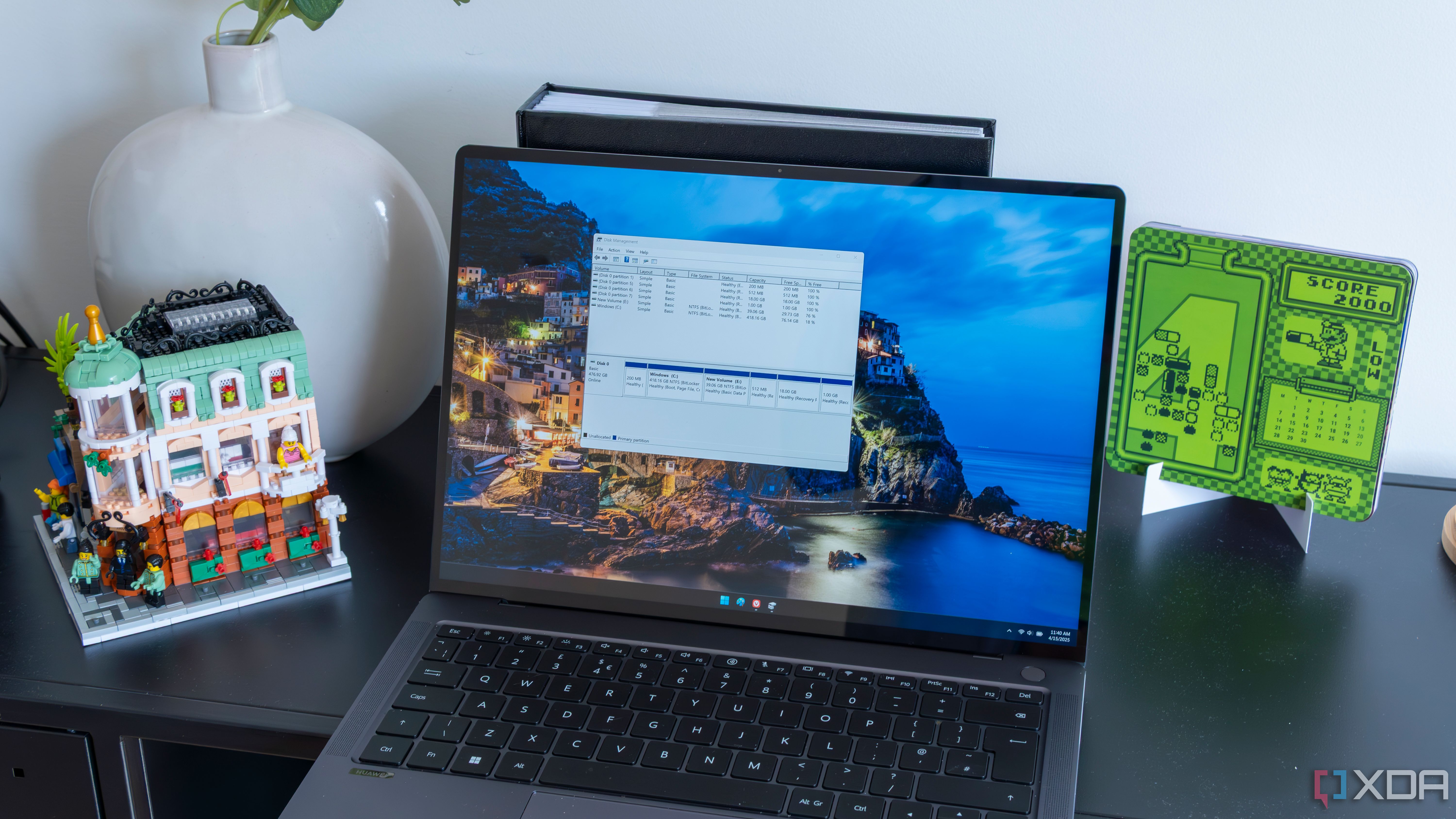
- Invisible drives: Use Disk Management to initialize the drives and make them visible.
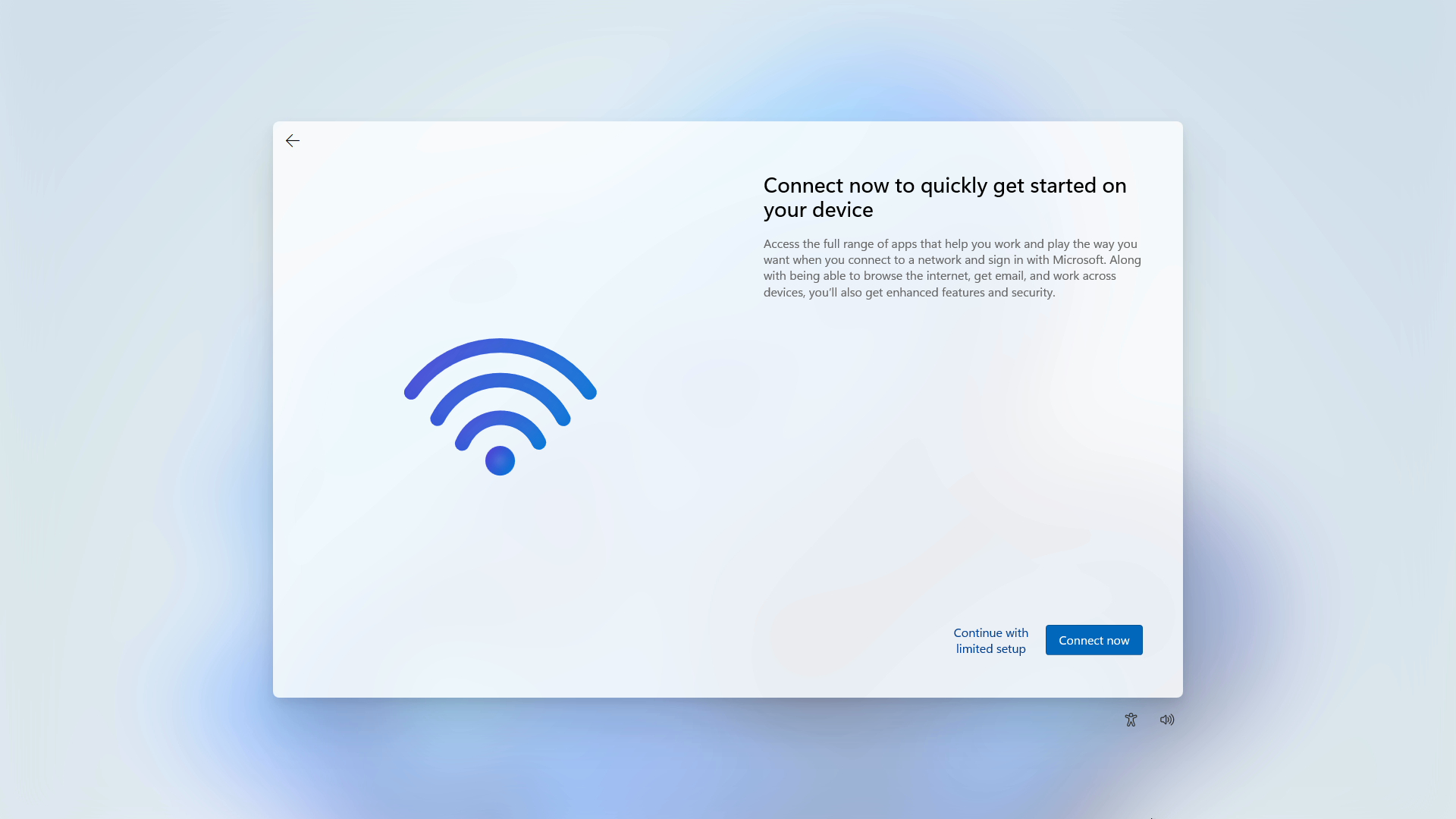
- Network issues: Check the network connection and troubleshoot any problems.
Conclusion
Installing Windows 11 on a laptop with a hard drive is a straightforward process. By following the steps outlined in this guide, you'll be able to successfully install Windows 11 and troubleshoot any common problems that may arise.
Remember to always backup important data before starting the installation process, and use a reliable source for the Windows 11 ISO file. With these steps, you'll be able to enjoy a smooth and seamless Windows 11 experience on your laptop.