Setting Up A Private Discord
Are you looking to create a private community on Discord where you can chat with friends or like-minded individuals without unwanted outsiders joining in? Look no further! In this article, we will walk you through the steps to set up a private Discord server, ensuring optimal control over access, privacy, and member interactions.
Why Create a Private Discord Server?
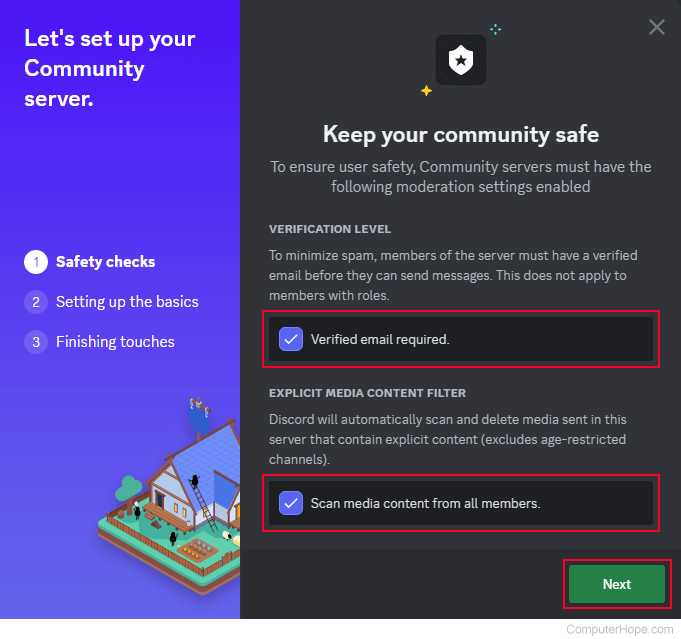
Discord has emerged as a dominant platform for online communication, transcending its initial gaming-centric focus to encompass diverse communities, professional teams, and educational institutions. Creating a private server provides granular control over membership and communication channels, offering a tailored environment for focused interaction and collaboration. Whether you're building a community for gaming, study groups, or other hobbies, setting up a private Discord server is a great way to control who can join and interact with your community.
Step 1: Create a New Discord Server
To create a new private Discord server, start by logging into your Discord account and clicking on the "+" icon in the left-hand menu. Select "Create a Server" and enter the desired server name. You can also choose a region and set up an invite for others to join. From here, you can select server settings and manage your server's permissions, roles, and channels.
Step 2: Set Up Server Permissions and Roles
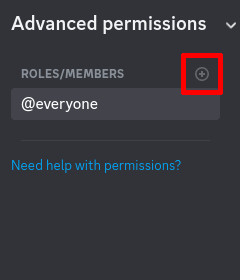
When setting up a private Discord server, it's essential to understand the permissions system and roles. Permissions allow you to control what actions members can perform within the server, such as sending messages, creating channels, or managing roles. Roles help manage user permissions, ensuring only specific users have access to certain channels or features. To set up server permissions, navigate to the server settings, select "Roles" and create new roles as needed.
Setting Up Roles for Your Private Discord Server
- Roles can be assigned to specific users or user groups, and each role can have unique permissions.
- Roles can be used to grant or deny permissions, such as reading or writing messages, voice channel access, or server management permissions.
- Roles can be edited or deleted as needed, and users can be reassigned to different roles as required.

Step 3: Create Private Channels and Channels
When creating a private server, you can restrict who can view and interact with your channels. To create a private channel, go to the server settings and select "Channels." From there, click the "Create Channel" button and choose the desired channel type (text, voice, or stage). You can make the channel private by clicking on the three dots next to the channel name and selecting "Permissions." Within the permissions settings, click on the "Roles" tab and select which roles can see and interact with the channel.
Setting Up Private Channels for Your Discord Server
- Private channels can be created for sensitive discussions, project collaboration, or content sharing.
- Channels can be set to private by removing the "View Channel" permission from the @everyone role and granting it to specific roles.
- Private channels can be divided into specific topics, making it easier for users to track and categorize conversations.
Conclusion
Setting up a private Discord server is a straightforward process that provides you with granular control over your community and communication channels. By setting up roles, server permissions, and private channels, you can ensure your community enjoys a secure space for interaction and collaboration. Whether you're building a community for gaming, learning, or socializing, setting up a private Discord server is an efficient and engaging way to manage your community and create a tailored environment for growth and interaction.
Final Tips for Setting Up A Private Discord Server
- Regularly review and adjust your server settings and permissions to maintain a secure and engaging environment.
- Assign clear instructions and guidelines for your community to ensure smooth communication and individual roles.
- Keep up-to-date with the latest features and updates from Discord to unlock additional security and functionality.