How to Integrate Google Home with Google Calendar: A Step-by-Step Guide
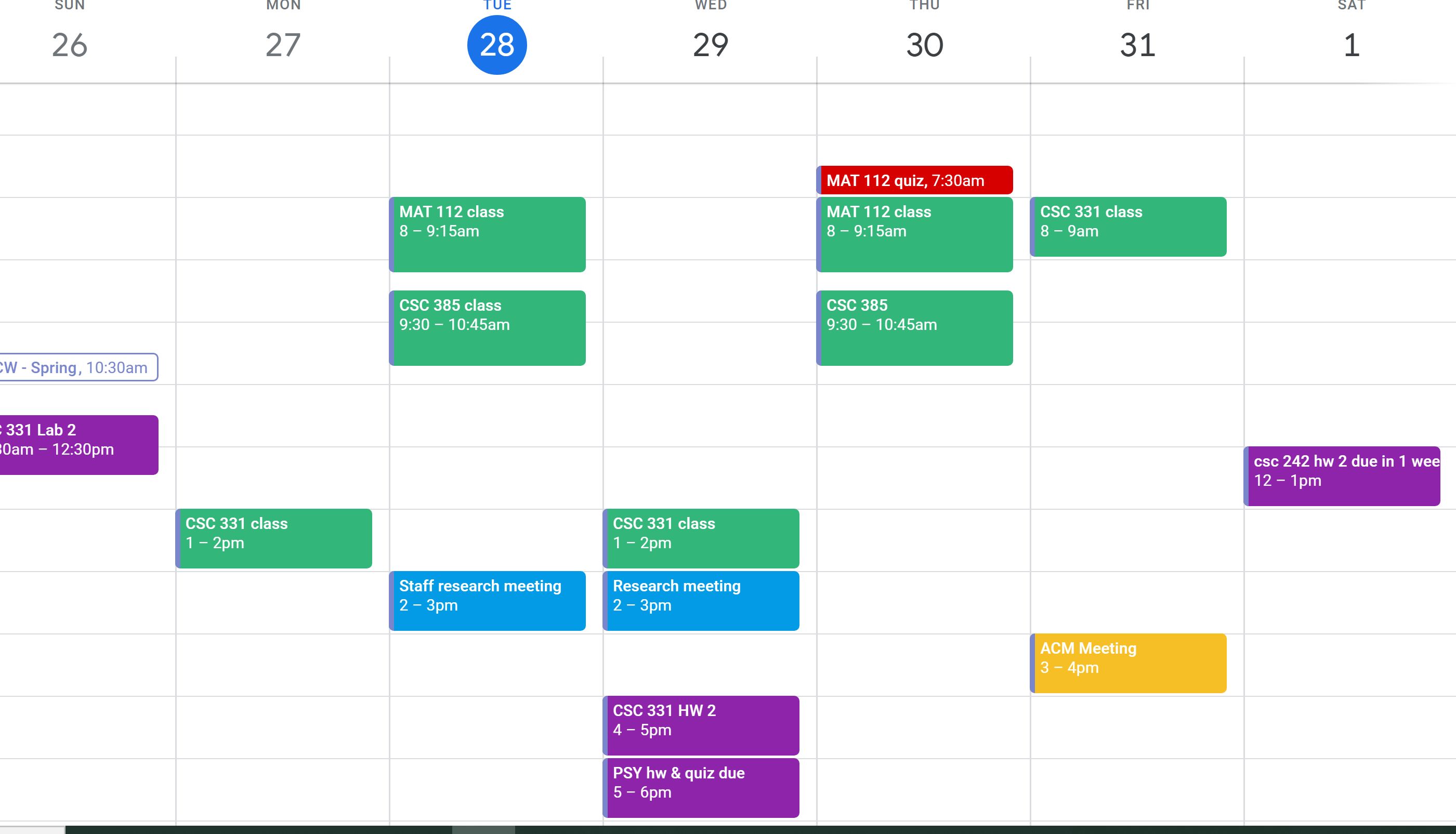
Are you tired of juggling multiple calendars and reminders just to stay organized? Look no further! In this article, we'll show you how to integrate Google Home with Google Calendar, making it easier than ever to manage your schedule and stay on top of your commitments.
Why Integrate Google Home with Google Calendar?
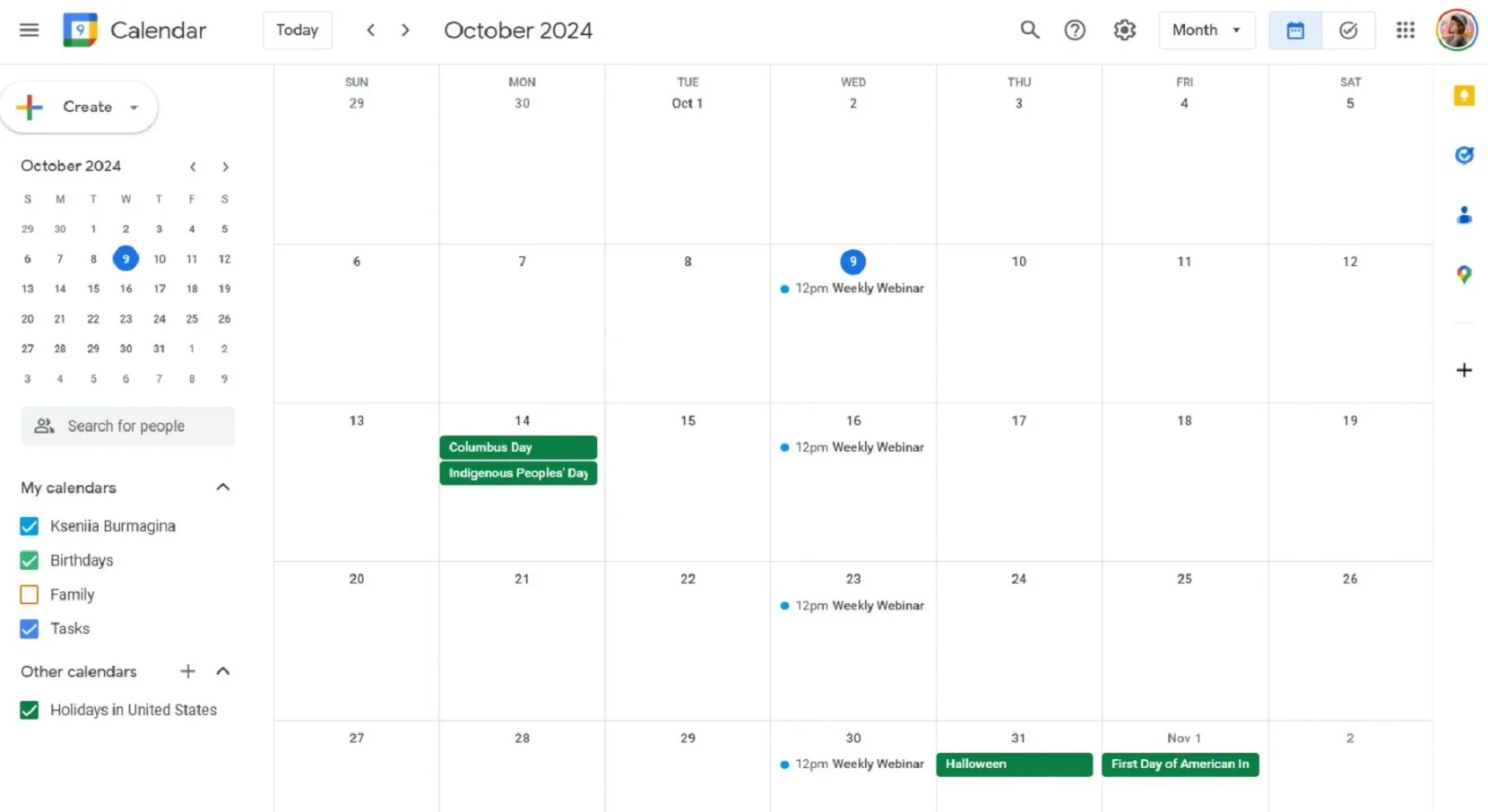
Google Home and Google Calendar are two powerful tools that, when integrated, can revolutionize the way you manage your schedule. With Google Home, you can access your calendar, add and modify events, set reminders, and receive notifications hands-free. This means you can stay organized and on schedule without having to physically check your phone or computer every few minutes.
Prerequisites for Integration
Before you can integrate Google Home with Google Calendar, you'll need to meet the following prerequisites:
- Google Home speaker or display (e.g., Google Home, Google Home Mini, Google Home Max, or Google Nest Hub)
- Google Calendar account (with events and reminders set up)
- Google Assistant or Gemini voice assistant
- A smartphone or tablet with the Google Home app
Setting up Google Home with Google Calendar
Now that you have the necessary prerequisites, let's move on to the step-by-step process of integrating Google Home with Google Calendar:
Step 1: Enable Calendar Integration in the Google Home App
Open the Google Home app on your smartphone or tablet, and navigate to the "Account" section. From there, tap on "Account linking" and search for "Calendar". Select the Google Calendar account you want to integrate with Google Home.
Step 2: Add Events and Reminders
With Google Calendar integrated with Google Home, you can add events and reminders using voice commands. Just say "Hey Google, add [event name] to my calendar" or "Remind me about [event name] at [time]".
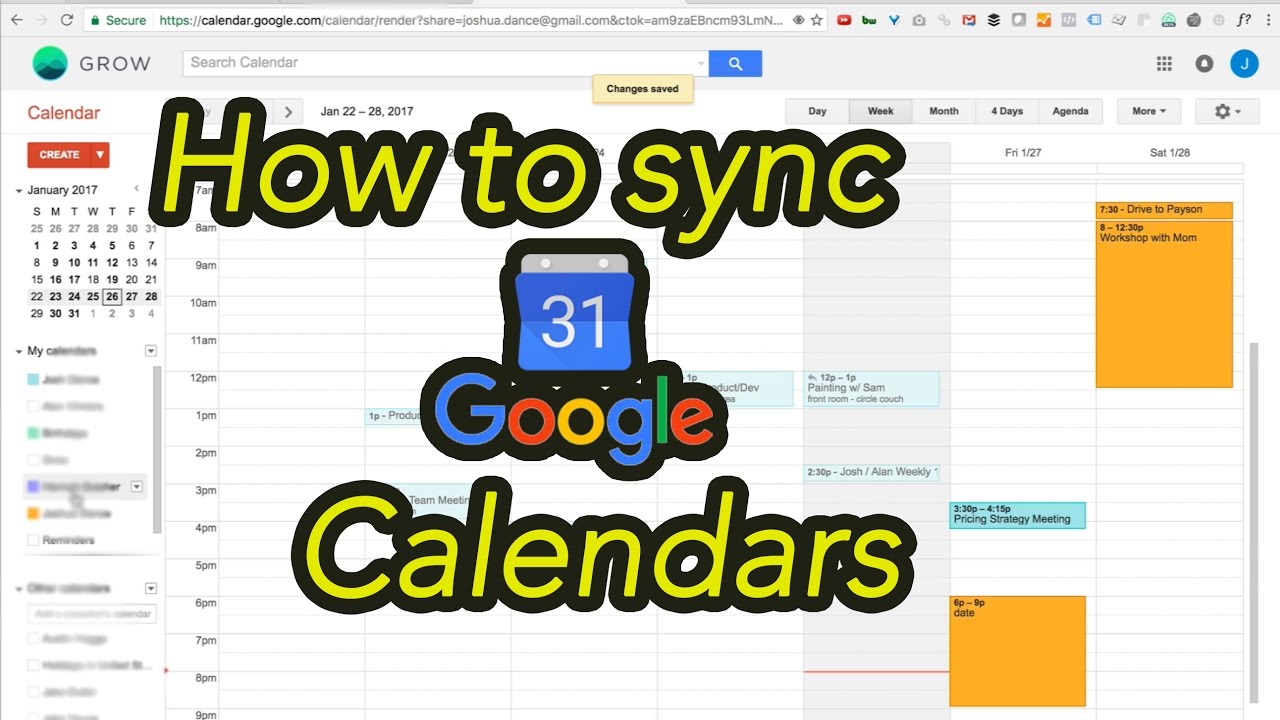
Step 3: Sync Multiple Calendars

Want to integrate multiple calendars with Google Home? No problem! You can add multiple calendars to your Google Calendar account and sync them with Google Home.
Step 4: Use Voice Commands for Efficiency
Now that you have your calendars integrated, you can use voice commands to manage your schedule. Try saying "Hey Google, what's my schedule for today?" or "Who is attending the meeting at 2 PM?"
Troubleshooting Common Sync Issues
Don't worry if you encounter any issues while integrating Google Home with Google Calendar. Here are some common problems and their solutions:
Issue: Google Calendar events not syncing with Google Home
Solution: Check that you have the latest version of the Google Home app installed, and ensure that you have enabled calendar integration in the app.
Issue: Google Home not recognizing voice commands
Solution: Make sure that your Google Home device is properly connected to the internet and that your phone or tablet is nearby.
Conclusion
Integrating Google Home with Google Calendar is a game-changer for time management. With this integration, you can access your schedule, add events, set reminders, and receive notifications hands-free. Follow the steps outlined in this article, and you'll be on your way to seamless calendar management with Google Home.
Related Posts
- Discover the ultimate guide to Google Home and Google Calendar integration for seamless schedule management and increased productivity.
- Learn how to seamlessly sync your Google Calendar with Google Home using these simple steps.
- Teach Google Assistant to manage your busy schedule and sync your calendars with Google Home for efficient management.