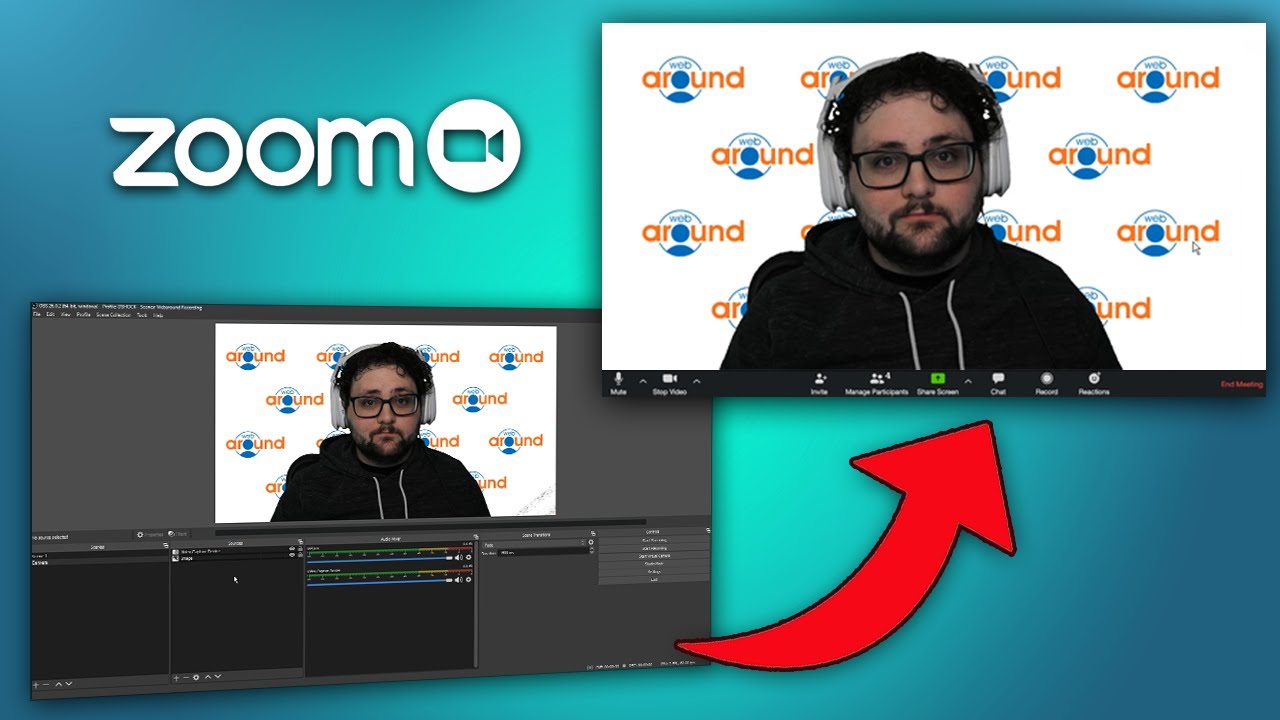
How to Set Up OBS: A Comprehensive Guide
Introduction
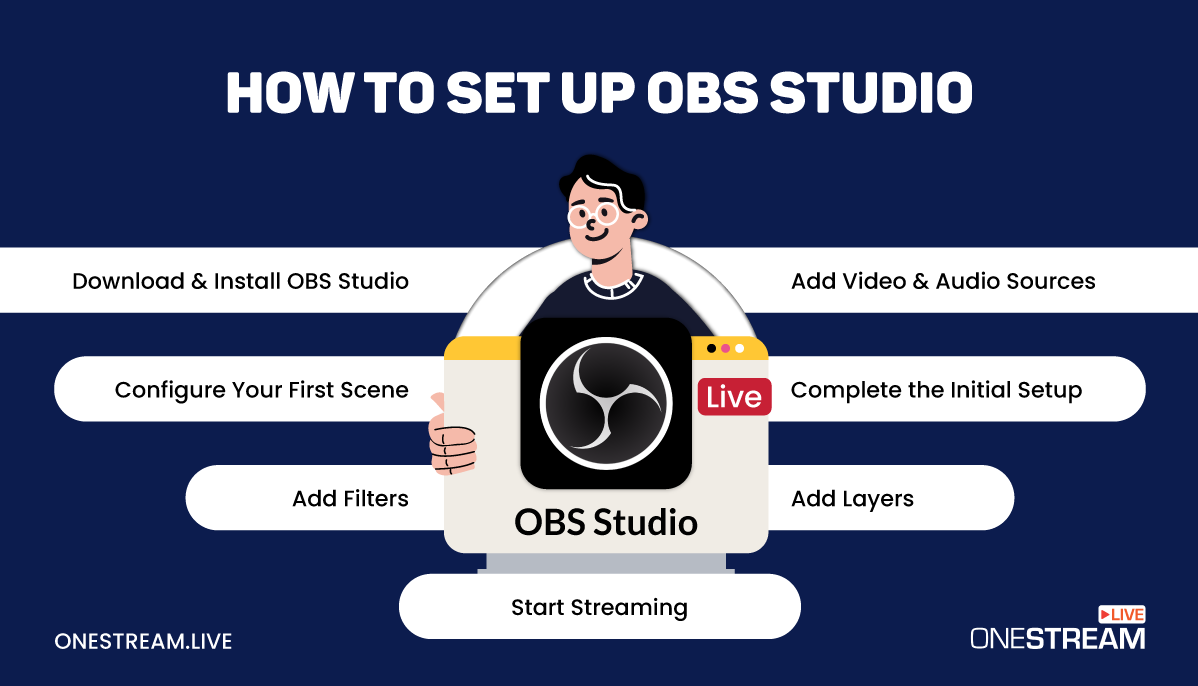
Are you new to OBS Studio and looking for a comprehensive guide on how to set it up? Look no further! In this article, we will walk you through the entire setup process, from downloading and installing OBS to optimizing your settings, adding sources, and creating great content. By the end of this guide, you will be well on your way to creating professional-looking live streams and recordings using OBS Studio.Step 1: Download and Install OBS
The first step in setting up OBS is to download and install the software. OBS Studio is free and open-source, and it's available for Windows, macOS, and Linux. To download OBS, simply visit the official OBS website and click on the download button for your operating system.Once you've downloaded the installation file, run it and follow the installation prompts. The installation process is straightforward and should only take a few minutes to complete.
Step 2: Optimize Your Settings
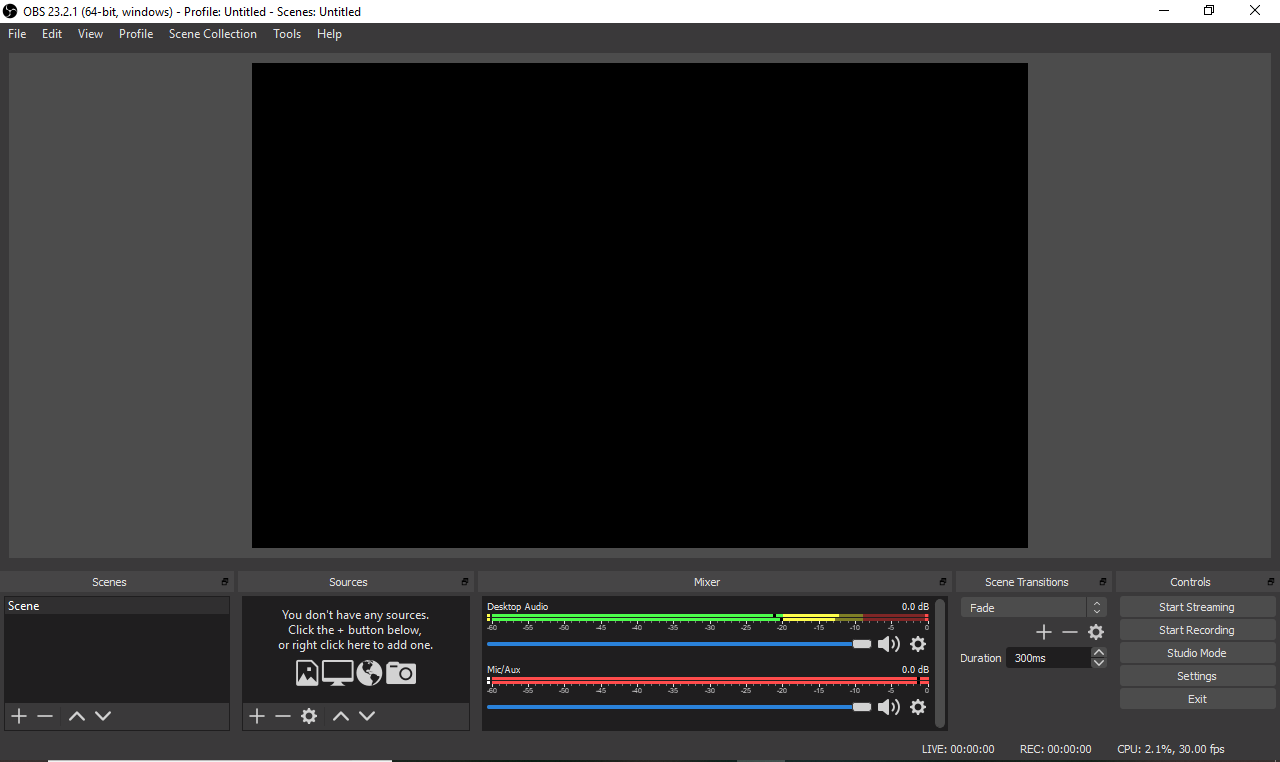
After installing OBS, it's essential to optimize your settings to get the best performance out of the software. To access the settings, click on the "Settings" button in the top right corner of the OBS window.Here, you'll find a range of settings to customize, including:
- Video Settings: Adjust your video settings, such as resolution, frame rate, and quality.
- Audio Settings: Configure your audio settings, including the input device, bitrate, and sampling rate.
- Output Settings: Set your output settings, including the file format, quality, and save location.
Step 3: Add Sources
Sources are the building blocks of your OBS setup. They can include your webcam, screen captures, audio inputs, and more. To add a source, click on the "+" button under the "Sources" section in the OBS window.Here, you can choose from a range of source types, including:
- Display Capture: Capture your entire screen or a specific window.
- Game Capture: Capture a game window.
- Video Capture Device: Capture from a webcam or other video device.
- Audio Input Capture: Capture audio from a microphone or other audio device.

Step 4: Set Up Your Audio
Audio is an essential part of any live stream or recording. To set up your audio, click on the "Settings" button in the top right corner of the OBS window and navigate to the "Audio" section.Here, you can configure your audio settings, including:
- Input Device: Select your microphone or other audio device.
- Bitrate: Set the bitrate for your audio.
- Sampling Rate: Set the sampling rate for your audio.
Step 5: Test Your Output
Before going live, it's essential to test your output to ensure everything is working correctly. To test your output, click on the "Start Streaming" button in the top right corner of the OBS window.A preview window will appear, showing you what your live stream or recording will look like. Use this opportunity to test your audio and video settings, as well as make any necessary adjustments.
Conclusion
And that's it! With these five easy steps, you should now have a comprehensive understanding of how to set up OBS Studio. By following this guide, you'll be well on your way to creating professional-looking live streams and recordings using this powerful software.Whether you're a seasoned pro or a beginner, OBS Studio is an excellent choice for anyone looking to create high-quality video content. With its flexibility, customization options, and user-friendly interface, OBS is the perfect tool for anyone looking to take their streaming or recording game to the next level.
Additional Tips and Resources
If you're new to OBS, here are some additional tips and resources to help you get started:- OBS Tutorials: Official OBS tutorials to help you get started with the software.
- OBS FAQ: Official OBS FAQ to help you troubleshoot any issues you may encounter.
- OBS YouTube Tutorials: A range of YouTube tutorials to help you learn OBS.