How to Set Up Guest Wi-Fi Network: A Comprehensive Guide
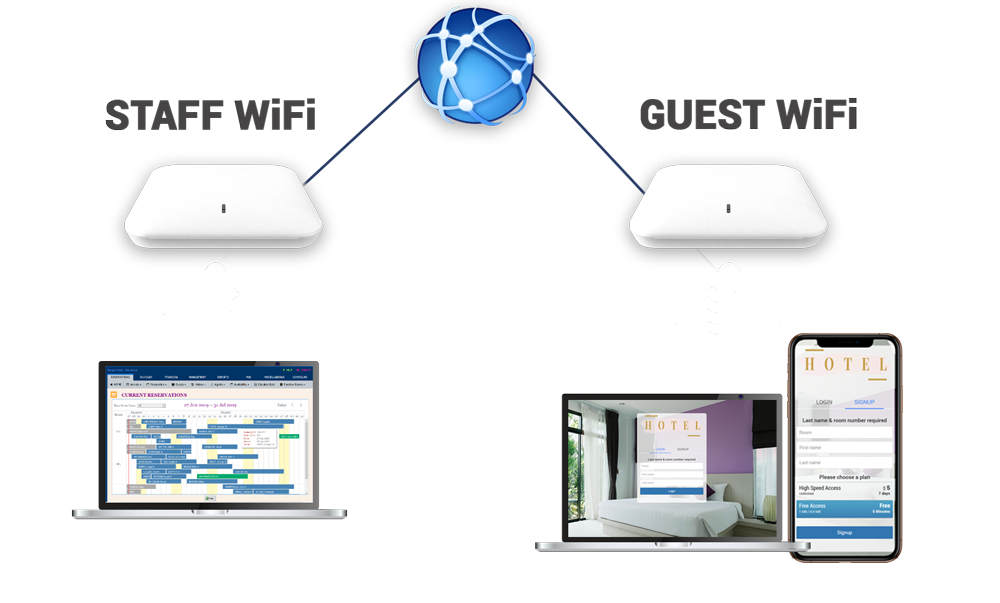
Setting up a guest Wi-Fi network is a great way to provide internet access to visitors while keeping your main network secure. In just a few easy steps, you can create a guest Wi-Fi connection that allows guests to use your internet without accessing your devices. This guide will walk you through the simple process of how to set up a guest Wi-Fi network, ensuring both convenience and security for your guests.
Benefits of Setting Up a Guest Wi-Fi Network
The benefits of setting up a guest Wi-Fi network are numerous. By creating a separate network for your guests, you can:
- Prevent unauthorized access to your main network and devices
- Limit bandwidth and internet usage for your guests
- Provide a secure and private internet connection for your guests
- Keep your main network and devices safe from malware and viruses
How to Set Up a Guest Wi-Fi Network
Setting up a guest Wi-Fi network is a relatively simple process. Here are the steps to follow:
Step 1: Create a Guest Wi-Fi Network
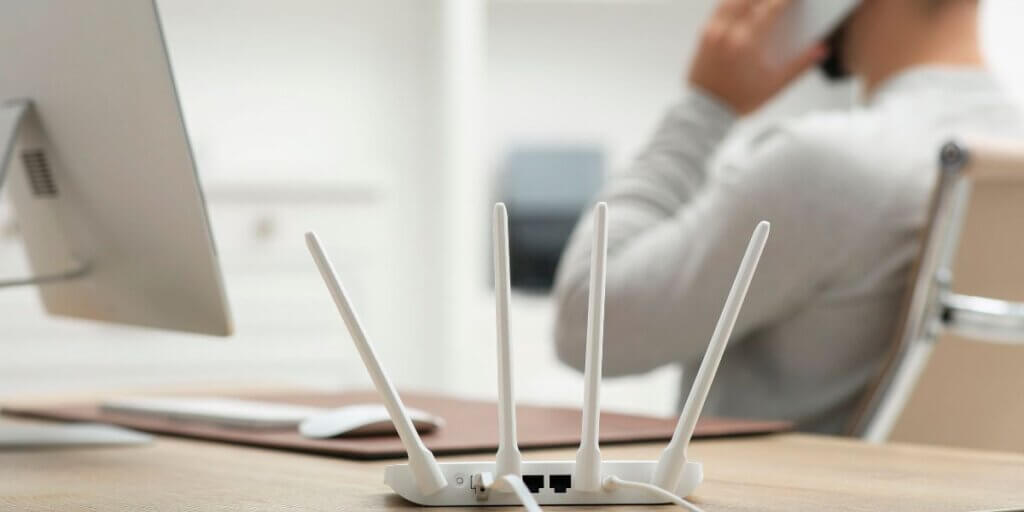
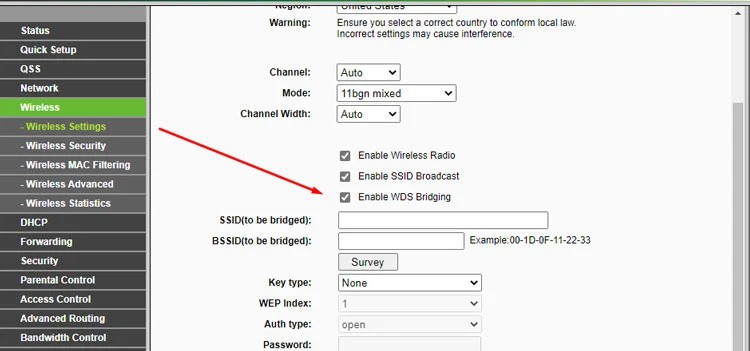
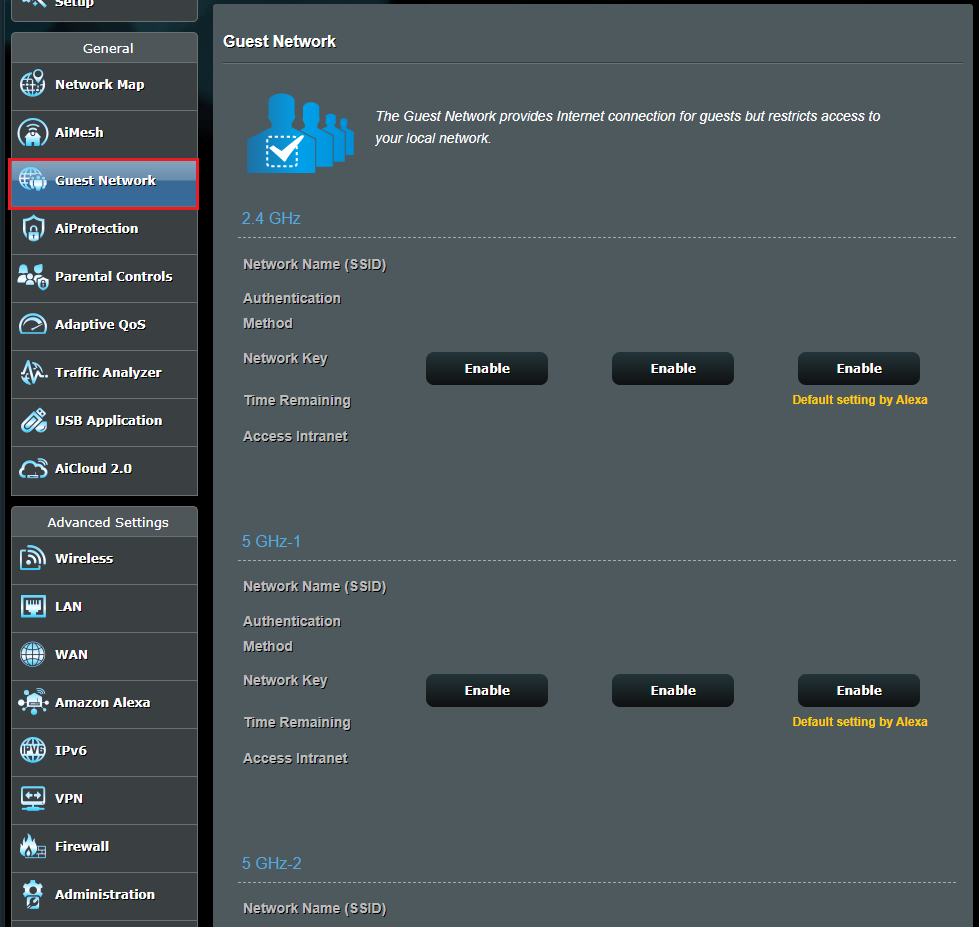
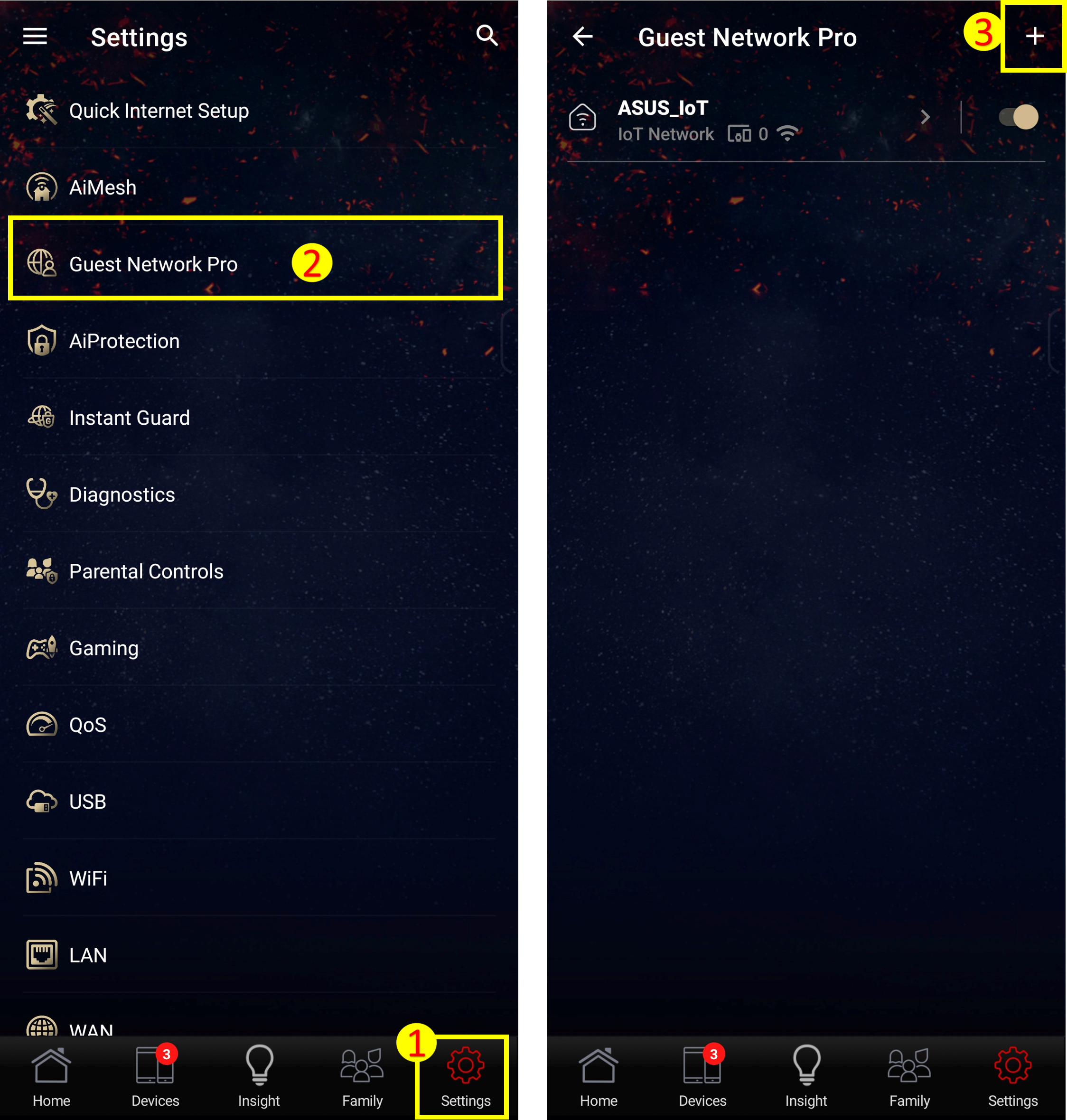
To create a guest Wi-Fi network, you'll need to access your router's admin panel. The steps to access the admin panel will vary depending on your router's make and model. Generally, you can access the admin panel by typing the router's IP address into your web browser.
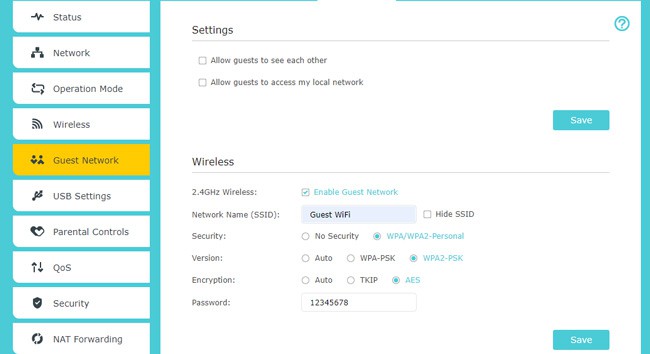
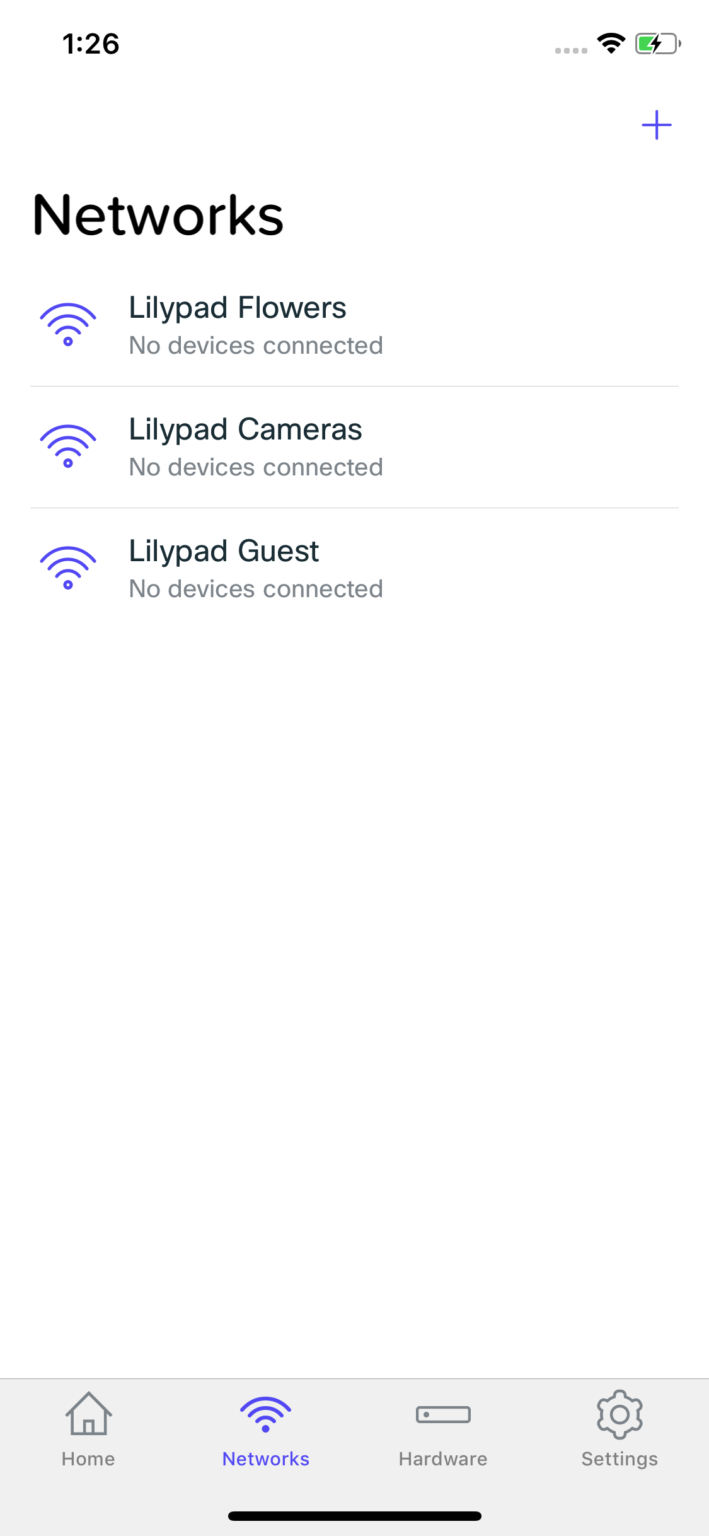
Once you've accessed the admin panel, look for the section that allows you to create a new network. This section is usually labeled as "Guest Network" or "Visitor Network." Click on this section to create a new network for your guests.
Step 2: Configure the Guest Wi-Fi Network

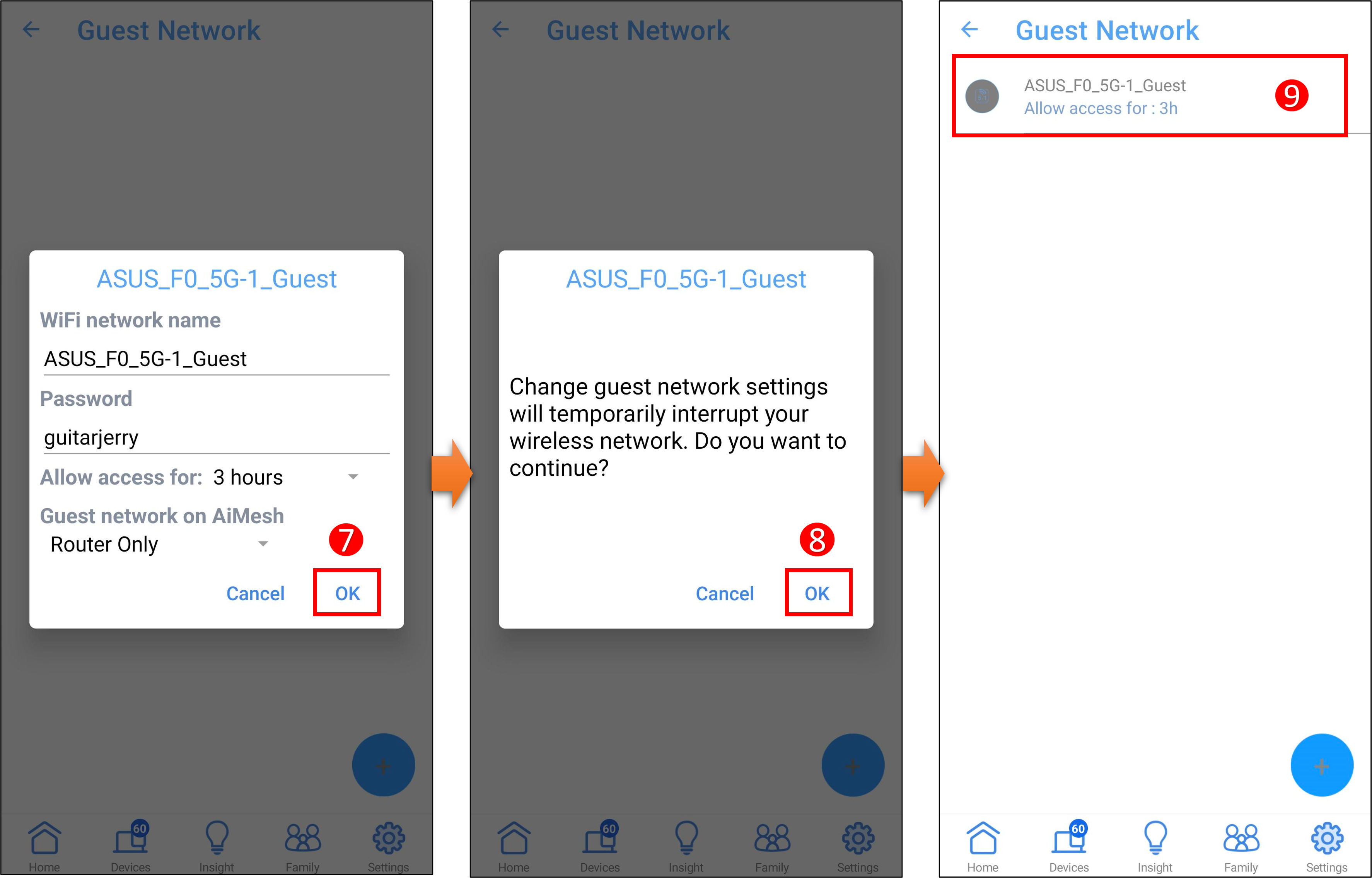
Once you've created a guest Wi-Fi network, you'll need to configure it to suit your needs. This may include setting the network's name, password, and bandwidth limits. You'll also need to decide whether to enable or disable features such as firewall protection and WPA2 encryption.
Step 3: Set Up Wi-Fi Network Isolation
Wi-Fi network isolation is a feature that prevents devices connected to your guest Wi-Fi network from accessing your main network. This is an essential security feature that helps to prevent unauthorized access to your devices and data.
Step 4: Test the Guest Wi-Fi Network
Before inviting guests to use your new guest Wi-Fi network, make sure to test it thoroughly. Connect a device to the network and ensure that it's working properly. You should also test the network's bandwidth and internet speeds to ensure that they meet your needs.
Tips and Best Practices for Setting Up a Guest Wi-Fi Network
Here are some additional tips and best practices to keep in mind when setting up a guest Wi-Fi network:
- Use a strong password to secure your guest Wi-Fi network
- Limit the bandwidth and internet usage for your guests
- Use WPA2 encryption to secure your guest Wi-Fi network
- Enable firewall protection to prevent unauthorized access to your devices and data
- Regularly update your router's firmware to ensure that you have the latest security patches
Conclusion
Setting up a guest Wi-Fi network is a simple and effective way to provide internet access to your guests while keeping your main network secure. By following the steps outlined in this guide, you can create a secure and private internet connection for your guests. Remember to always use strong passwords, limit bandwidth and internet usage, and enable firewall protection to ensure that your guest Wi-Fi network is secure and reliable.