Setting up Google Home with Ecobee Thermostat: A Step-by-Step Guide
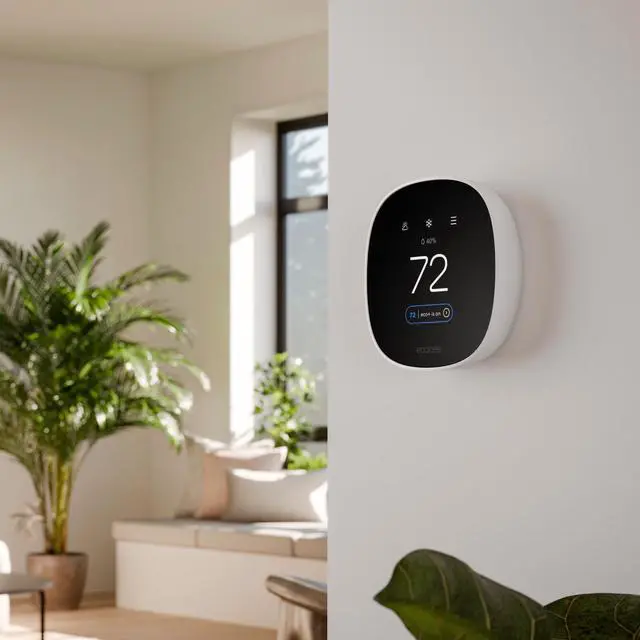
Are you looking to upgrade your home's temperature control with the convenience of a smart thermostat and the power of Google Home? If so, you're in luck! In this article, we'll walk you through the process of setting up Google Home with your Ecobee thermostat, exploring the necessary setup steps, voice commands, model comparisons, and common issues that may arise.
Before You Begin
Before setting up your Google Home with Ecobee thermostat, make sure you have the following:
- A Google Home device (Home, Mini, or Hub)
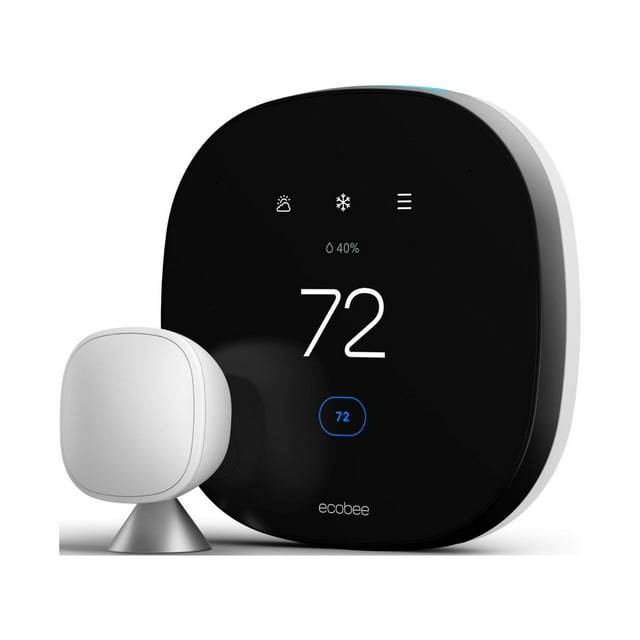
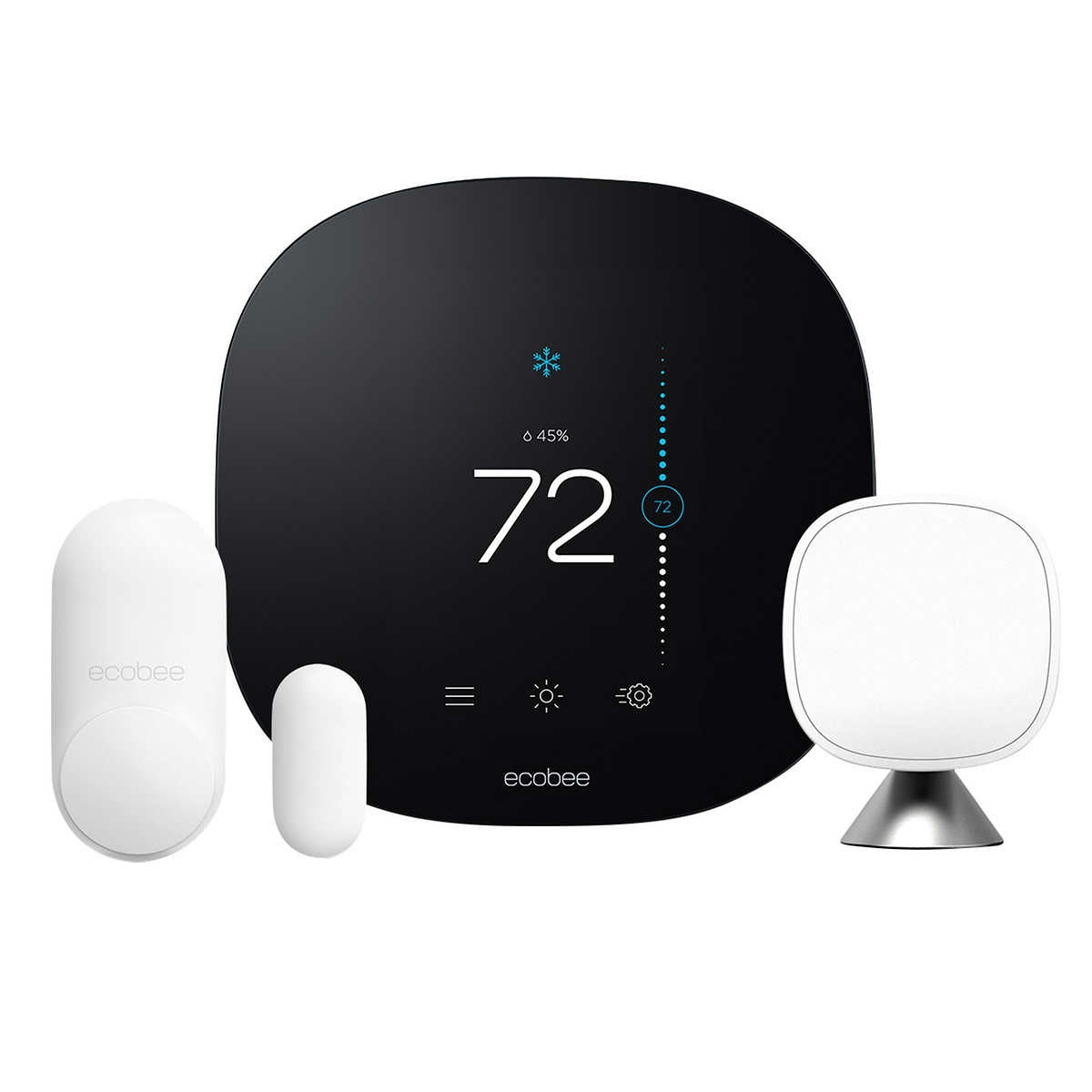
- An Ecobee thermostat (Ecobee3, Ecobee3 Lite, or Ecobee Enhanced)
- A stable and secure internet connection
Ensure your Ecobee thermostat is connected to a compatible Wi-Fi network and has been registered on the Ecobee website.
Step 1: Pair Your Ecobee Thermostat with Google Home
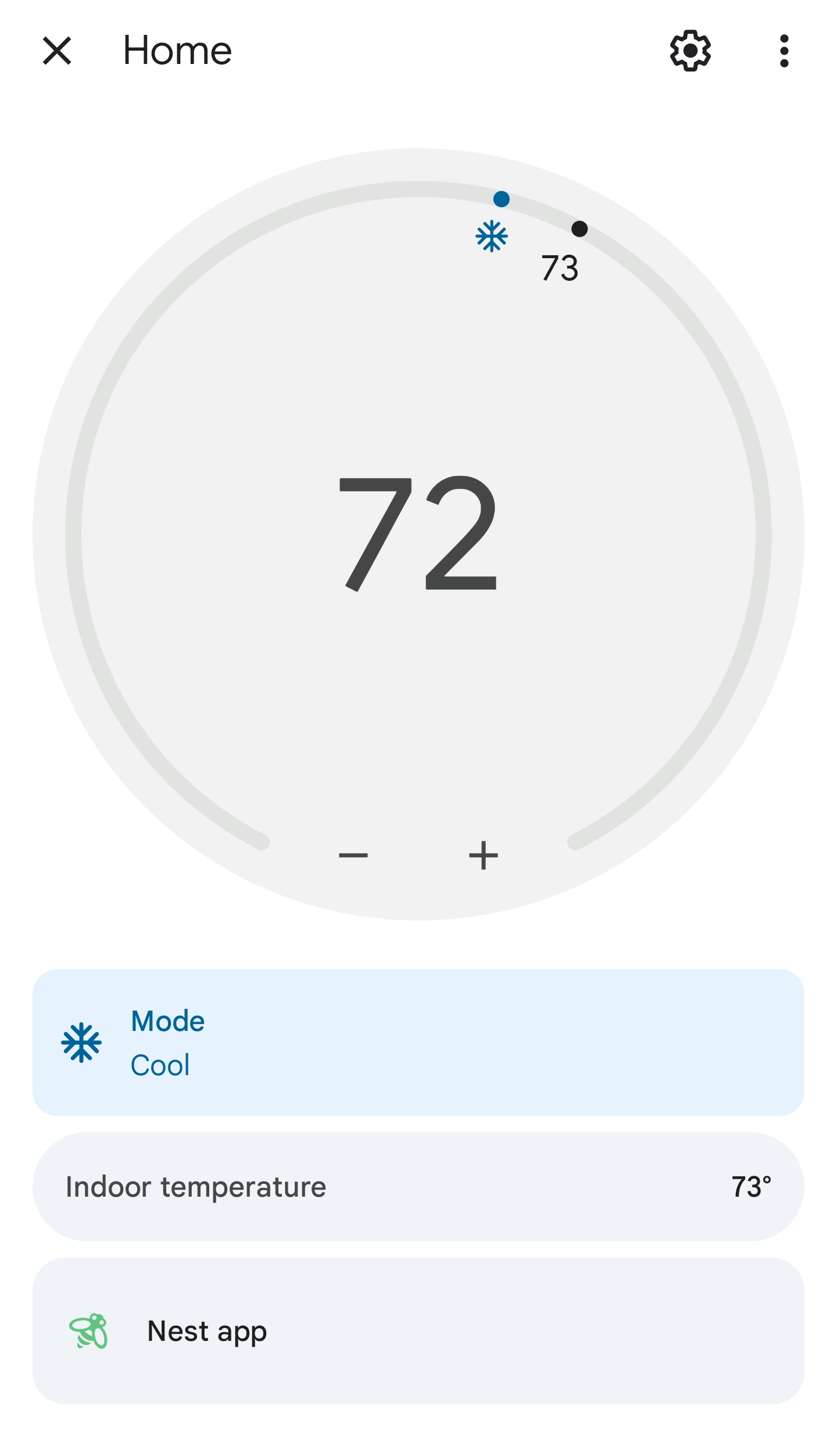
Open the Google Home app on your mobile device and navigate to 'Settings' by tapping on the gear icon in the top right corner. Tap 'Home' and then 'All devices.'
Locate your Ecobee thermostat in the list of available devices and tap on it. If it's not listed, you may need to register it on the Ecobee website first.
Step 2: Authorize Google Home to Access Your Ecobee Thermostat
Once your Ecobee thermostat is listed, you'll be prompted to sign in to your account and read the authorization statement from Google. Click the 'Accept' button to link your Google and Ecobee accounts.
After completing this step, your Ecobee smart thermostat and Google Home hub will be paired, allowing you to control your thermostat via your hub.
Step 3: Add Your Ecobee Thermostat as a Voice Control Device in Google Home
Tap on the 'Devices' tab in the Google Home app and look for your Ecobee thermostat. Tap on it and then select 'Add to Group.' Choose a name for the group and add your Ecobee thermostat to it.
This will enable voice control of your Ecobee thermostat using Google Assistant, so you can adjust the temperature by simply using voice commands like 'Hey Google, turn up the heat.'
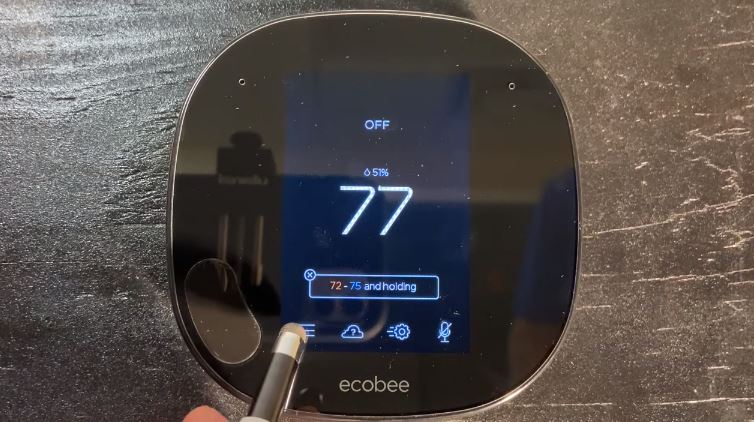
Step 4: Configure Voice Commands and Settings
With your Ecobee thermostat paired with Google Home, you can now use voice commands to control your home's temperature. Some popular voice commands include:
- 'Hey Google, turn up/down the heat'
- 'Hey Google, what's the temperature in the living room?'
- 'Hey Google, turn on/off the AC'
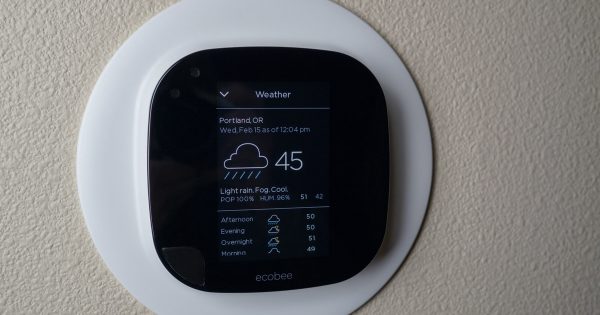
For more advanced settings and features, you can access the Ecobee app or the Google Home app to customize your experience.
Common Issues and Troubleshooting
Some potential issues you may encounter when setting up your Google Home with Ecobee thermostat include:
- Difficulty pairing the devices
- Unresponsive voice commands
- Delayed responses
Don't worry, we've got you covered! Make sure to refer to Ecobee's official support resources or the Google Home app for troubleshooting tips and solutions to resolve these issues.
Conclusion
Setting up Google Home with your Ecobee thermostat is a simple and seamless process that enhances your smart home experience. By following these steps, you'll be able to control your home's temperature with voice commands, optimize energy efficiency, and increase comfort.
For more information on voice commands, model comparisons, and troubleshooting, be sure to check out our related articles and stay up-to-date with the latest smart home news and updates.
Final Tips and Recommendations
- Regularly update your Ecobee thermostat's firmware to ensure stability and optimal performance.
- Explore the Ecobee app for advanced features and custom settings.
- Consider integrating your Ecobee thermostat with other smart home devices for a comprehensive and connected home experience.
Happy smart home-ing!



 "Does Ecobee Work with Google Home? Find Out")