Router Wireless Settings: A Comprehensive Guide to Optimize Your Home Network
Understanding Your Router's Wireless Settings
Whether you're a seasoned tech enthusiast or a novice user, navigating your router's wireless settings can be a daunting task. With the increasing importance of a stable and secure home network, understanding your router's wireless settings is essential to optimize your internet experience. In this article, we'll cover everything you need to know about configuring your router's wireless settings, from accessing the administration panel toadvanced options like Smart Connect and MAC filtering.
Accessing Your Router's Wireless Settings
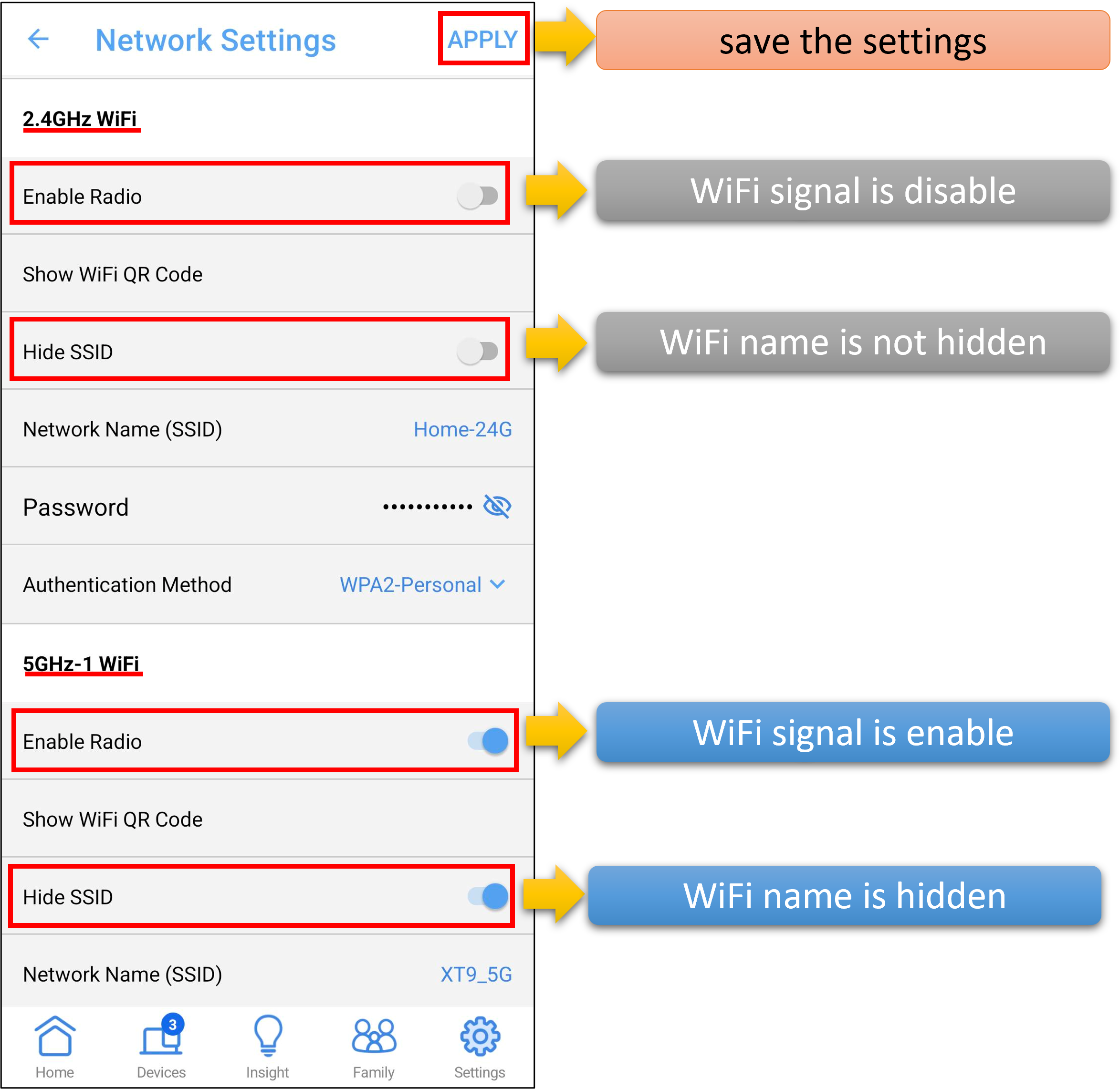
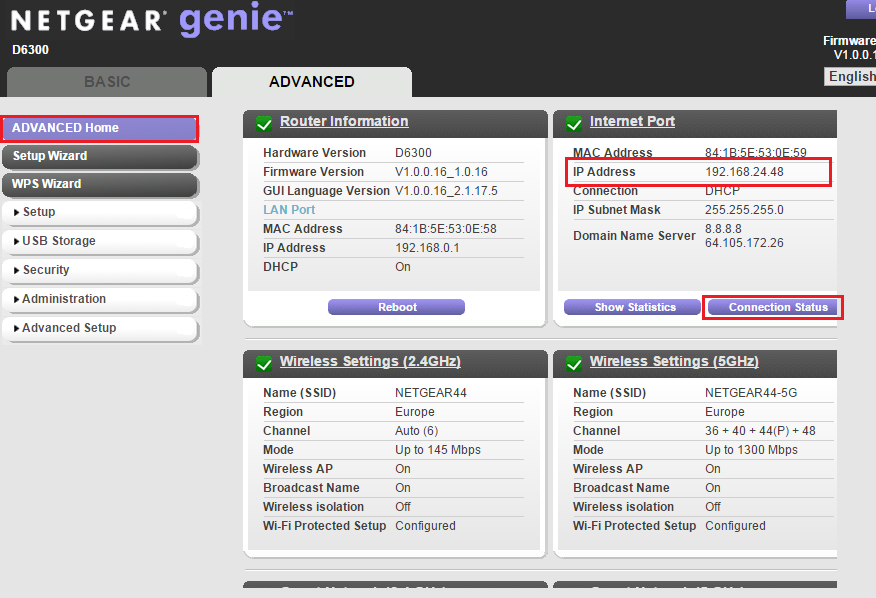
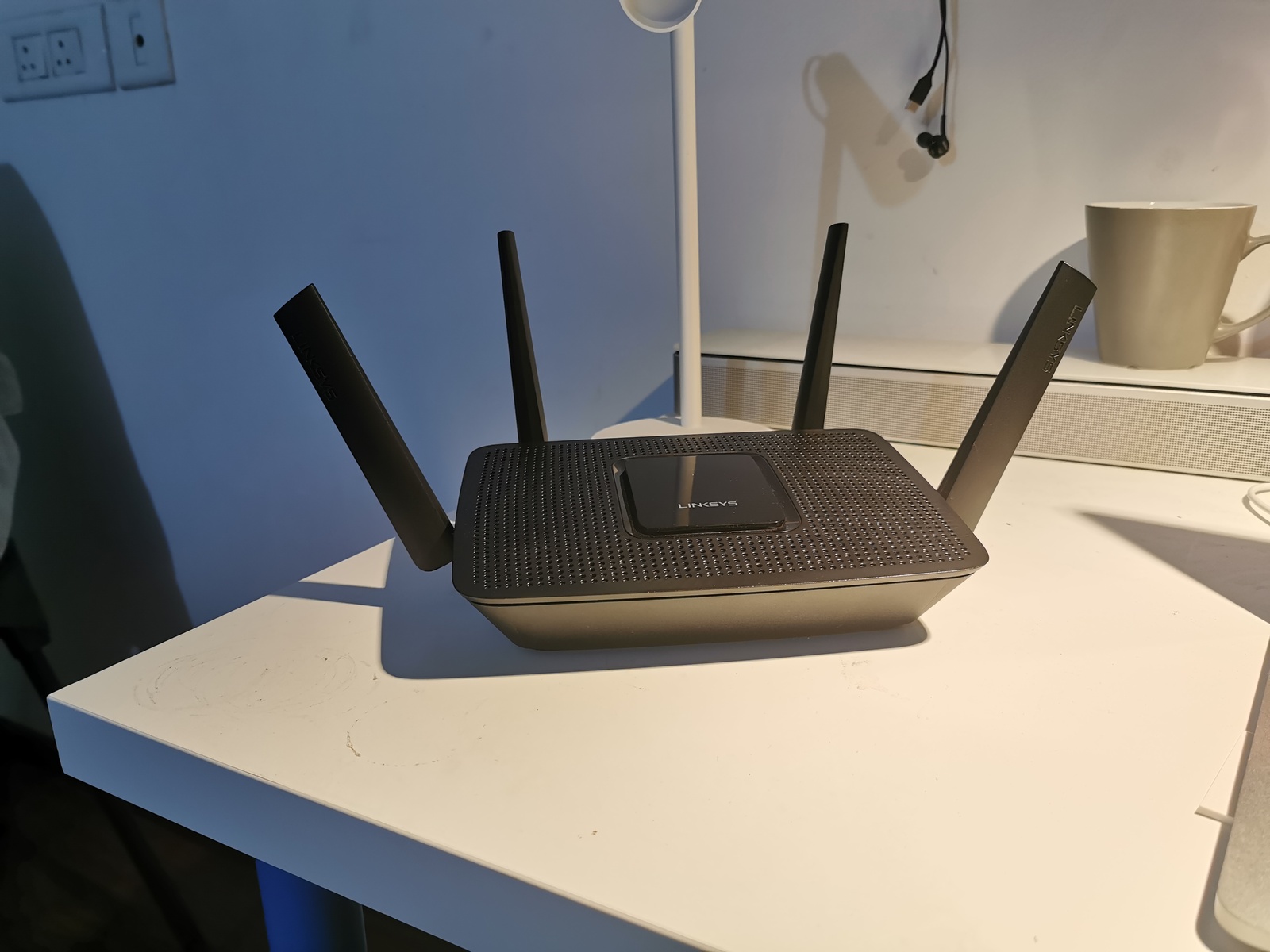
To access your router's wireless settings, you'll need to log in to your router's administration panel. This can usually be done by typing your router's IP address into a web browser, and then entering your login credentials. The specific process may vary depending on your router's model and firmware, but most routers offer a user-friendly interface to manage your wireless settings. Some popular brands, such as Netgear, Asus, TP-Link, and Linksys, even offer mobile apps for easier management.
Changing Your WiFi Password, Network Name, and Security Options
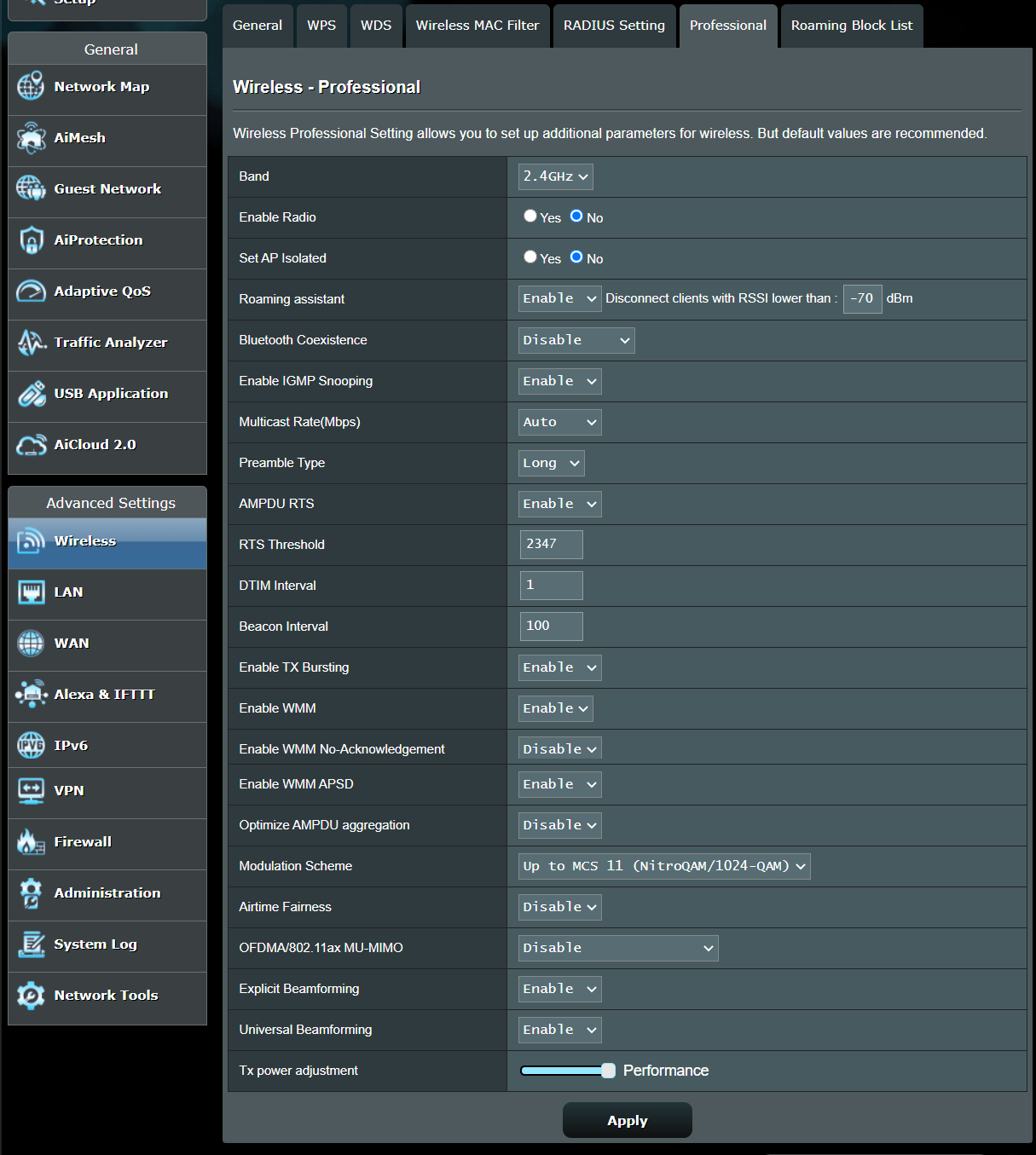
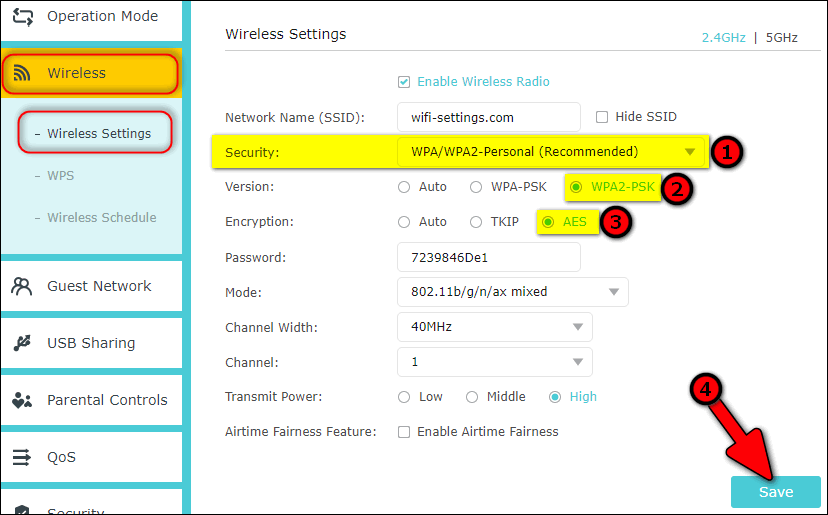
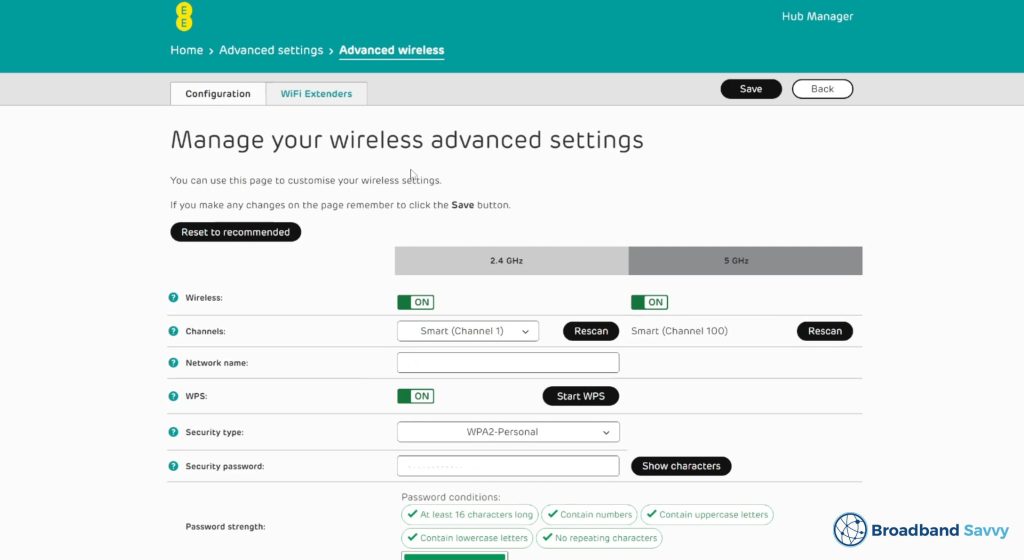
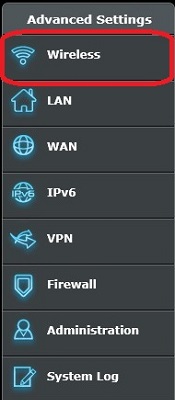
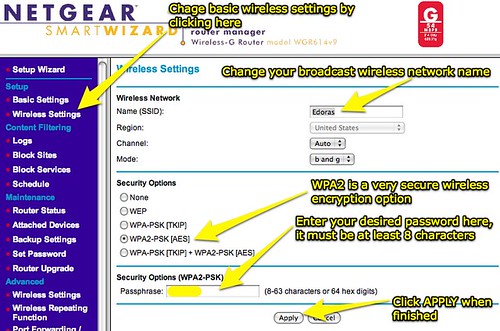
One of the most common reasons to access your router's wireless settings is to change your WiFi password, network name, and security options. You can do this by navigating to the "Wireless" or "Advanced" section of your router's interface. Here, you can modify your WiFi password, change your network name (SSID), and configure advanced options like WPA2 encryption and MAC filtering.
Smart Connect and Channel Selection
Smart Connect is a feature that allows your router to automatically switch between its 2.4GHz and 5GHz networks based on the device's capabilities and location. This can help improve overall network performance and reduce congestion. When enabled, Smart Connect shares the same SSID (network name) and password for both networks.
MAC Filtering and Wi-Fi Password Management
MAC filtering allows you to restrict access to your network based on the unique MAC address of each device. This can help improve security by preventing unauthorized devices from accessing your network. You can also use MAC filtering to restrict access to specific features or services on your network.
Resetting Your Router to Factory Settings
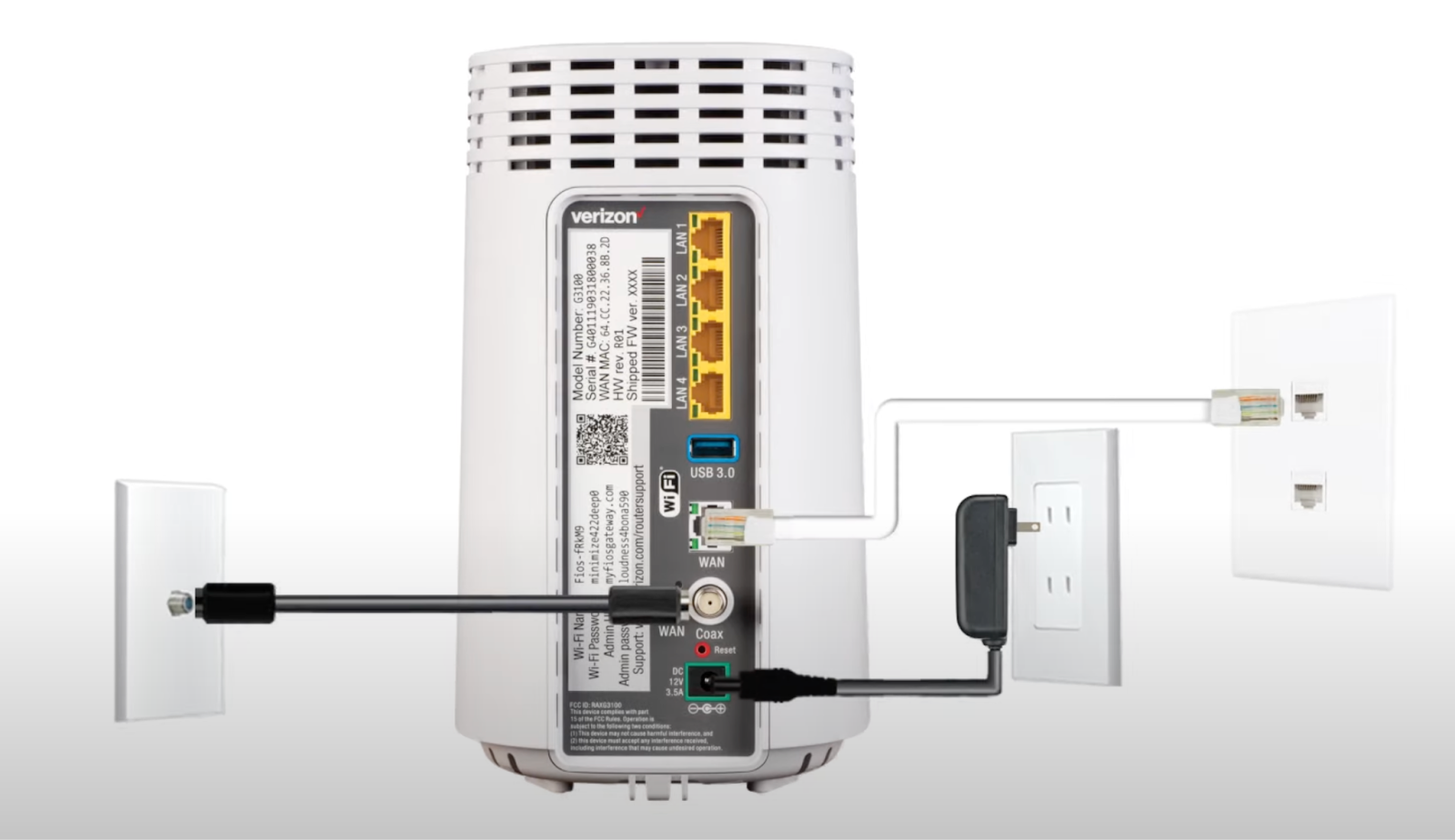
If you've forgotten your login credentials or need to restore your router to its factory settings, you can usually do this by pressing and holding the reset button on your router for a few seconds. This will erase all settings and restore your router to its default configuration.
Common Router Firmware and Models
TP-Link Archer BE900
TP-Link's Archer BE900 is a high-performance Wi-Fi 7 router that offers four bands, eight networking ports, and two USB ports. This makes it an excellent choice for users who need a reliable and fast internet connection.
ASUS Router
ASUS routers are known for their user-friendly interface and advanced features like Smart Connect and AI-powered performance optimization. You can access your ASUS router's wireless settings by navigating to the "Advanced" or "Wireless" section of your router's interface.
Conclusion
Understanding your router's wireless settings is crucial to optimizing your home network. By following the steps outlined in this article, you can access your router's administration panel, change your WiFi password, network name, and security options, and configure advanced features like Smart Connect and MAC filtering. Remember to keep your firmware up to date and reset your router to factory settings periodically to ensure optimal performance. Whether you're a beginner or an expert, this guide has something for you.
FAQs
- Q: How do I reset my router if I forget the login credentials? A: If you've forgotten your login credentials, you can usually reset your router to its factory settings by pressing and holding the reset button for a few seconds.
- Q: What is the difference between a gateway and a router-modem combo? A: Gateways and router-modem combos are separate devices that can provide different benefits. Gateways often offer more advanced features and faster speeds, while router-modem combos can be more affordable.
- Q: How do I change my wireless frequency settings? A: You can change your wireless frequency settings by navigating to the "Advanced" or "Wireless" section of your router's interface. Look for the "Channel Width" or "Frequency" setting and adjust it to the frequency you prefer.


![[Wireless Router] How do I enter my ASUS router's setting page using ...](https://static.mercusys.com/images/article/image-20241202155615-2320241202075617.png "[Wireless Router] How do I enter my ASUS router's setting page using ...")
/wireless-router-57ee8cea5f9b586c353f3e9f.jpg "The Best Wi-Fi Routers We've Tested for 2026 | PCMag")
![[Wireless Router] How do I enter my ASUS router's setting page using ...](https://shoukhintech.com/wp-content/uploads/2024/08/how-to-access-router-settings-without-the-login-url-username-password.png "[Wireless Router] How do I enter my ASUS router's setting page using ...")
