How to Use Google Home with Google Calendar
Sync Your Schedule and Increase Productivity with Seamless Integration
Are you tired of juggling multiple calendars and reminders? Do you want to stay organized and streamline your schedule with ease? Then, learn how to use Google Home with Google Calendar. This ultimate guide will walk you through the step-by-step process of setting up Google Home with your Google Calendar, using voice commands to manage your schedule, and integrating multiple calendars for maximum productivity.Why Use Google Home with Google Calendar?
Streamline Your Schedule and Increase Efficiency
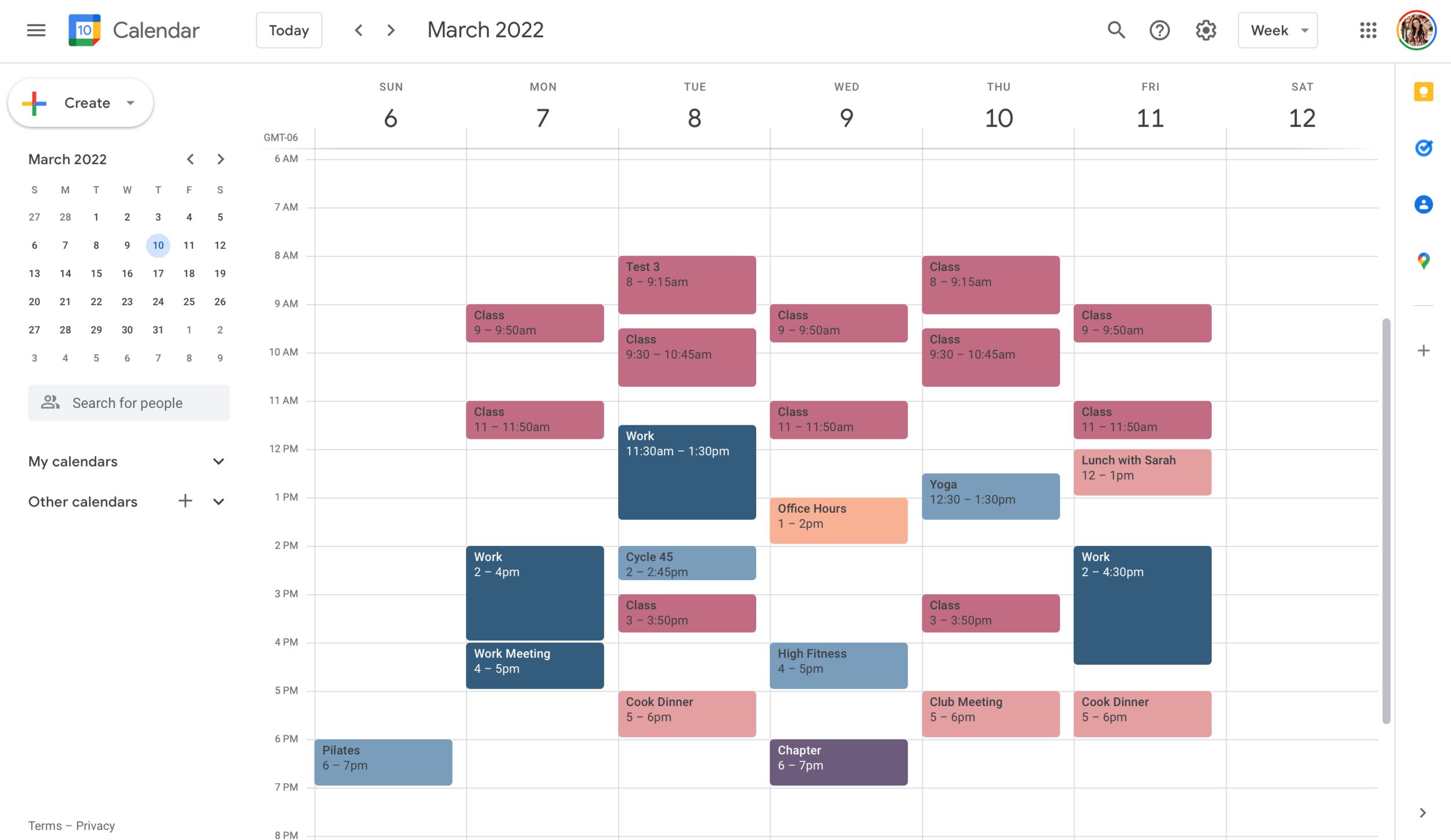
With Google Home and Google Calendar, you can: * View your upcoming events, appointments, and reminders on your Google Home display * Add calendar events or get your schedule for the day with your Google Assistant or Gemini for Home voice assistant * Use voice commands to create events, reminders, and tasks with ease * Integrate multiple calendars, including personal, work, and family calendars * Stay organized and focused with seamless calendar integrationStep-by-Step Guide to Using Google Home with Google Calendar
Set Up Google Home and Google Calendar for Seamless Integration
To use Google Home with Google Calendar, follow these simple steps:- Enable Personal Results and Voice Match: This allows Google Assistant to access your calendar, along with other personal information, such as your Google Keep, Gmail, Google Photos, and YouTube Music.
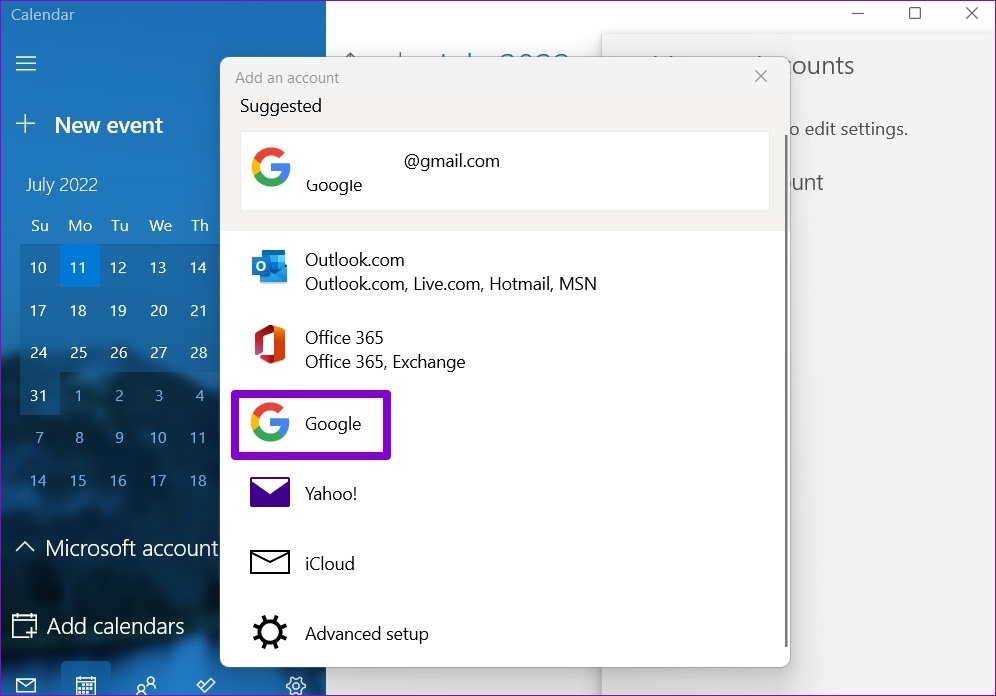
- Link Your Google Calendar to Google Home: Open the Google Home app, tap on the menu, and select "Settings." Then, tap on "Linked accounts" and link your Google Calendar account.
- Set Up Google Home to Display Your Calendar: Open the Google Home app, tap on the menu, and select "Settings." Then, tap on "Display" and select "Calendar" to show your upcoming events and appointments.
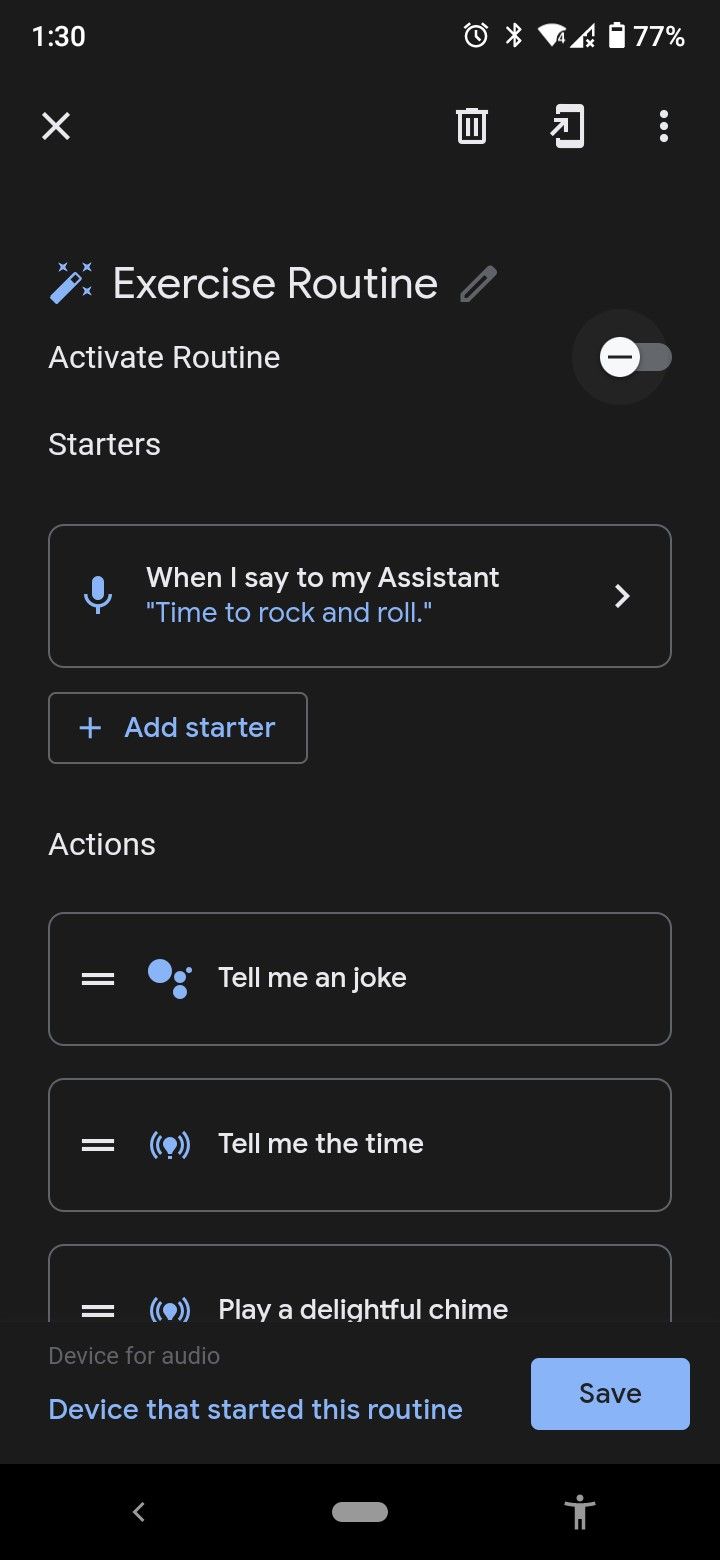
- Use Voice Commands to Manage Your Schedule: Use voice commands, such as "Hey Google, what's my schedule for today?" or "Hey Google, add an event to my calendar," to create events, reminders, and tasks with ease.
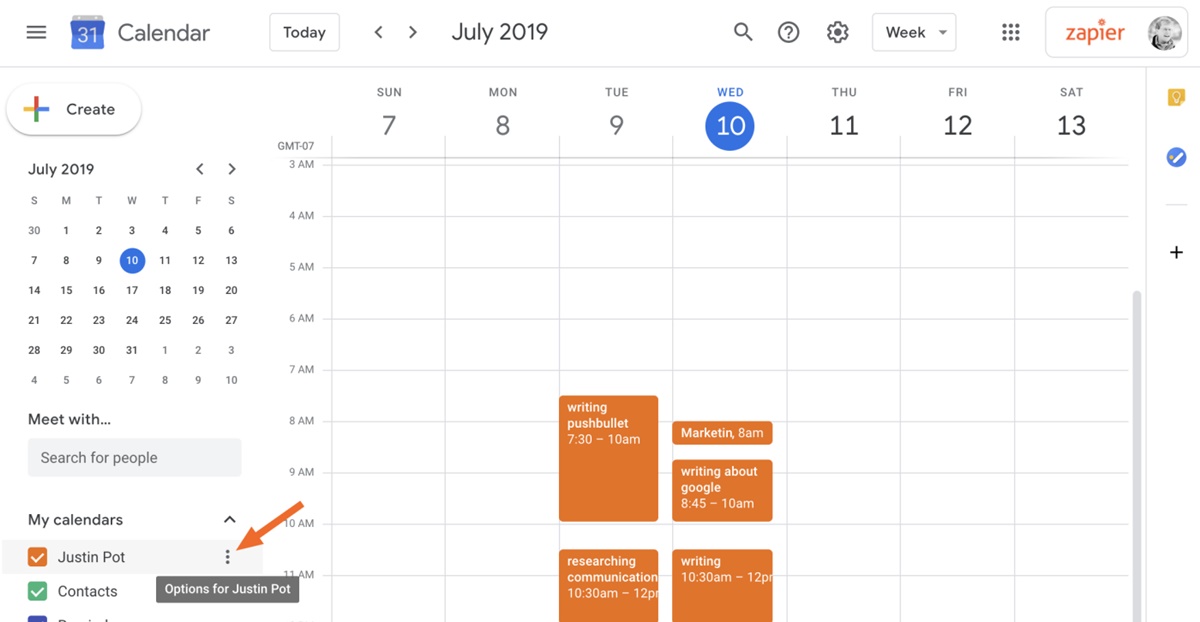
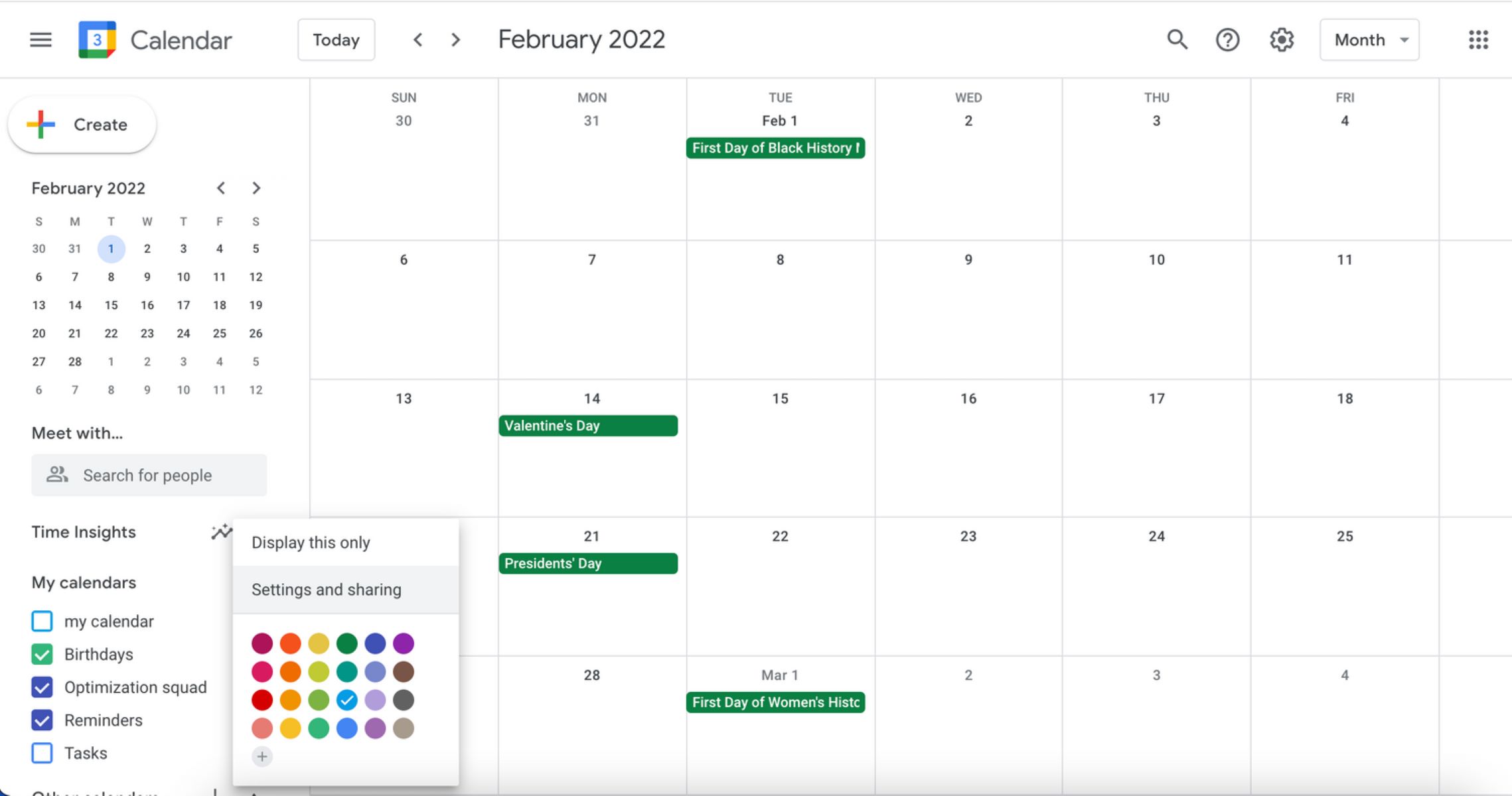
- Integrate Multiple Calendars: To integrate multiple calendars, simply link each calendar to your Google Home account, and you'll be able to view all your calendars on your Google Home display.
Troubleshooting Common Integration Issues
Resolve Common Sync Issues for Smooth Calendar Integration



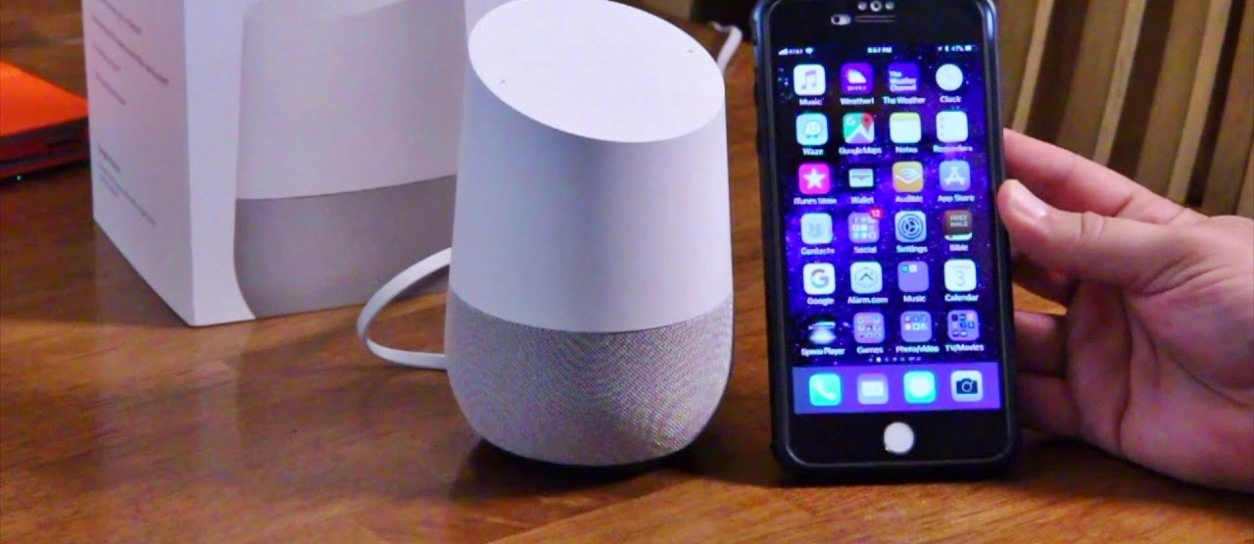
:max_bytes(150000):strip_icc()/google-home-and-iphone-4163100-04a3055626e54517b142dc2b4c81187c.png "Google Calendar")