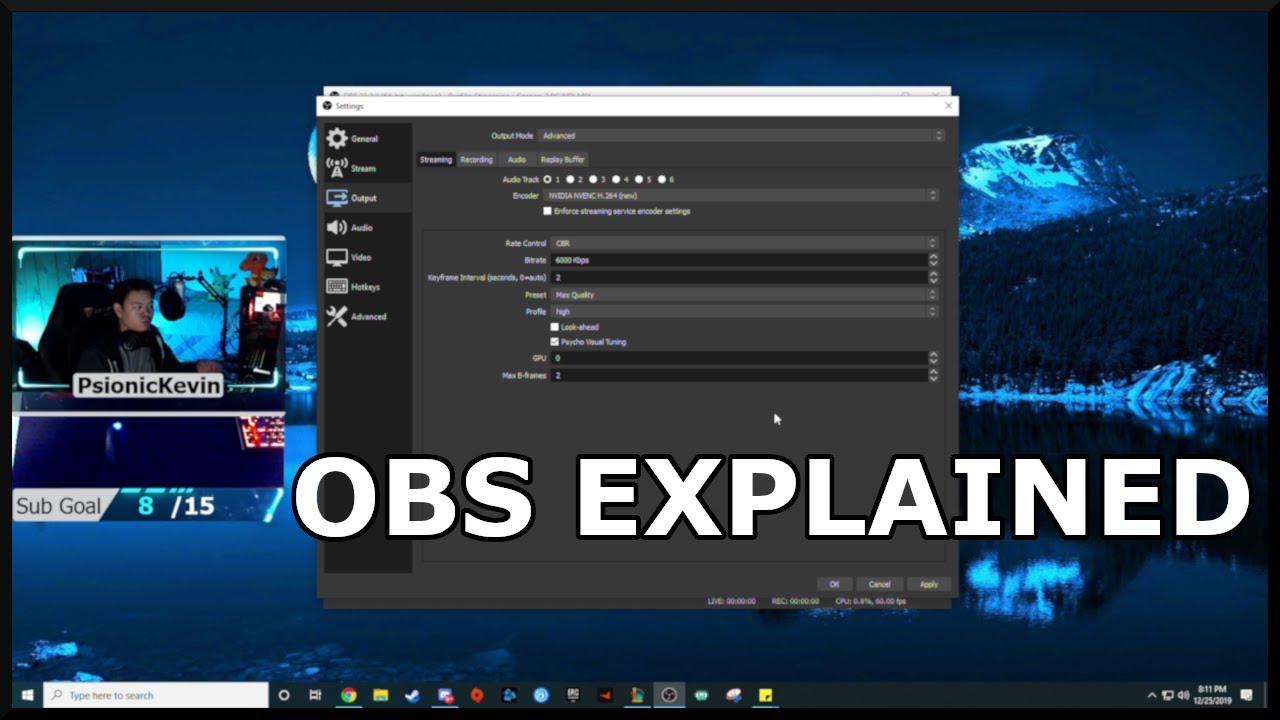
Unlock the Best Video Quality with Advanced OBS Settings for Hardcore Gamers
Are you a hardcore gamer looking to take your online gaming experience to the next level? Do you want to stream your games with crystal-clear video quality and minimal lag? Look no further! In this article, we'll delve into the advanced OBS settings that will help you achieve the best possible video quality for your streams and recordings.The Importance of Advanced OBS Settings
OBS (Open Broadcasting Software) is a powerful, free, and open-source software for video recording and live streaming. With its vast array of features, it's no wonder why OBS has become the go-to choice for gamers and content creators alike. However, with so many settings to configure, it can be overwhelming to know where to start. That's why advanced OBS settings are essential for hardcore gamers who want to optimize their streams and recordings for maximum quality and performance.Step 1: Optimizing Video Settings
To start, let's dive into the video settings that will help you achieve the best possible video quality.- Resolution: For 1080p and 60 FPS streams, we recommend a resolution of 1920x1080 (1080p) or 3840x2160 (4K) for an even sharper image.
- Frame Rate: A higher frame rate, such as 60 or 120 FPS, provides a smoother and more realistic gaming experience.
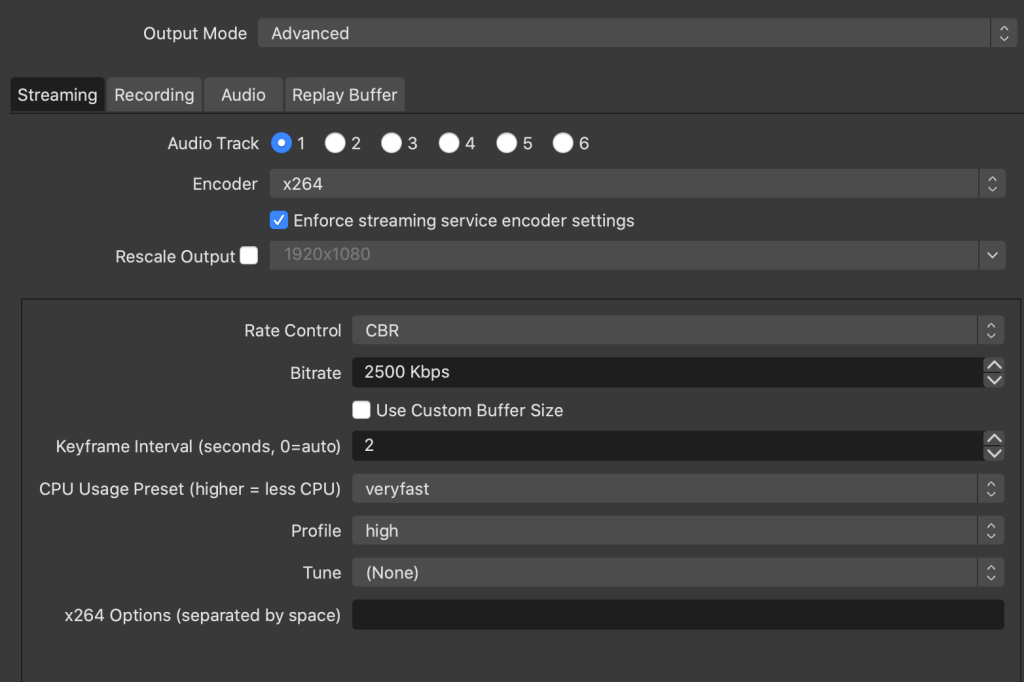
- Bitrate: Adjust the bitrate to balance video quality and stream performance. A lower bitrate may result in a smaller file size, but it can compromise on quality. For 1080p, aim for a bitrate between 10,000 to 20,000 kbps.
- Encoder: Choose a suitable encoder, such as H.264 or H.265, to compress and encode your video stream.
- Downscale Filter: Use the downscale filter to adjust the resolution of your video stream. This is especially useful for reducing the file size while maintaining video quality.
Step 2: Tweaking Audio Settings
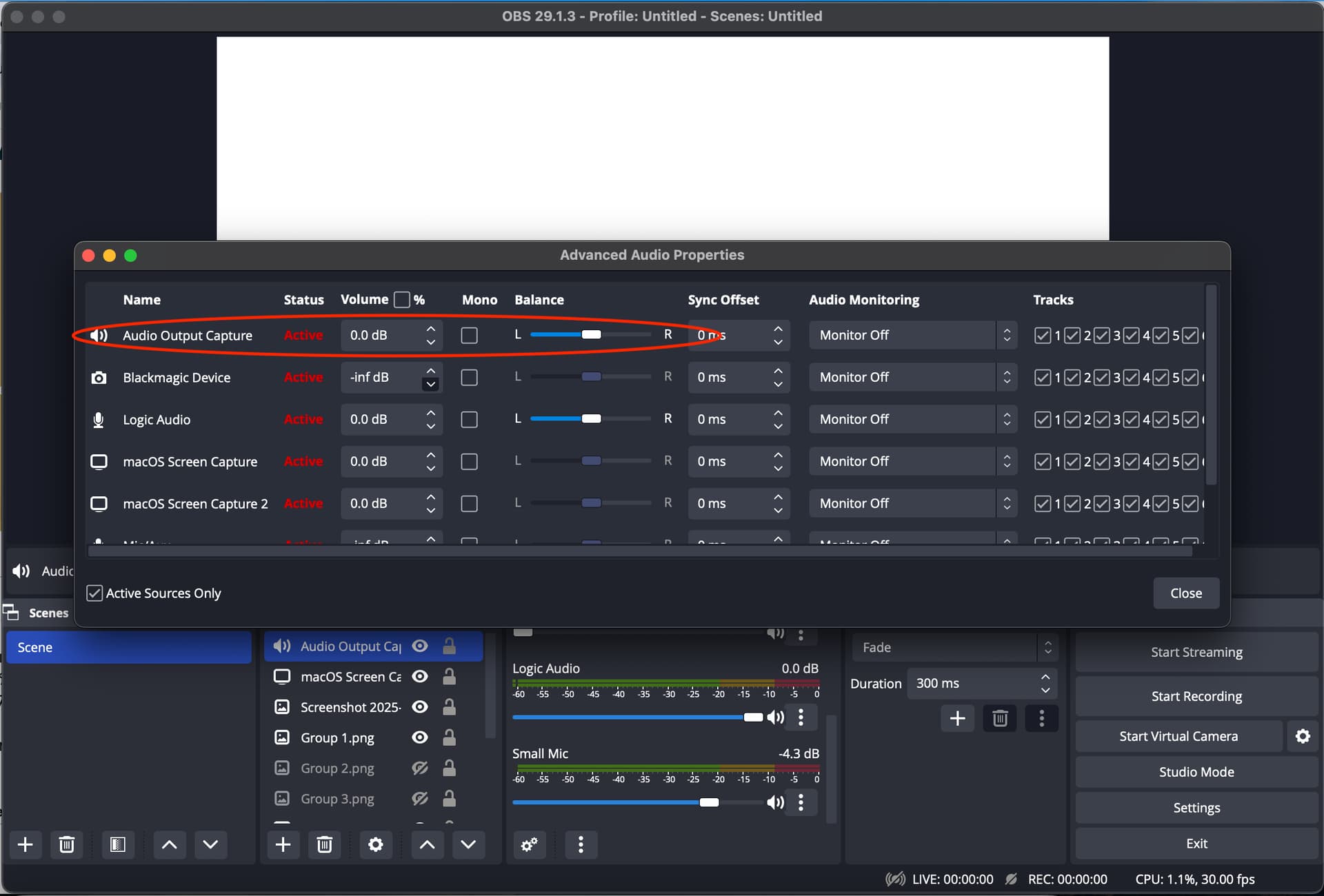
Now that we've optimized our video settings, let's move on to the audio settings that will help you achieve crystal-clear sound quality.- Audio Bitrate: Adjust the audio bitrate to balance sound quality and stream performance. For music and podcasts, aim for 320 kbps, while for gaming and talk shows, aim for 160 kbps.
- Sample Rate: Set the sample rate to 44.1 kHz or 48 kHz for optimal audio quality.
- Channel Layout: Choose the correct speaker layout, such as stereo or 5.1 surround sound.
Step 3: Configuring Output Settings
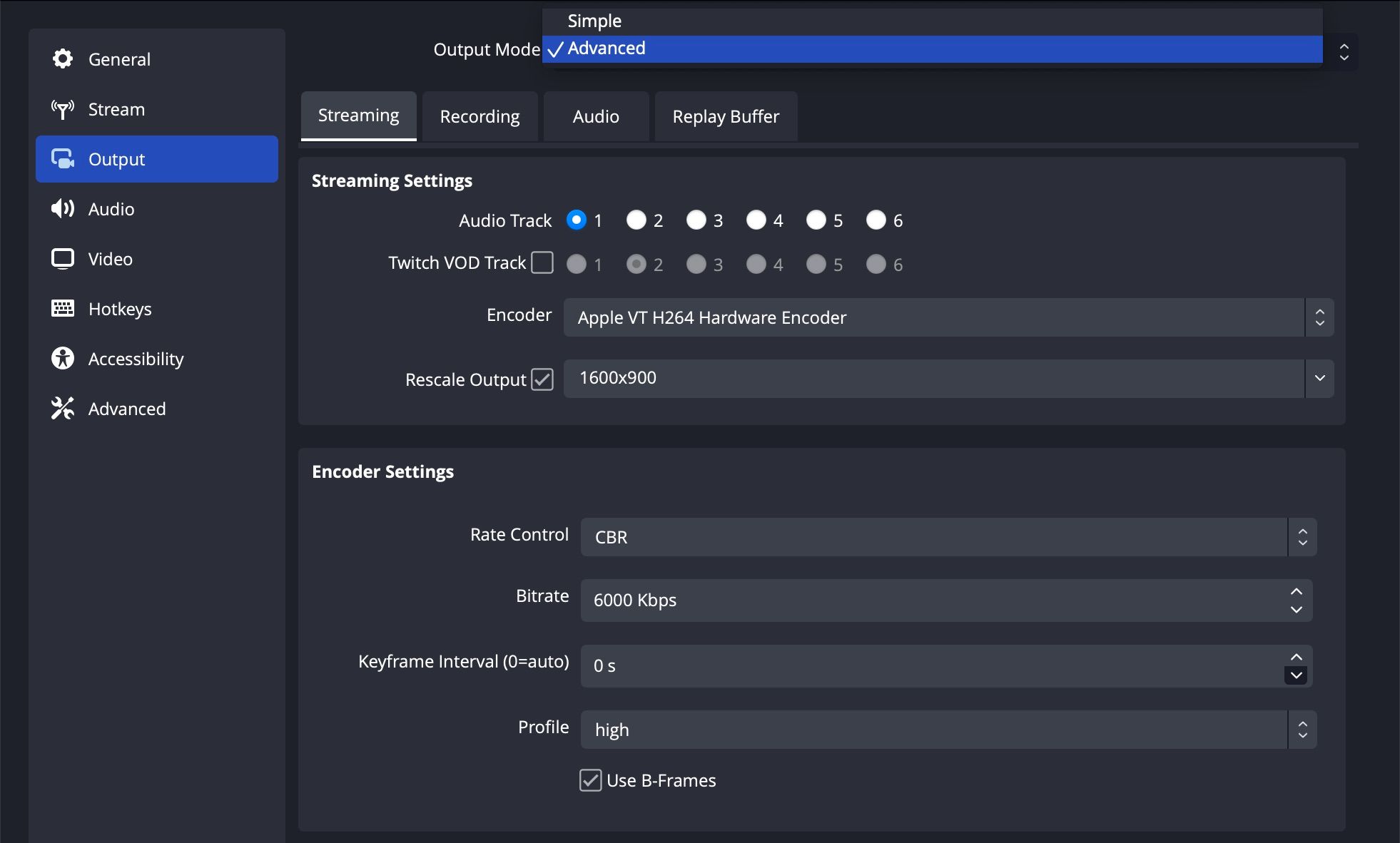
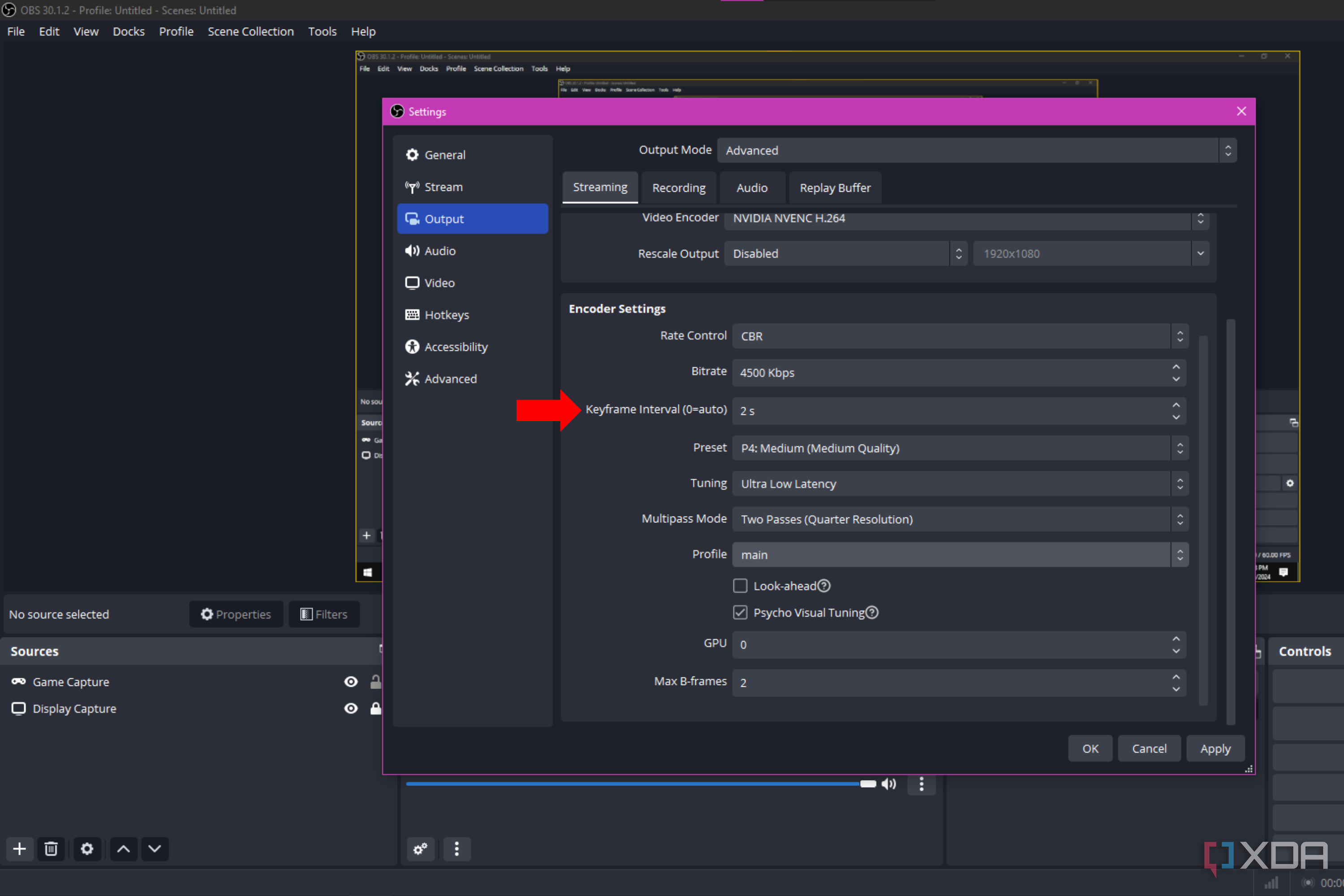
The output settings are crucial in determining the quality and performance of your stream. Here are the key settings to adjust:- Output Mode: Choose the correct output mode, such as H.264 or H.265, to suit your needs.
- Frame Rate: Match the frame rate of your video stream with the frame rate of your game or recording.
- Resolution: Choose the correct resolution for your output, matching the resolution of your input stream.
- Bitrate: Adjust the bitrate to balance output quality and stream performance.
Additional Tips
To get the most out of your advanced OBS settings, keep in mind the following tips:- Monitor Your FPS: Keep an eye on your frames per second to ensure a smooth gaming experience.
- Adjust Settings Dynamically: Adjust your settings on the fly to adapt to changing network conditions or game requirements.
- Use a Capture Card: Consider using a capture card to improve video quality and reduce lag.





![The Best OBS Settings for Streaming 2026 [with Pictures] - OBSBOT](https://www.winxdvd.com/seo-img/video-converter/obs-cbr.jpg "The Best OBS Settings for Streaming 2026 [with Pictures] - OBSBOT")
![Best OBS Settings for Streaming [2024 Edition] - LiveReacting Blog](https://blog.eklipse.gg/wp-content/uploads/2023/04/2-audio-bitrate-for-Kick.jpg "Best OBS Settings for Streaming [2024 Edition] - LiveReacting Blog")